Before you start
You need:
- A Jira Cloud site, and admin rights on it to install apps. After that, each person sets their own time zone. There is no admin setup.
1. Install the app
- Open the Timezone Buddy listing on the Atlassian Marketplace and select Get it now.
- Choose the Jira site to install it on.
- Review the permissions and confirm.
You can also install it from inside Jira: open Settings (the gear icon), go to Apps and search for "Timezone Buddy".
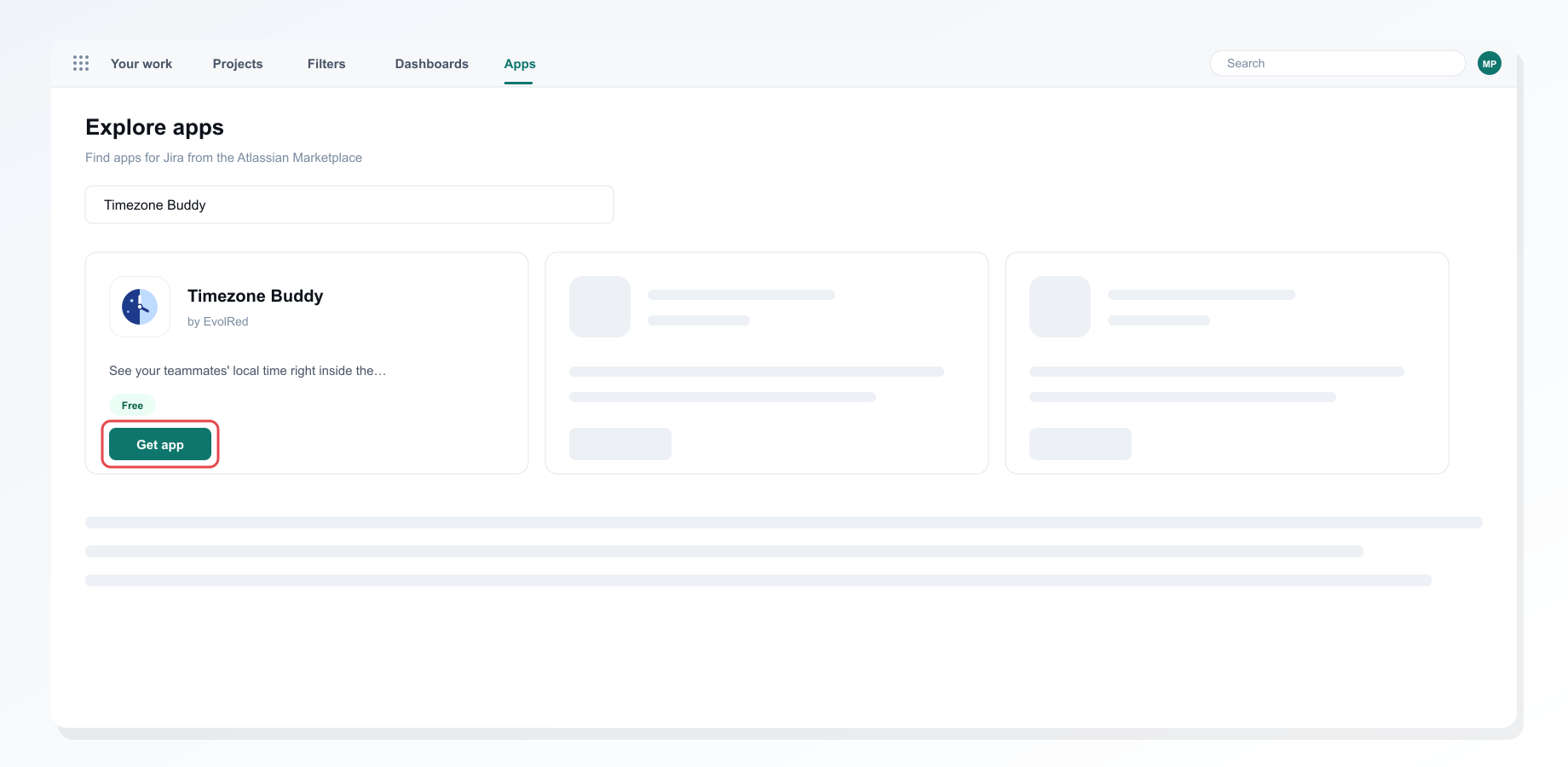 Installing Timezone Buddy from the Apps screen in Jira
The app asks for read access to issues and users. It stores each person's time zone, working hours and working days. Every week it checks those accounts with Atlassian and erases the settings of closed accounts.
2. Set your time zone
Open the Apps menu in Jira's top bar and select My Timezone Settings. Your time zone is detected from your browser; change it if it looks wrong. Set your working hours and working days, then save. Ask everyone on the team to do the same.
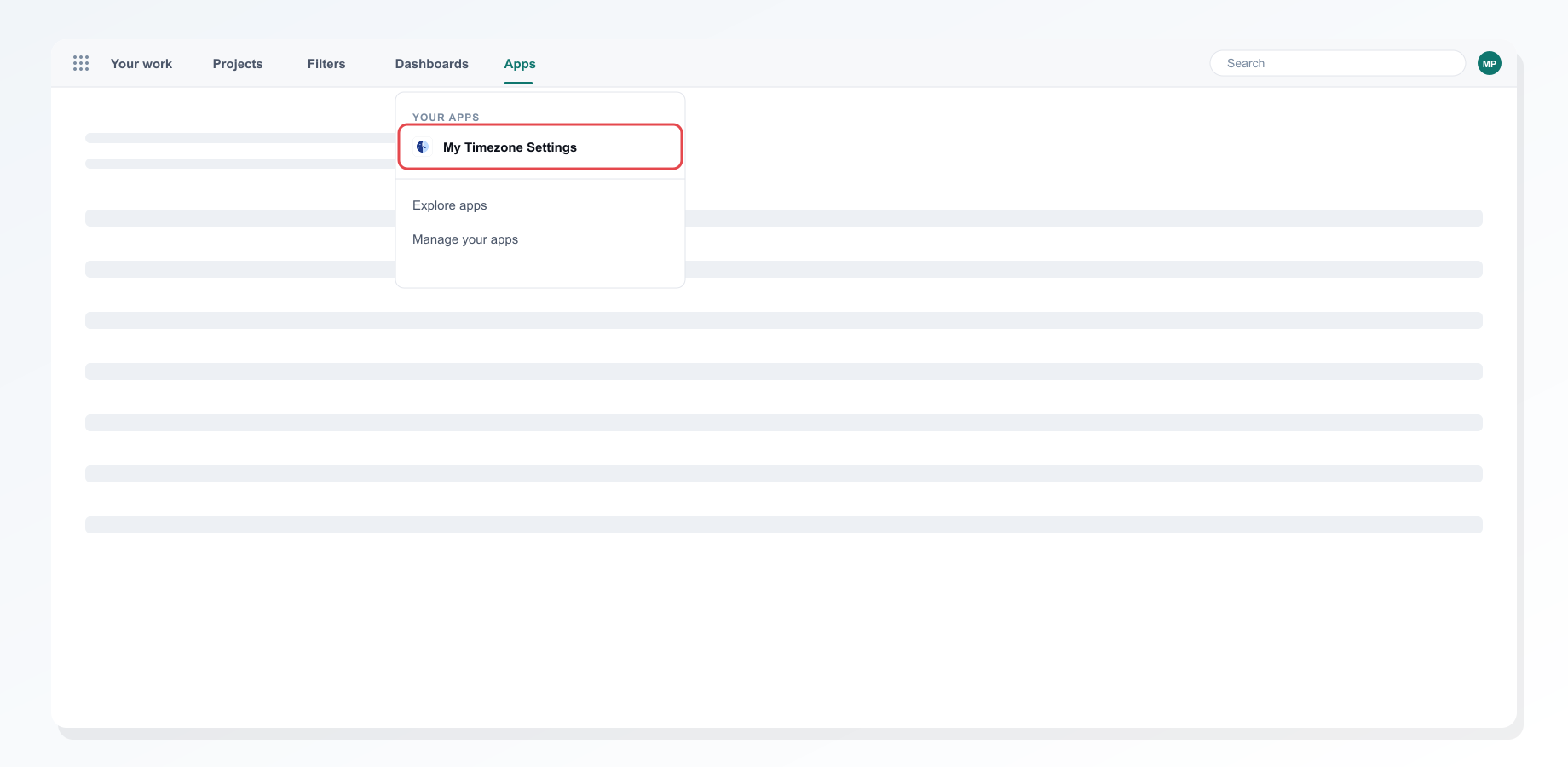 My Timezone Settings in the Apps menu
3. See local times on an issue
Open any issue and look for Team Timezone in the right-hand sidebar. It shows the assignee's and reporter's current local time and whether they are in working hours, outside them or on a day off.
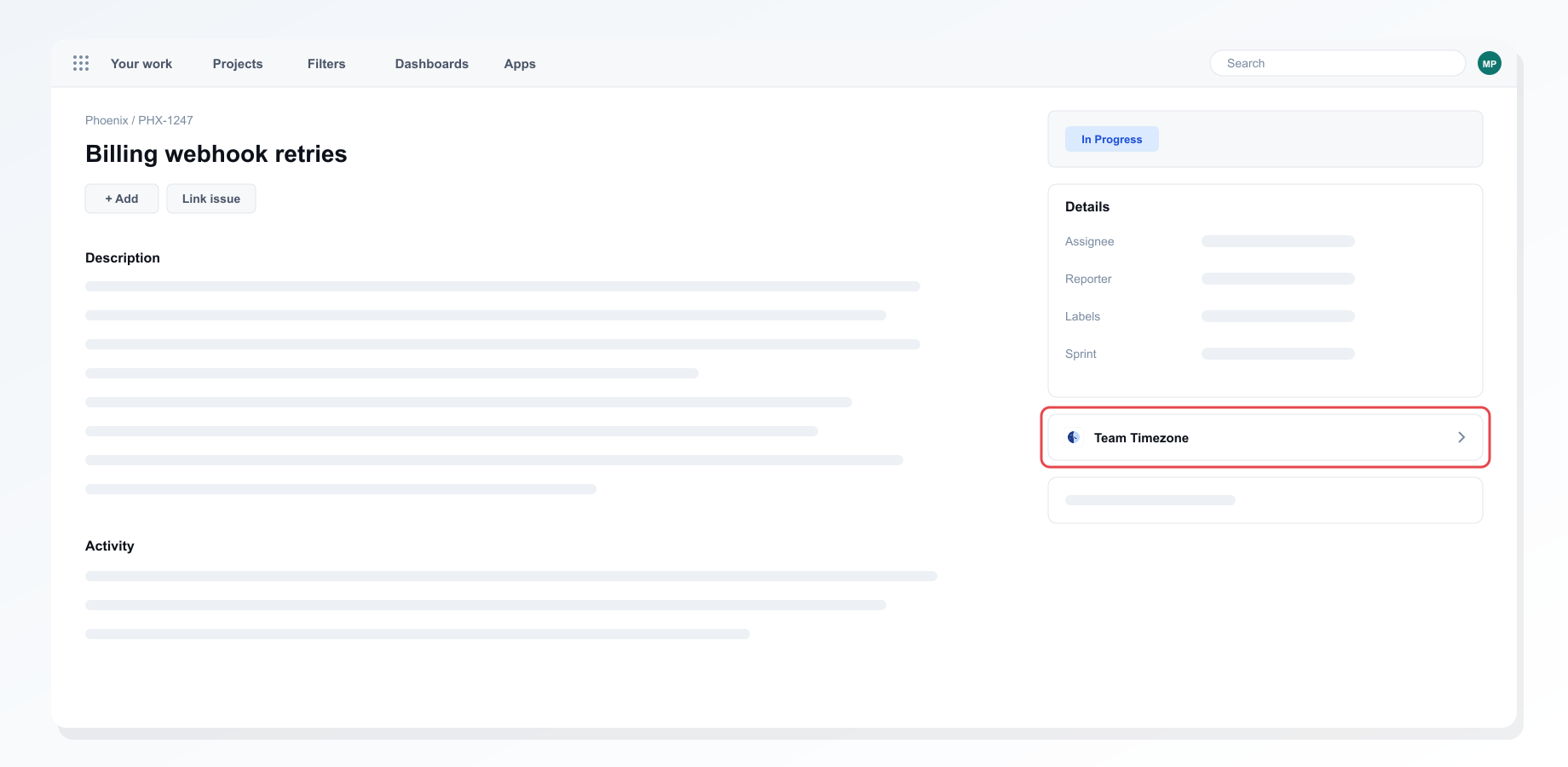 Team Timezone in the issue sidebar
4. Check who is available
Open the Team Availability tab in your project. Everyone is listed with their local time and status, with the people available right now at the top.
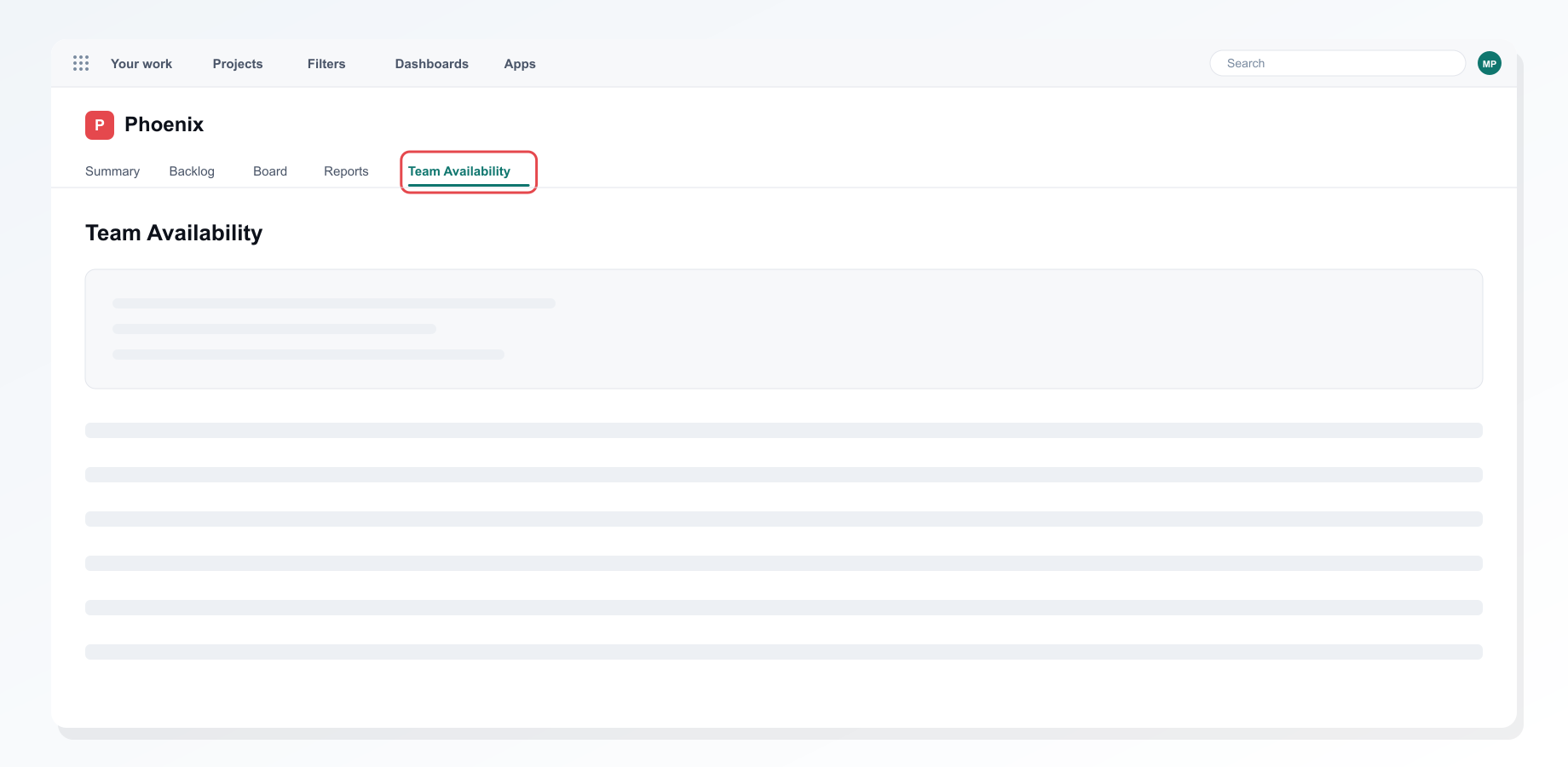 The Team Availability tab in the project navigation
Troubleshooting
Someone shows "Timezone not set". They have not opened My Timezone Settings yet. Share this guide with them.
A local time is wrong. That person's time zone in My Timezone Settings is wrong; only they can change it.
Uninstalling
Remove the app from Connected apps in Atlassian Administration (admin.atlassian.com). Everyone's time zone settings are deleted with the app.
Still stuck?
Tell us what you tried and what you saw. We reply within our published support times.