
Before you start
You need:
- A Jira Cloud site, and admin rights on it to install apps.
- A Jira Software project. Company-managed and team-managed projects both work, with Scrum or Kanban.
- Project admin rights to change the card deck and the estimate field. Anyone who can see an issue can vote on it.
Team Estimates is free for up to 10 users, with a 30-day free trial on the Atlassian Marketplace for larger teams. During the trial and while subscribed, everything is included. Without an active trial or subscription the app explains that a Jira admin can subscribe from Apps, ⋯, Manage apps in the Jira sidebar, or from Connected apps in Atlassian Administration.
1. Install the app
- Open the Team Estimates listing on the Atlassian Marketplace and select Try it free.
- Choose the Jira site to install it on.
- Review the permissions and confirm.
The app keeps sessions, votes and settings in Atlassian's Forge storage. No data leaves Atlassian, except the text of an issue sent to Atlassian-hosted models when a facilitator asks for an AI hint.
2. Open Team Estimates
Go to your project and choose Team Estimates in the project navigation. If you do not see it, a project admin can add it once: select +, then Apps, then Team Estimates.
3. Start a session
Select New session. Pick the issues from a sprint, the backlog or a search (up to 50 per session), choose Live or Async, and invite people. In an async session you also set a deadline.
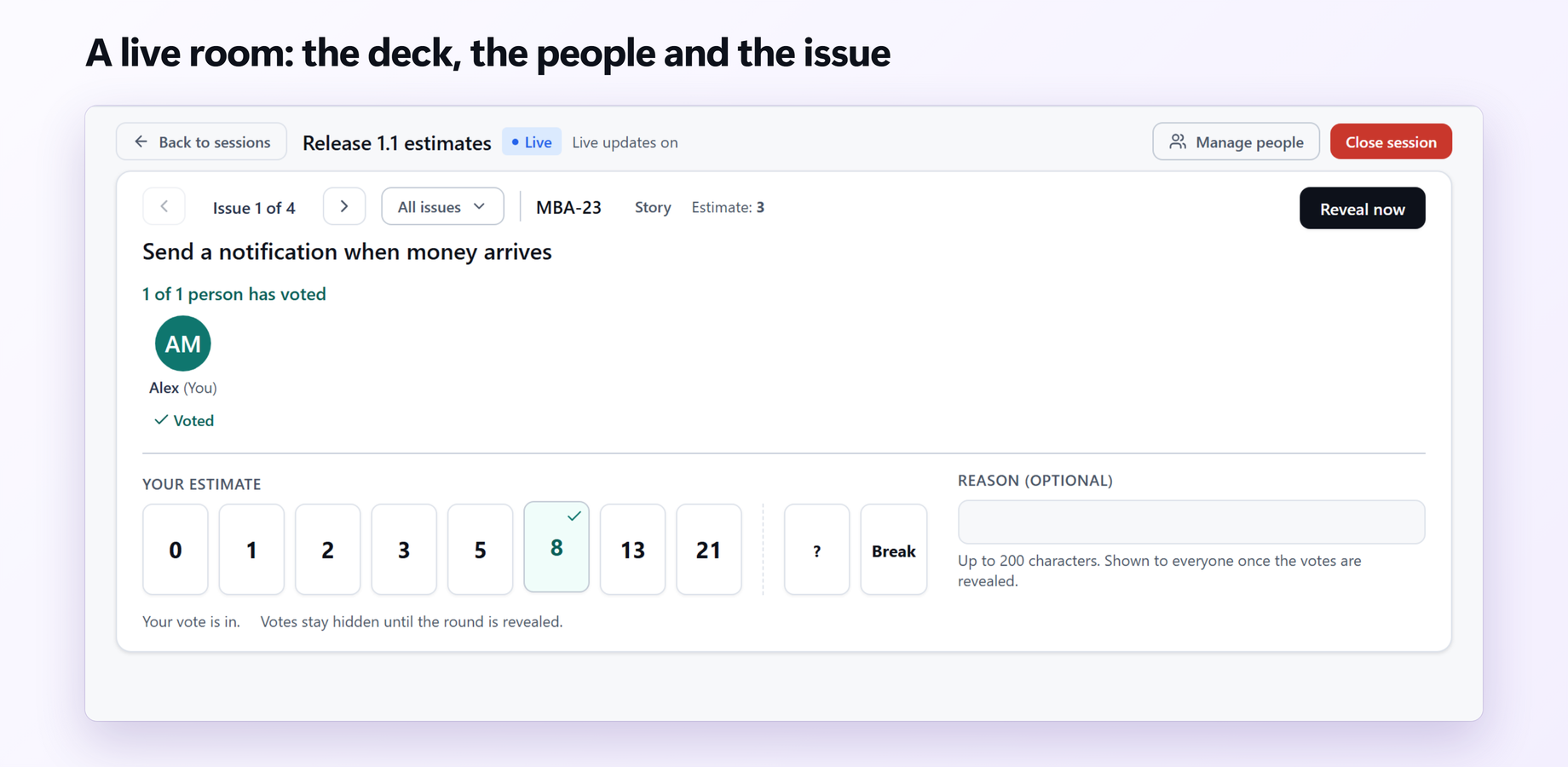 A live room with the card deck and the issue being estimated
4. Vote and reveal
Everyone picks a card without seeing the others' votes. When everyone has voted, or the facilitator chooses to reveal, the votes show together with the median, the spread and who voted highest and lowest. Talk through the gap and vote again if you need another round.
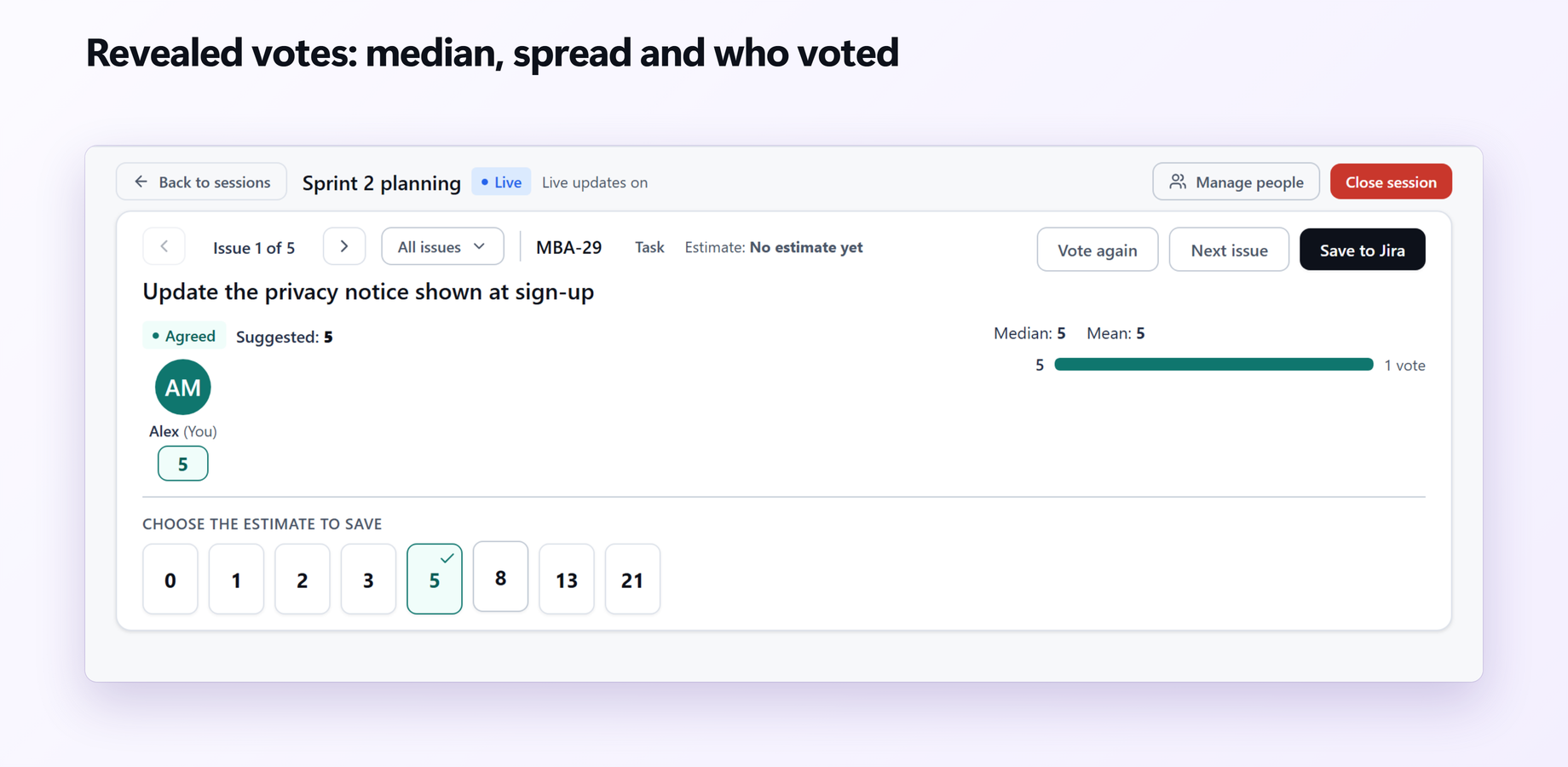 Revealed votes with the median and the spread
5. Save the estimate
Choose the agreed value and select Save to Jira. The estimate is written to the issue's estimate field as the person who saved it, so Jira's history shows who made the change. You need permission to edit the issue.
6. Estimate in your own time
In an async session people vote before the deadline. Votes reveal at the deadline, and people who have not voted get one reminder email from Jira 24 hours before. The review shows votes by person and the issues still open.
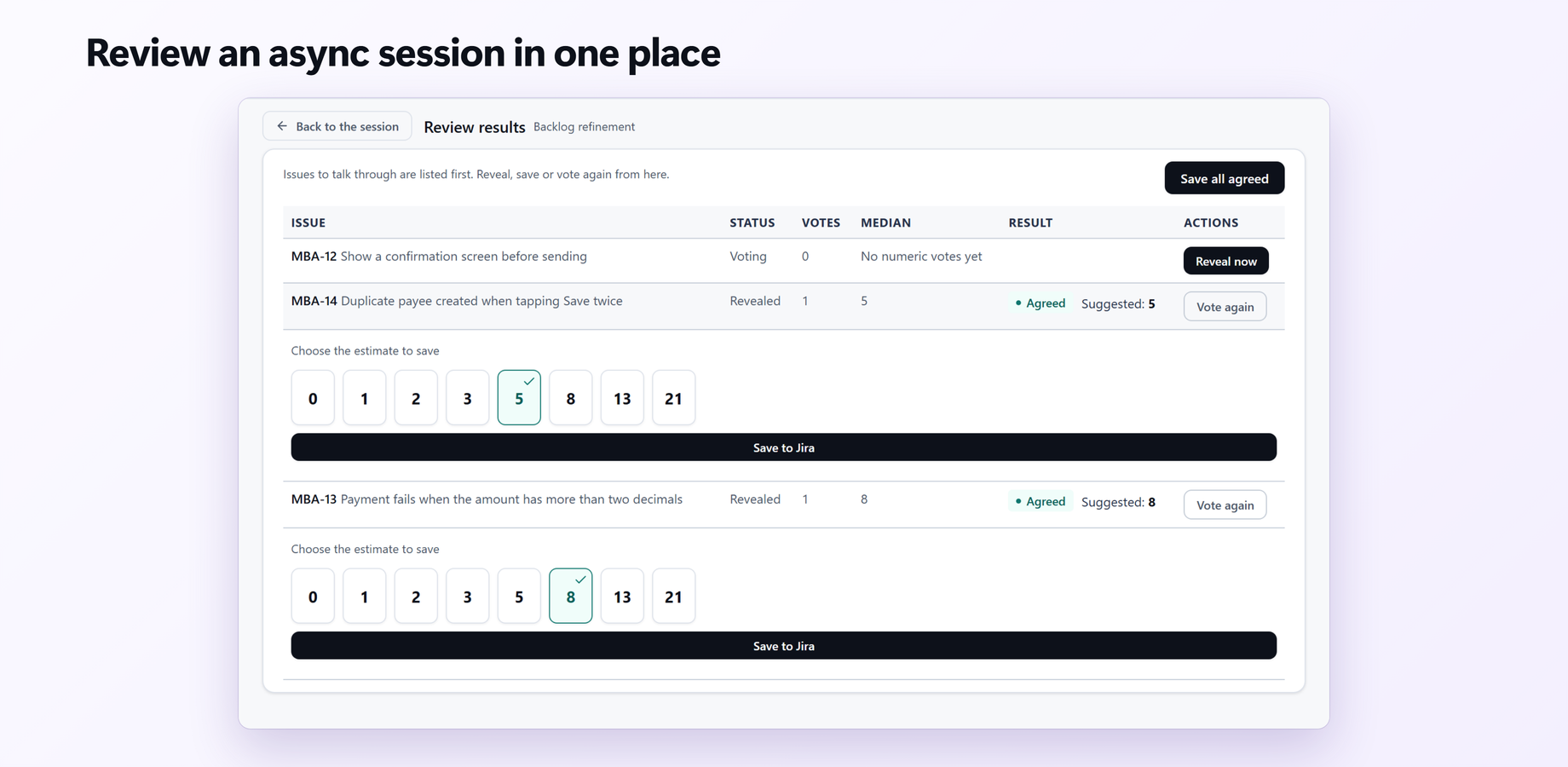 An async session review
7. Quick estimate on one issue
Open a work item, select View app actions (the icon under the title), then Team Estimates. Vote, reveal and save from the panel, with no session needed.
8. Project settings
Project admins open Team Estimates settings in the project settings to choose the default card deck (Fibonacci, modified Fibonacci, T-shirt sizes, powers of two or a custom deck), the estimate field, reminders and the AI hint switch. Automatic (recommended) picks the field your board or project uses and shows which one. If your project has no estimate field, the setting asks you to choose one.
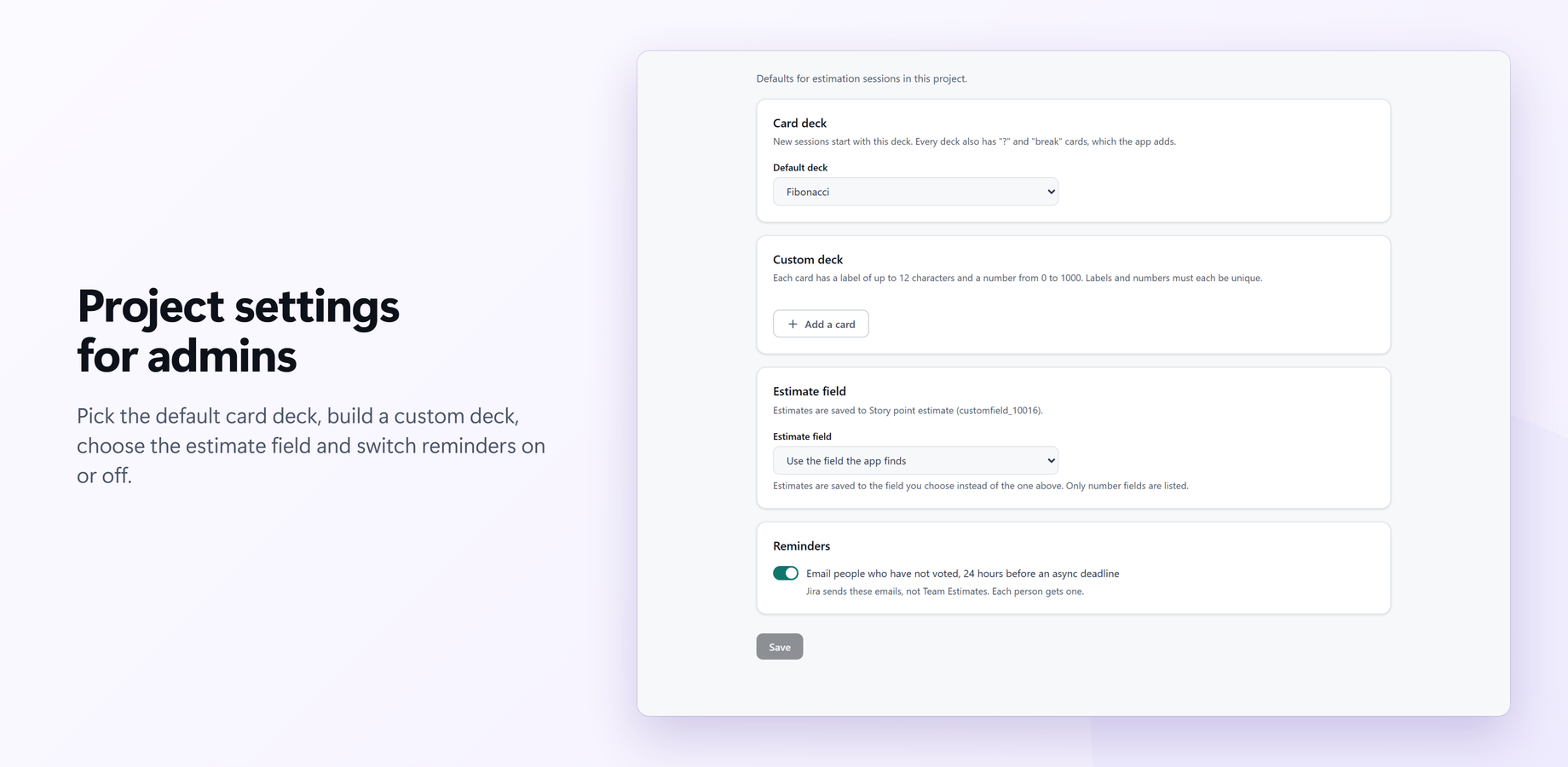 Project settings
Troubleshooting
Every screen says the app needs an active subscription. The trial has ended or was never started. A Jira admin can start the trial or subscribe from Apps, ⋯, Manage apps in the Jira sidebar, or from Connected apps in Atlassian Administration.
I cannot see Team Estimates in the project. A project admin needs to add it once: select +, then Apps, then Team Estimates.
Save to Jira says I cannot edit the issue. Saving uses your own permission. Ask a project admin for permission to edit the issue.
The setting asks me to choose an estimate field. Your project has no story point field. Choose a number field in the settings, or add one to the project.
The Sprint source says the board has no sprints. Pick another board, or use a search to choose the issues.
Uninstalling
Remove the app from Connected apps in Atlassian Administration (admin.atlassian.com). Your sessions, votes and settings are deleted with the app, under Atlassian's data retention policy. Estimates already saved to issues stay in Jira.
Still stuck?
Tell us what you tried and what you saw. We reply within our published support times.