Before you start
You need:
- A Jira Cloud site, and admin rights on it to install apps.
- Jira admin rights for the settings page (policies, business hours and breach warnings).
SLA Countdown is a paid app with a free trial on the Atlassian Marketplace. During the trial and while subscribed, everything is included. Without an active trial or subscription the app explains that a Jira admin can subscribe from Apps, ⋯, Manage apps in the Jira sidebar, or from Connected apps in Atlassian Administration.
1. Install the app
- Open the SLA Countdown listing on the Atlassian Marketplace and select Try it free.
- Choose the Jira site to install it on.
- Review the permissions and confirm.
You can also install it from inside Jira: open Settings (the gear icon), go to Apps and search for "SLA Countdown".
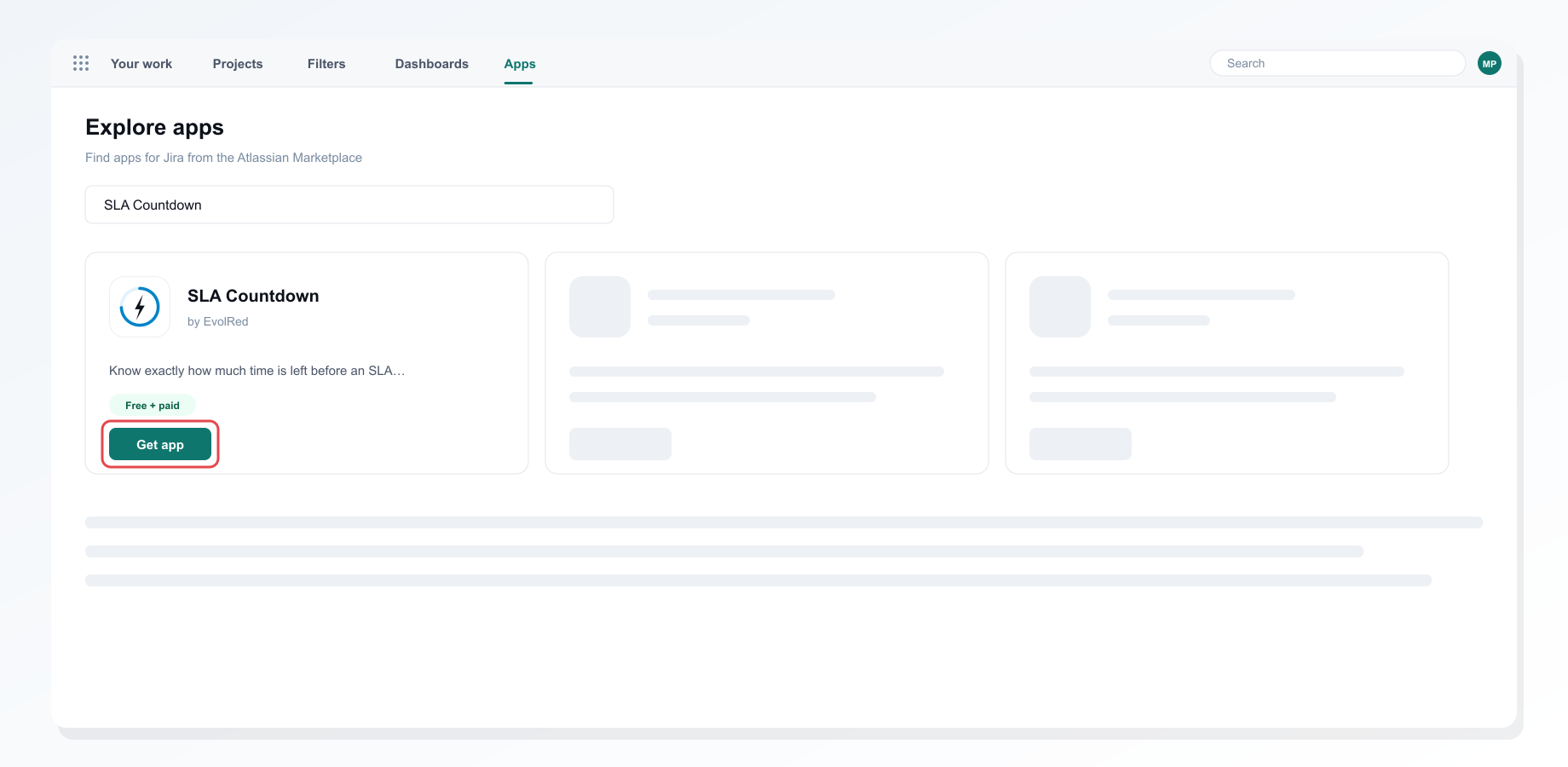 Installing SLA Countdown from the Apps screen in Jira
The app asks for read access to issues and permission to add comments, which it uses for breach warnings. It stores the targets on each issue, your policies and the site settings.
2. Set a target on an issue
Open an issue and select the SLA Countdown button under the summary. Enter a response target and a resolution target in hours.
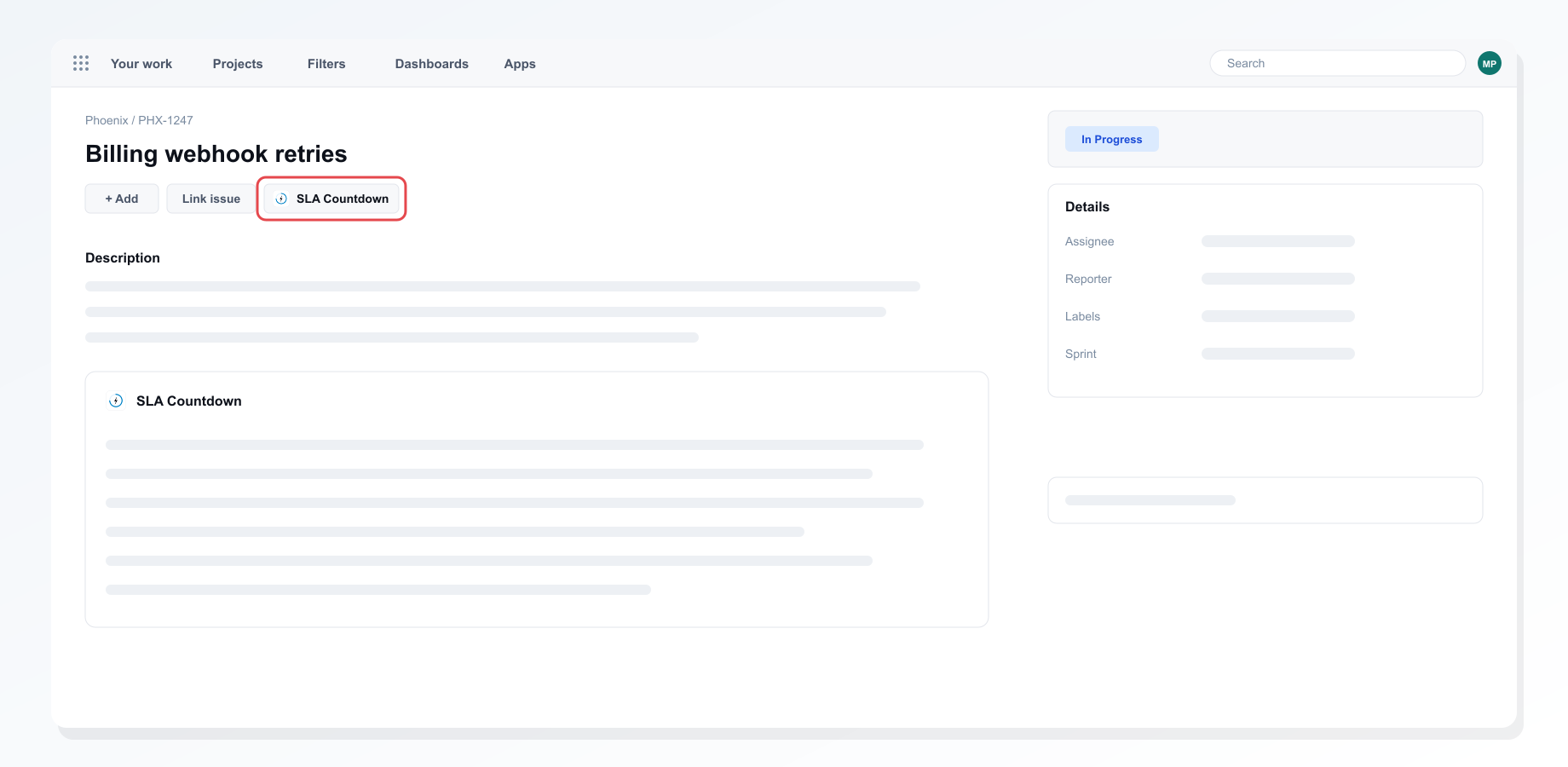 The SLA Countdown button on an issue
3. Watch the countdown
The panel counts down to each target and shows how urgent it is: On track, Watch, Breaching, then Breached once a target is missed, or Done when the issue is resolved.
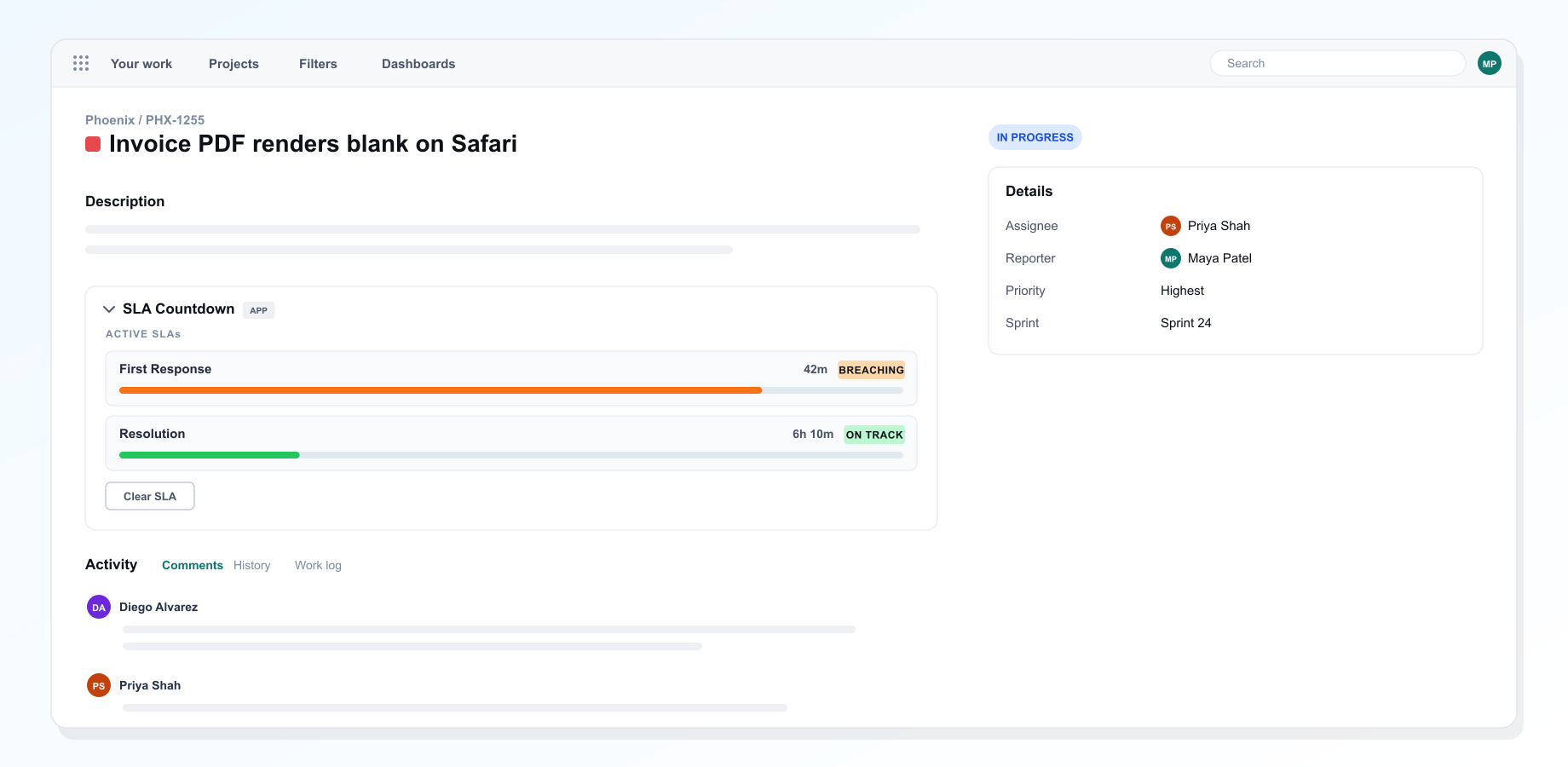 Response and resolution timers on an issue
4. Create SLA policies
Open Settings (the gear icon), go to Apps and select SLA Countdown Settings. Add a policy with + New Policy: give it a name, the issue types and priorities it covers, and its response and resolution targets. The first matching policy applies its targets to new issues automatically.
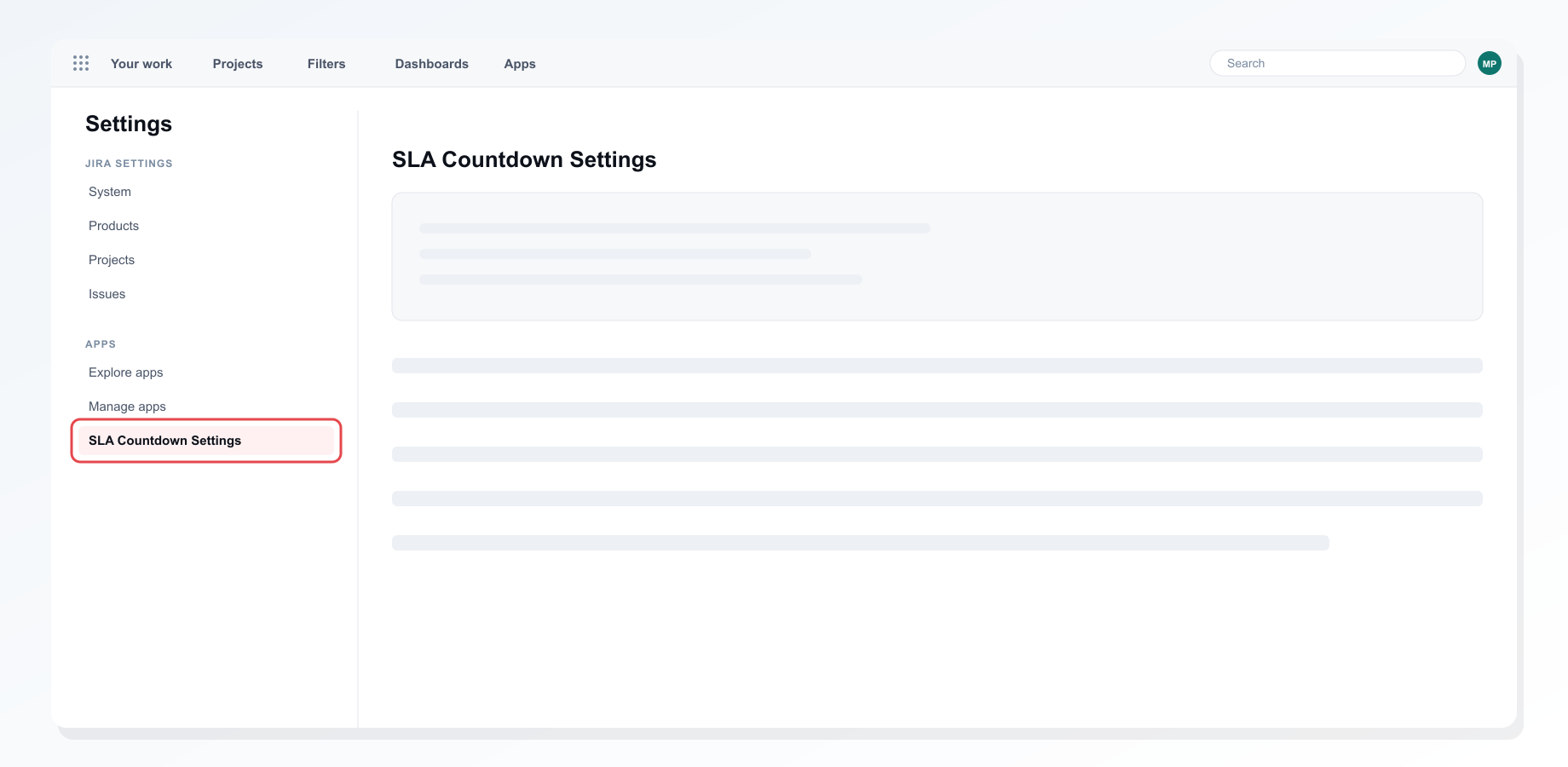 SLA Countdown Settings in the Apps section of Jira settings
5. Set business hours and warnings
In Site Settings, choose your time zone, turn on Business hours only with a start and end time so clocks pause outside working hours, and turn on Post breach alert comments with how often to check. A comment is posted on the issue when a target is close or missed.
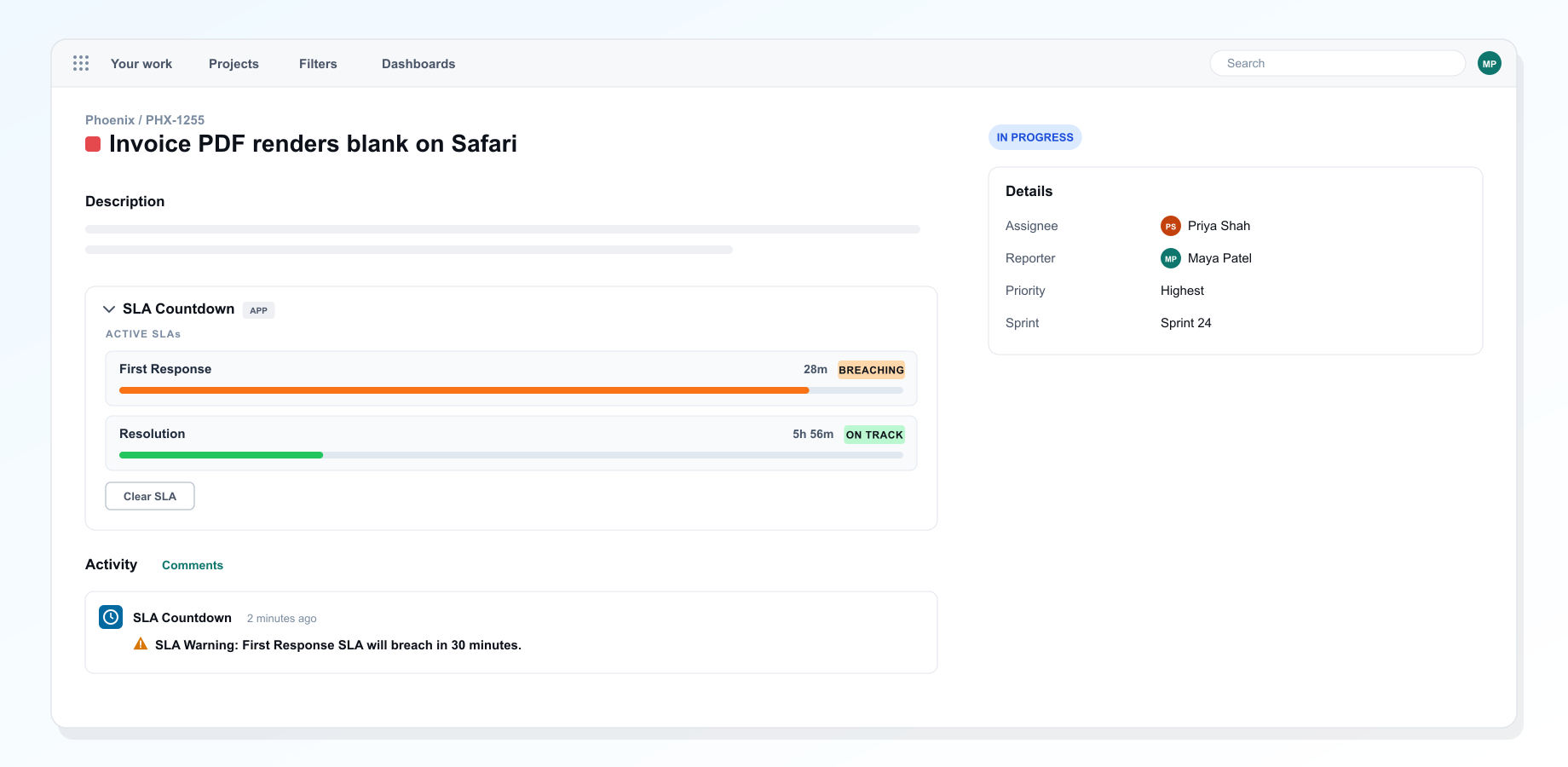 A breach warning posted on the issue
Troubleshooting
It says the app needs an active subscription. The trial has ended or was never started. A Jira admin can start the trial or subscribe from Apps, ⋯, Manage apps in the Jira sidebar, or from Connected apps in Atlassian Administration.
A new issue did not get a target. Check that a policy matches its issue type and priority. Policies apply to new issues; set older ones by hand.
The countdown seems slow overnight. With business hours on, the clock pauses outside working hours, as intended.
Uninstalling
Remove the app from Connected apps in Atlassian Administration (admin.atlassian.com). Targets, policies and settings are deleted with the app. Breach comments already posted stay on the issues.
Still stuck?
Tell us what you tried and what you saw. We reply within our published support times.