Before you start
You need:
- A Jira Cloud site, and admin rights on it to install apps.
- Project admin rights to create checklist templates. Anyone who can edit an issue can tick its checklist.
Pre-flight Checklist is a paid app with a free trial on the Atlassian Marketplace. During the trial and while subscribed, everything is included. Without an active trial or subscription the app explains that a Jira admin can subscribe from Settings, Apps, Manage apps.
1. Install the app
- Open the Pre-flight Checklist listing on the Atlassian Marketplace and select Try it free.
- Choose the Jira site to install it on.
- Review the permissions and confirm.
You can also install it from inside Jira: open Settings (the gear icon), go to Apps and search for "Pre-flight Checklist".
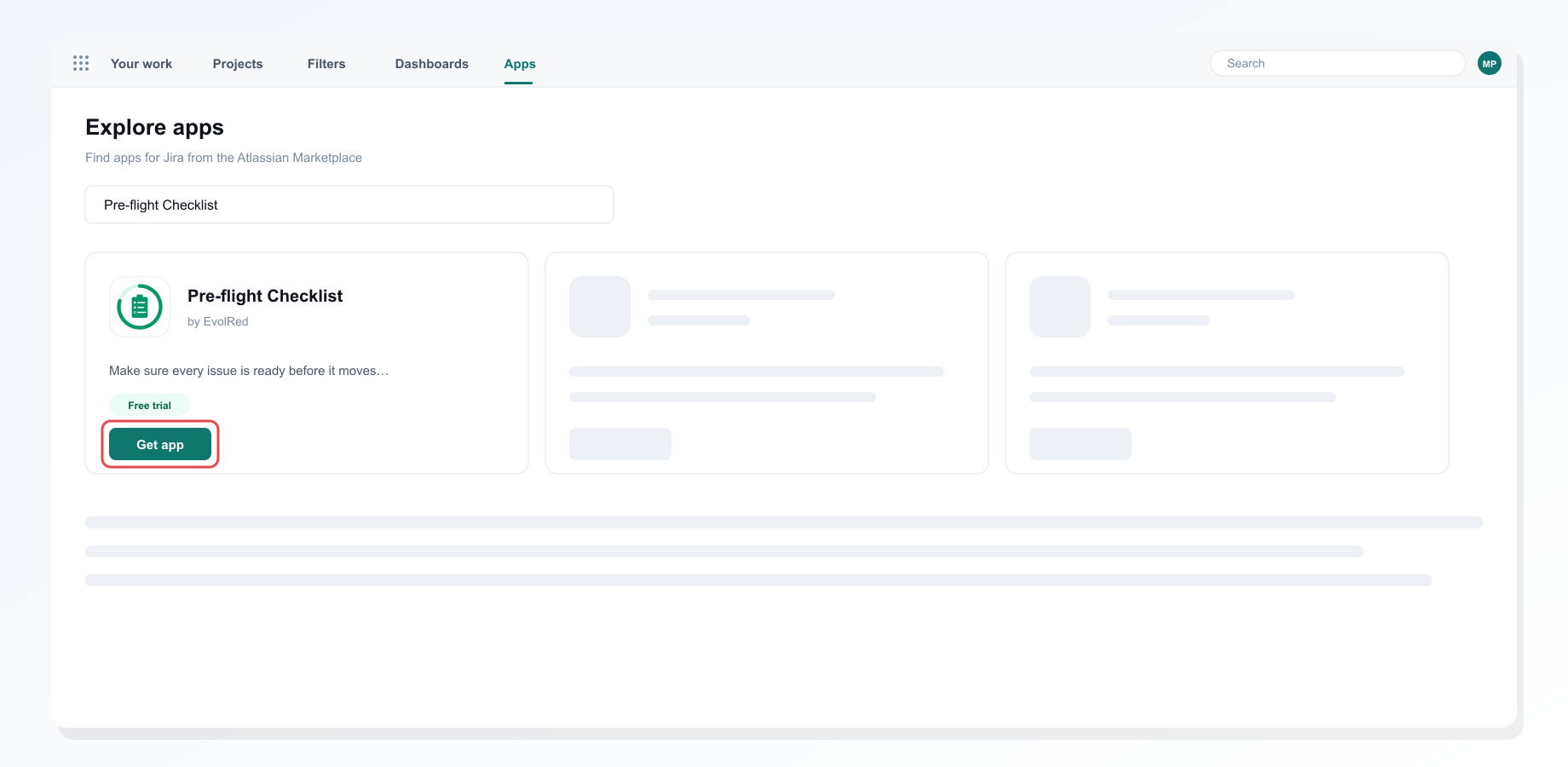 Installing Pre-flight Checklist from the Apps screen in Jira
The app asks for read access to issues and users, and stores your templates and the ticks on each issue. Ticks keep only the account ID of who ticked them; names are looked up when you open the panel.
2. Create a checklist template
Go to Project settings and open Pre-flight Templates. Choose an issue type and add the items that must be true before work starts, marking each as required or optional. Five starter templates (Scrum Definition of Ready, Bug Triage Gate, Epic Readiness, QA Gate and Release Checklist) give you a starting point.
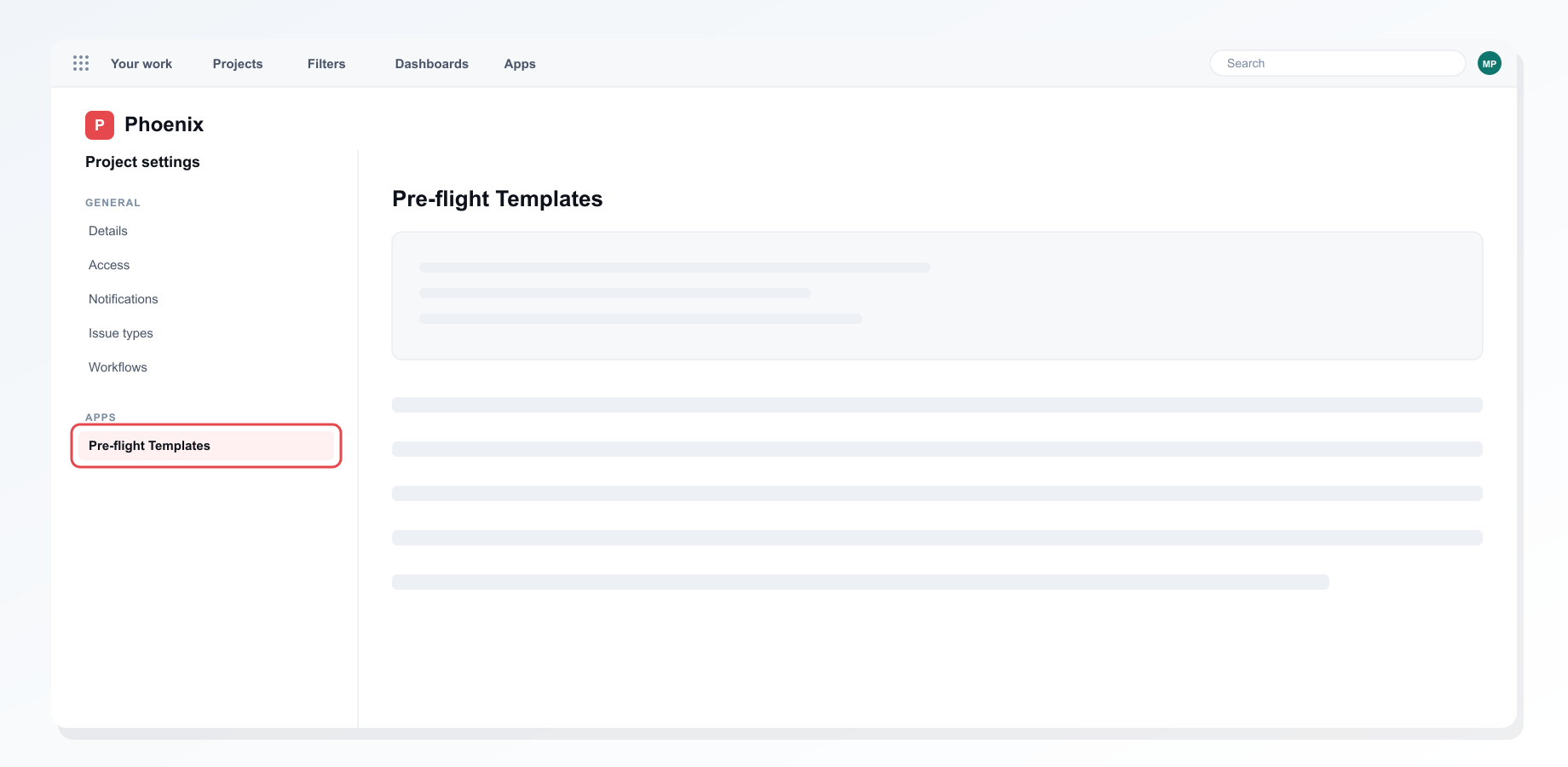 Pre-flight Templates in project settings
3. Tick it off on the issue
Open an issue, select View app actions (the icon under the summary) and choose Pre-flight Checklist. The checklist is added to the issue and stays there. In service projects, select the Pre-flight Checklist button in the action bar instead. Tick items off as they are done. Each tick shows who made it and when.
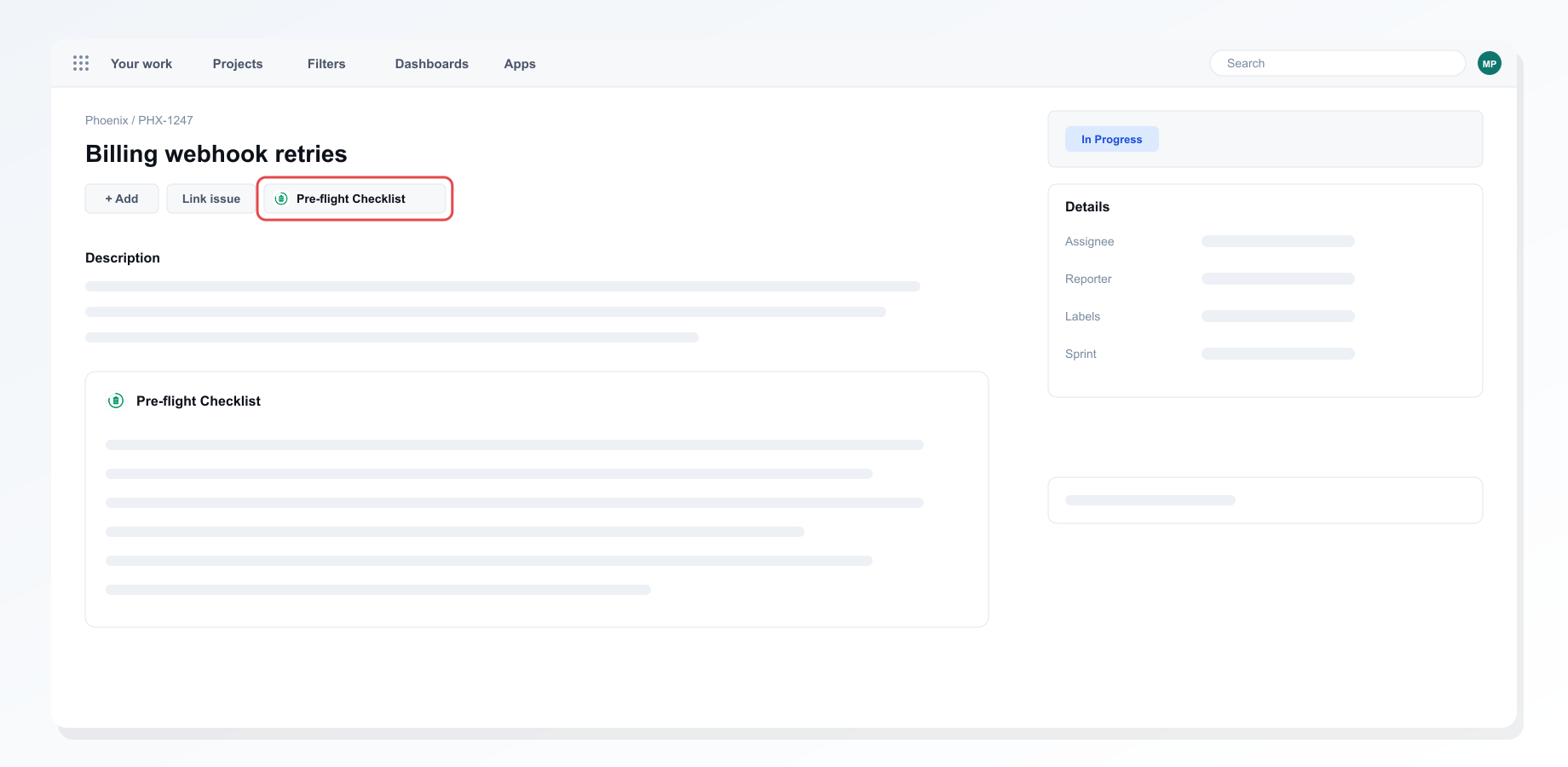 The Pre-flight Checklist button on an issue
4. Check readiness at a glance
The Readiness card in the issue sidebar shows the status (Ready, Partial or Not ready), a count such as "2 of 5 done", and what is still left.
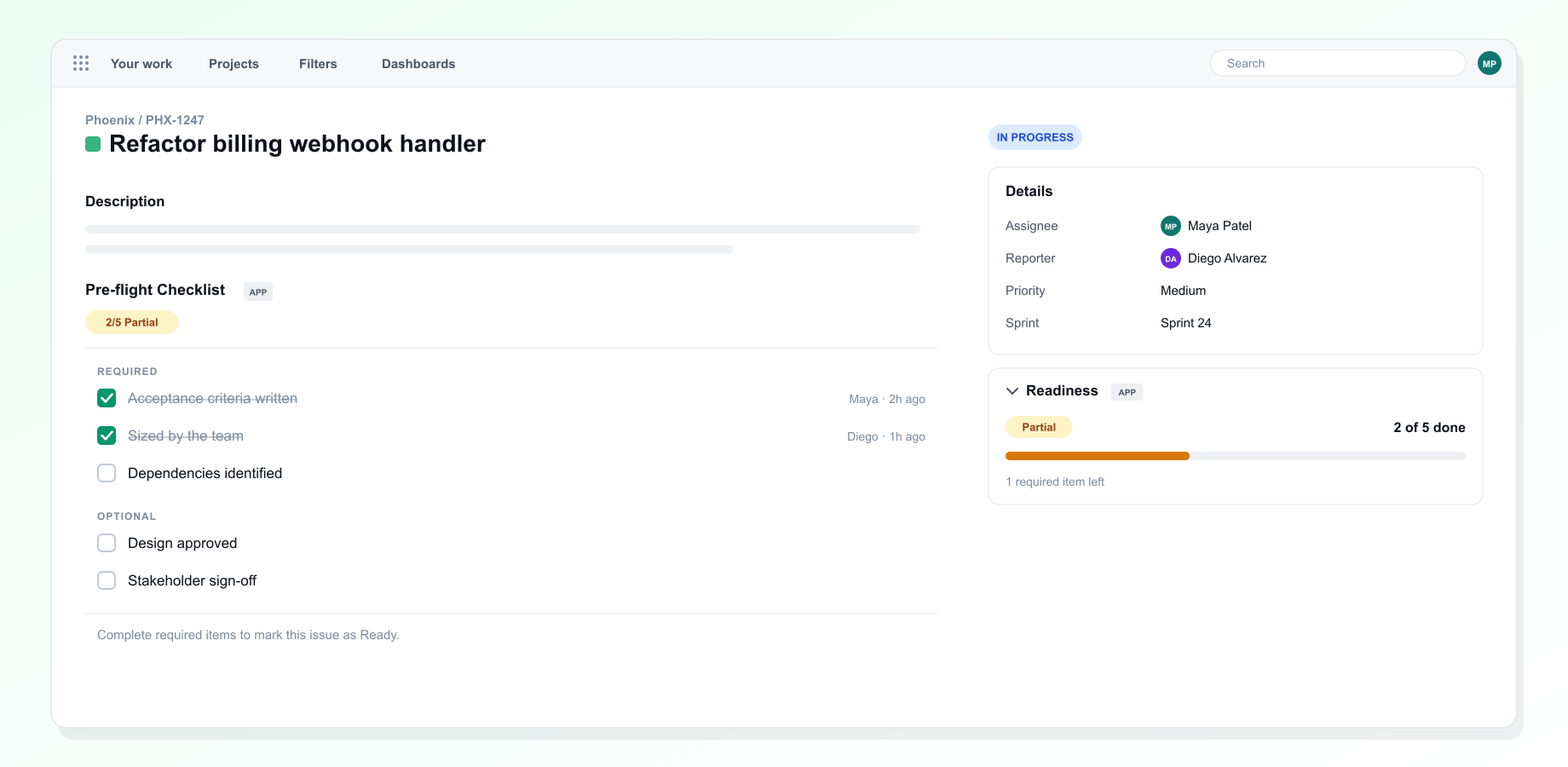 The checklist and the readiness card on an issue
5. Review the backlog before planning
Open the Readiness Report tab in your project. Pick a sprint or write a JQL query to see the readiness of every matching issue, filter to what is not ready, and export to CSV.
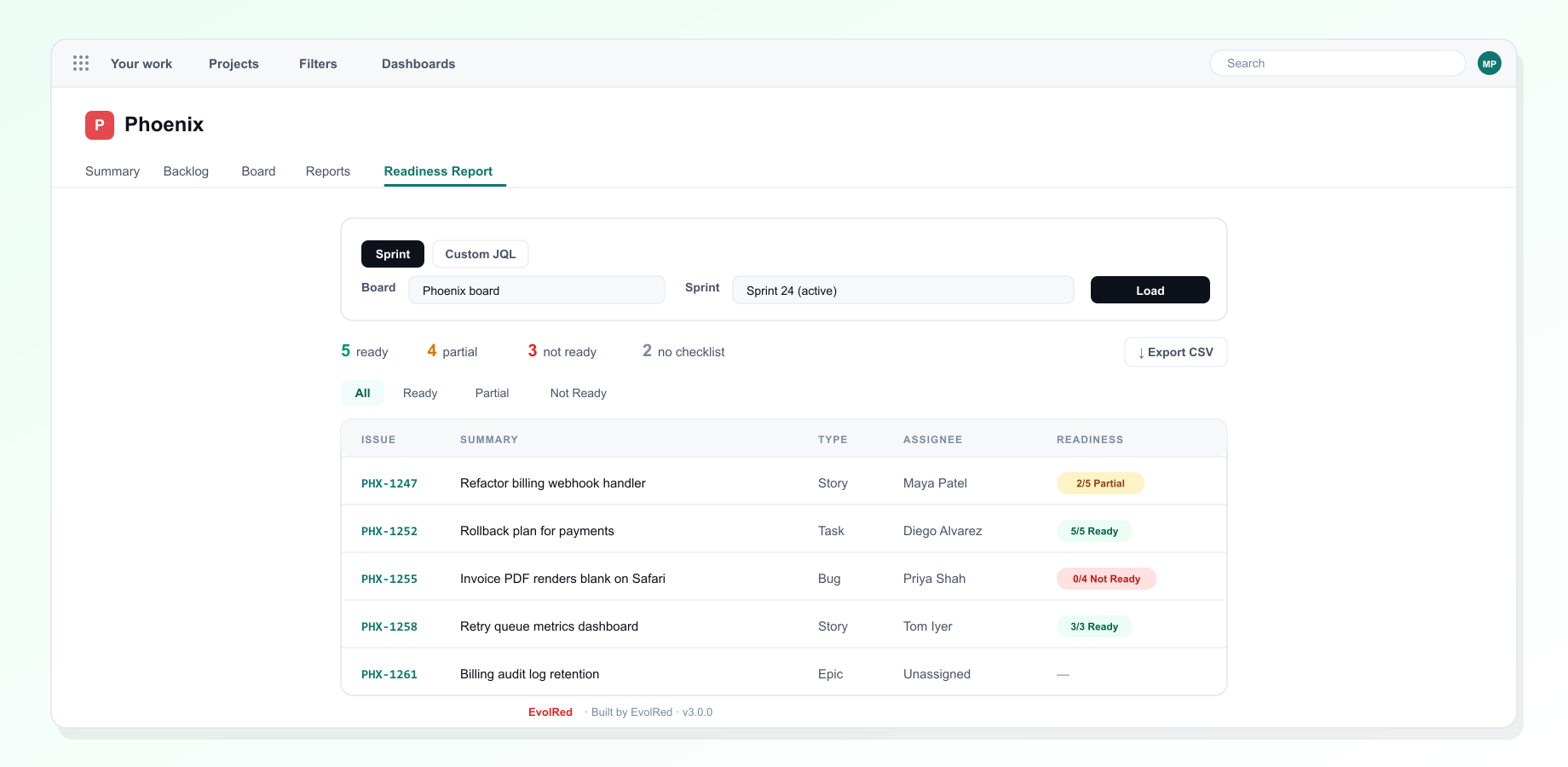 The readiness report for a sprint
Works with every project type
| Project type | Where to find it |
|---|---|
| Software, company-managed (Scrum or Kanban) | Checklist: View app actions (icon under the work item title) → Pre-flight Checklist. Report: project tabs → More → Readiness Report. |
| Software, team-managed (Scrum or Kanban) | Checklist: View app actions → Pre-flight Checklist. Report: the Readiness Report tab. |
| Business projects | Checklist: View app actions → Pre-flight Checklist. Report: project tabs → More → Readiness Report. |
| Service projects (Jira Service Management) | Checklist: the Pre-flight Checklist button in the action bar. Report: Readiness Report in the project sidebar. |
Templates are always in Space settings, Apps, Pre-flight Templates, and the Readiness card is in the right-hand sidebar. The report's Sprint view needs a board that uses sprints; elsewhere it opens in Custom JQL. Tested on 12 Oct 2026.
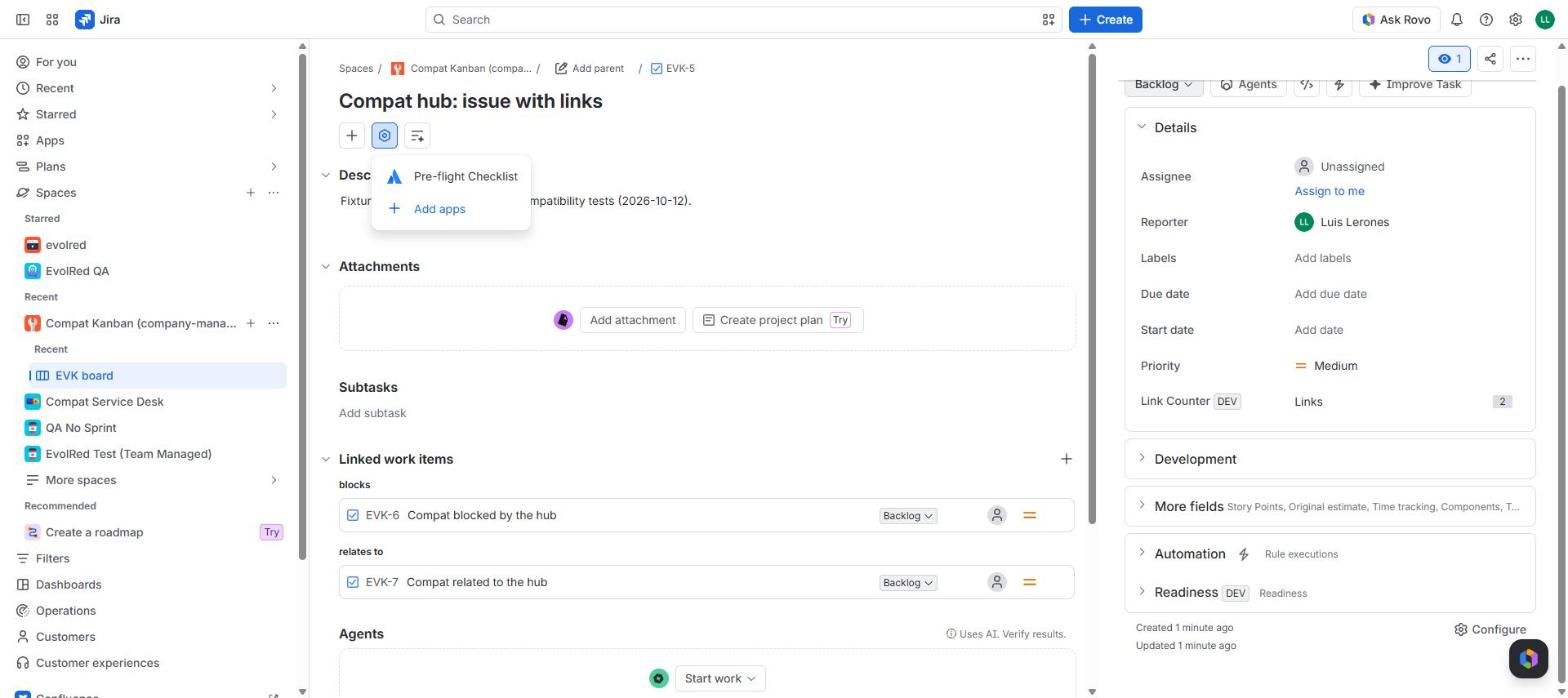 View app actions → Pre-flight Checklist
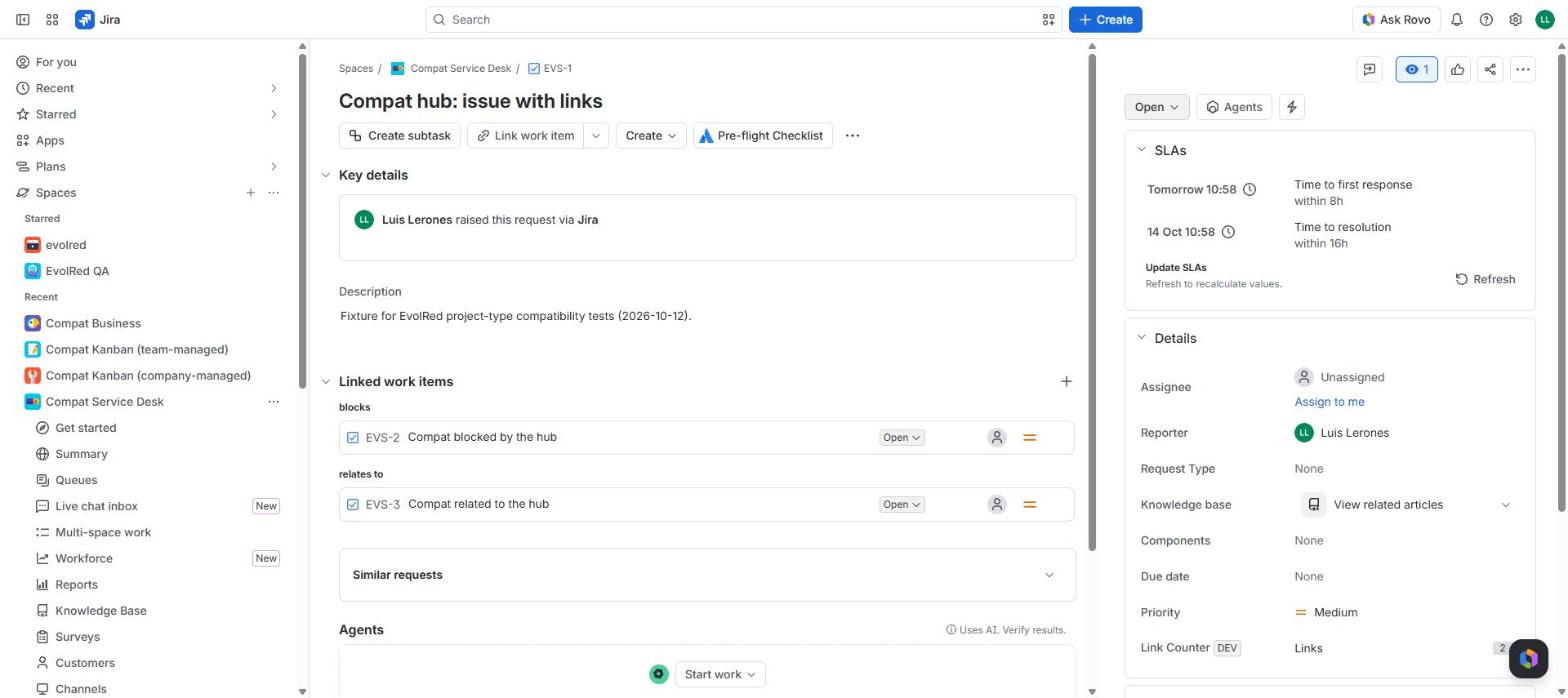 The Pre-flight Checklist button in a service project
Troubleshooting
Every screen says the app needs an active subscription. The trial has ended or was never started. A Jira admin can start the trial or subscribe from Settings, Apps, Manage apps.
An issue says it has no checklist. There is no template for that issue type yet. Create one in Pre-flight Templates.
The report counts some issues separately. Issues whose type has no checklist, such as epics without a template, are counted as "no checklist" rather than "not ready".
Uninstalling
Remove the app from Settings, Apps, Manage apps. Your templates and ticks are deleted with the app.
Still stuck?
Tell us what you tried and what you saw. We reply within one business day.