Before you start
You need:
- A Jira Cloud site, and admin rights on it to install apps.
- Project admin rights to create and edit templates. Anyone who can edit an issue can apply one.
Issue Template Library is free. Everything is included, with no trial or subscription needed.
1. Install the app
- Open the Issue Template Library listing on the Atlassian Marketplace and select Try it free.
- Choose the Jira site to install it on.
- Review the permissions and confirm.
You can also install it from inside Jira: open Settings (the gear icon), go to Apps and search for "Issue Template Library".
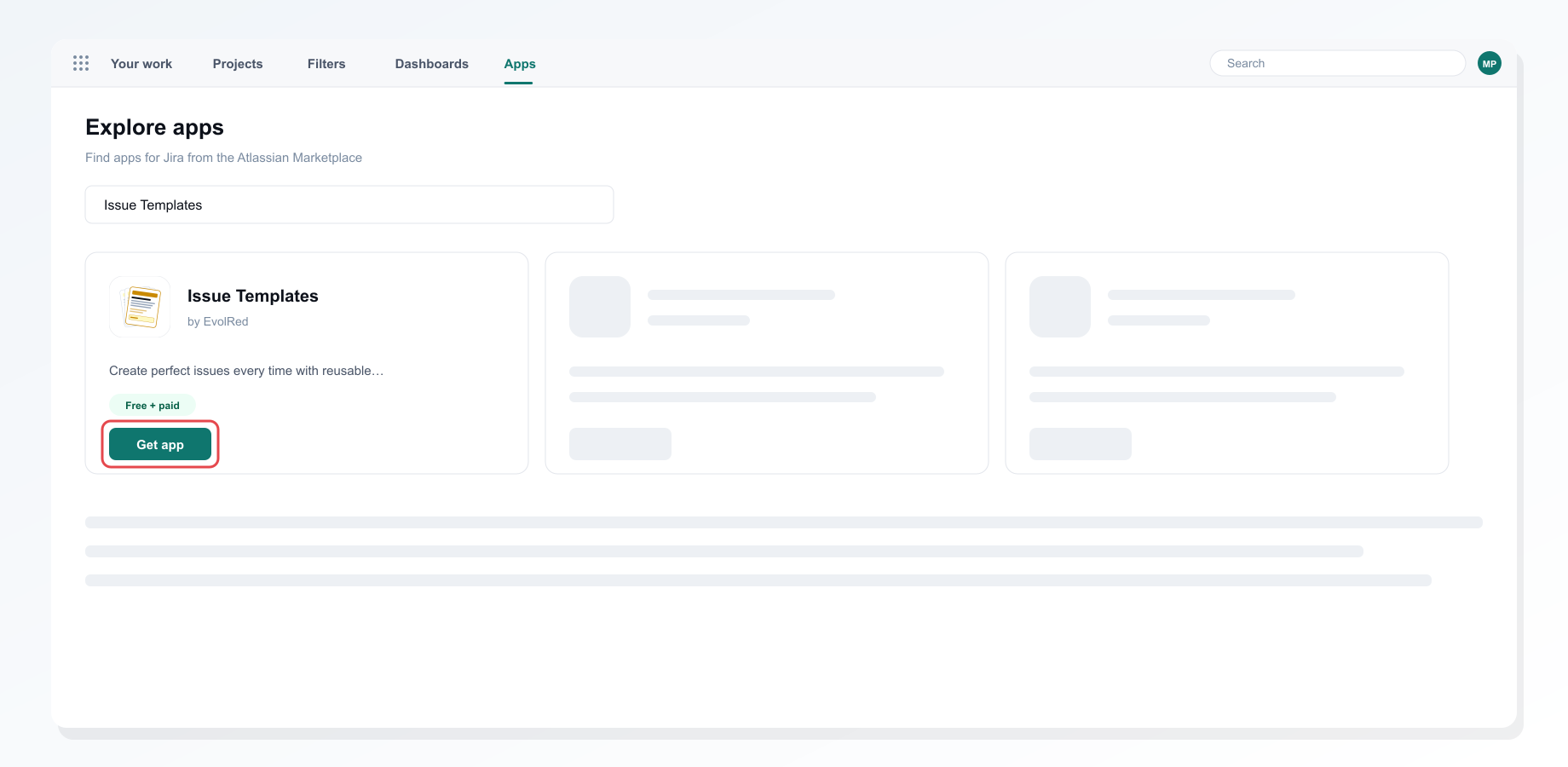 Installing Issue Template Library from the Apps screen in Jira
The app asks for permission to read and edit issues, and to create them when you use a template to start a new one. Templates are stored with the app, per project.
2. Create your templates
Go to Project settings and open Issue Template Library. Create a template for an issue type: write the description in Markdown (headings, lists, checkboxes, code) and choose the priority and labels it should set. Six starter templates (Bug Report, Feature Story, Hotfix, Epic Goal, Support Escalation and Tech Debt) give you a starting point to edit.
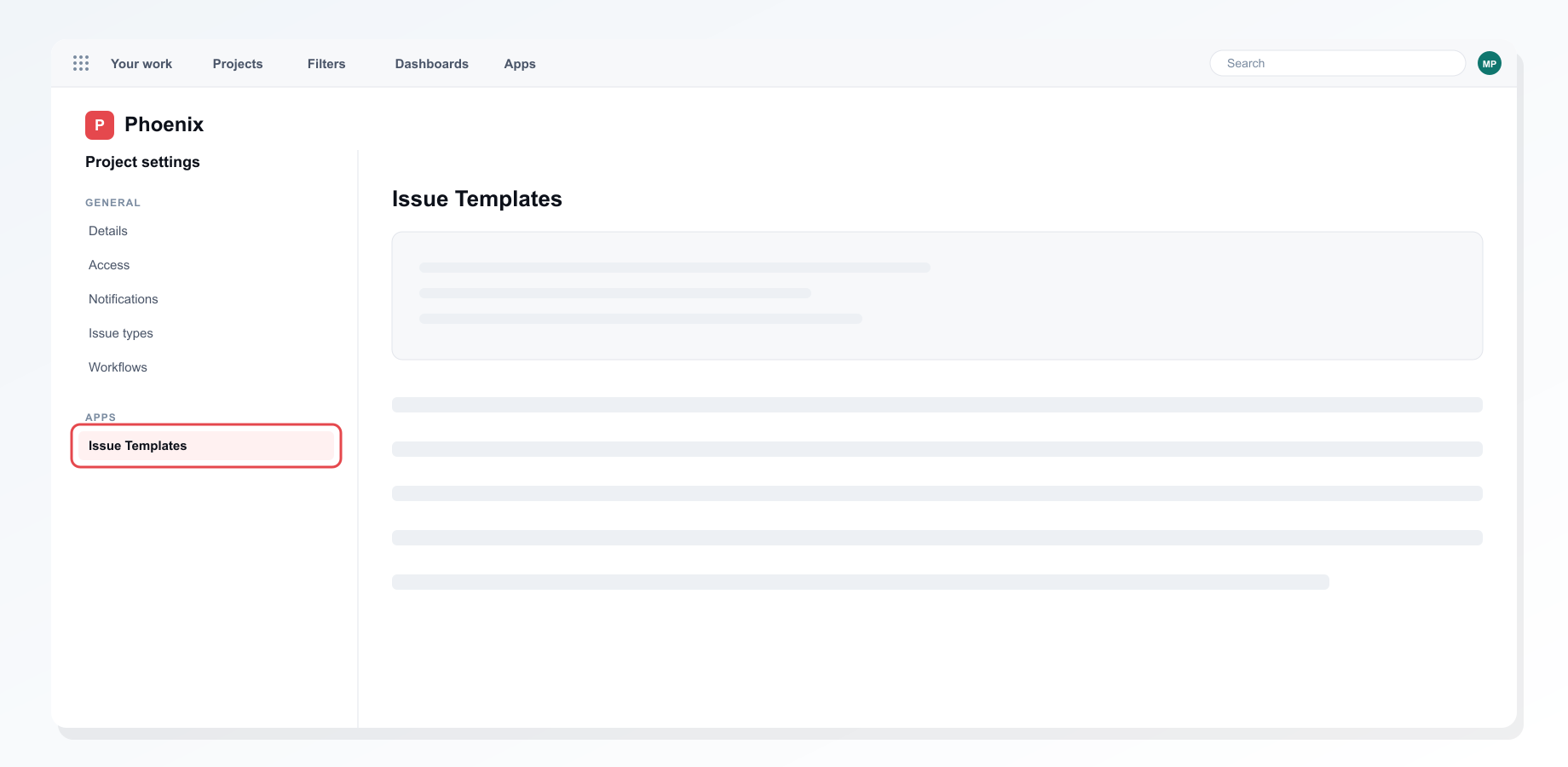 Issue Template Library in project settings
3. Apply a template to an issue
Open an issue and select the Apply Template button under the summary. Pick a template and apply it. The description is filled in and converted to Jira's own formatting, and the priority and labels are set. If the issue already has a description, you choose whether to replace it.
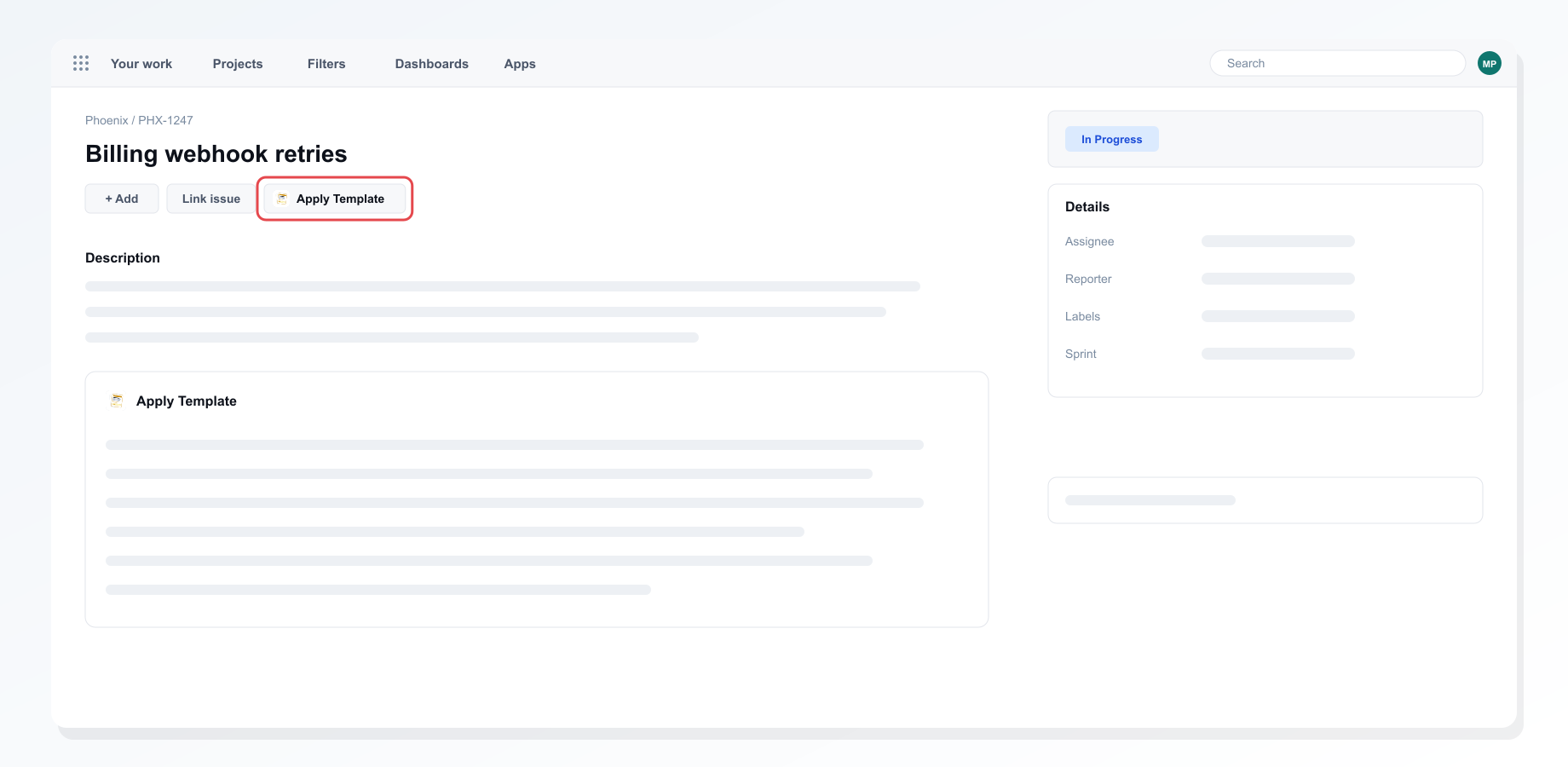 The Apply Template button on an issue
4. Create issues from a template
Open the Create from Template tab in your project, pick a template, type a summary and create the issue. It starts out already structured.
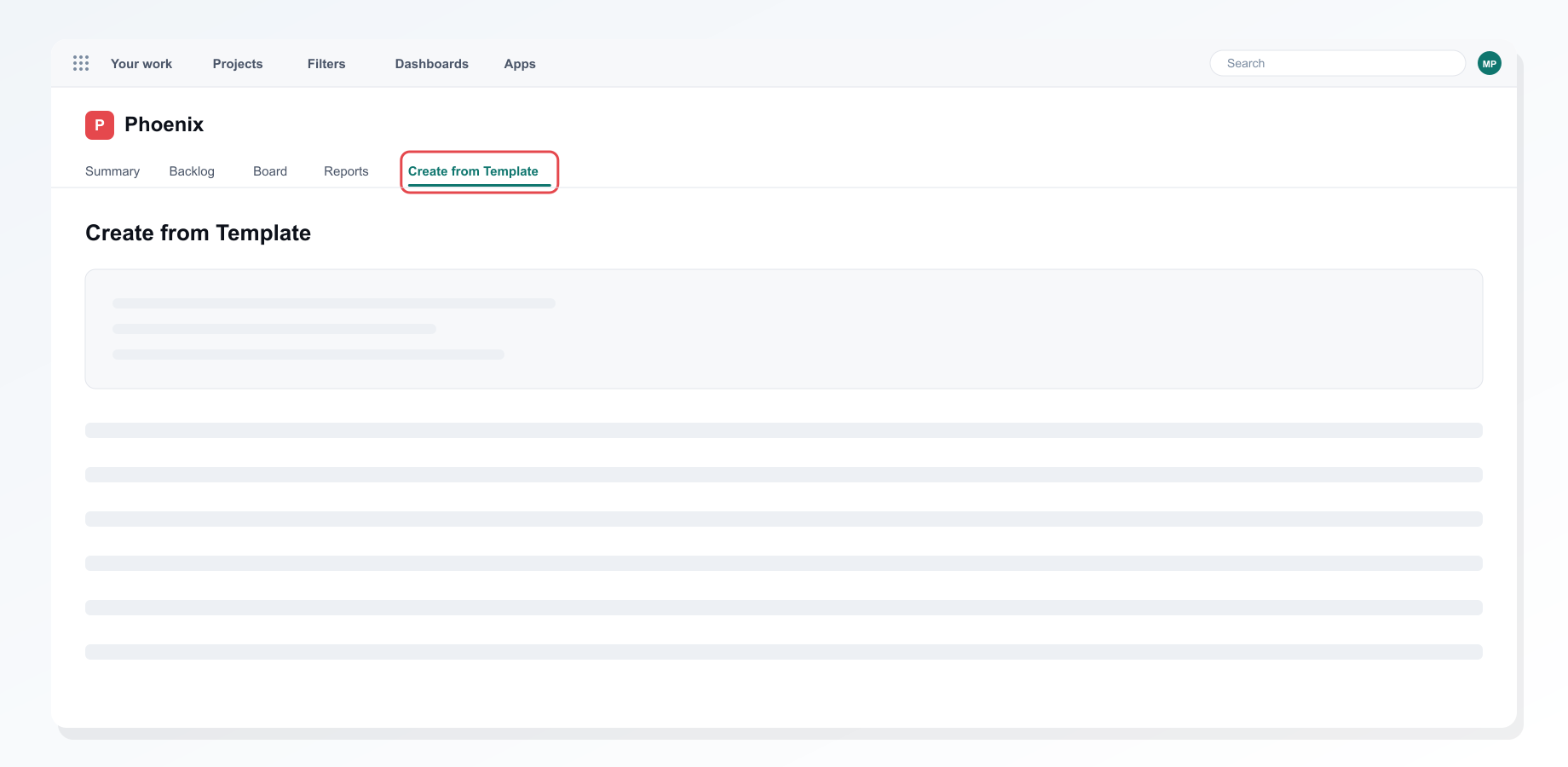 The Create from Template tab in the project navigation
5. Tidy up a half-written issue
If your site has Atlassian's Rovo AI, the optional Smart Apply assistant can fit an issue's existing text into a template's structure without losing what was already written.
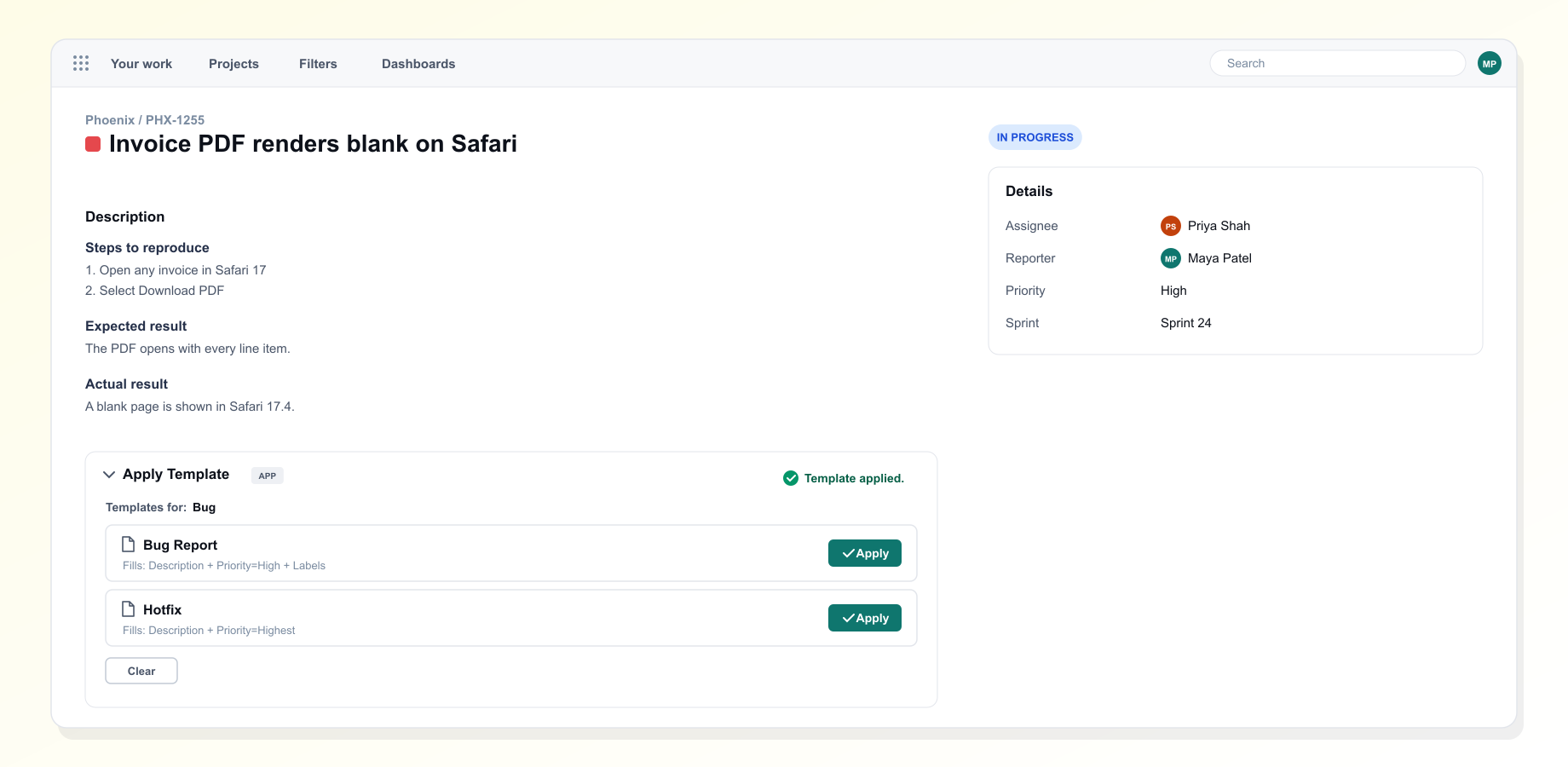 Applying a template in one click
Troubleshooting
The priority or labels were not applied. Check the template in Project settings, Issue Template Library: the priority and labels are part of the template's field defaults. A field Jira does not allow on that work type is skipped.
Uninstalling
Remove the app from Connected apps in Atlassian Administration (admin.atlassian.com). Your templates are deleted with the app, so copy any you want to keep first.
Still stuck?
Tell us what you tried and what you saw. We reply within our published support times.