Before you start
You need:
- A Jira Cloud site, and admin rights on it to install apps. Once installed, anyone who can see an issue can open its changelog.
1. Install the app
- Open the Changelog Panel listing on the Atlassian Marketplace and select Get it now.
- Choose the Jira site to install it on.
- Review the permissions and confirm.
You can also install it from inside Jira: open Settings (the gear icon), go to Apps and search for "Changelog Panel".
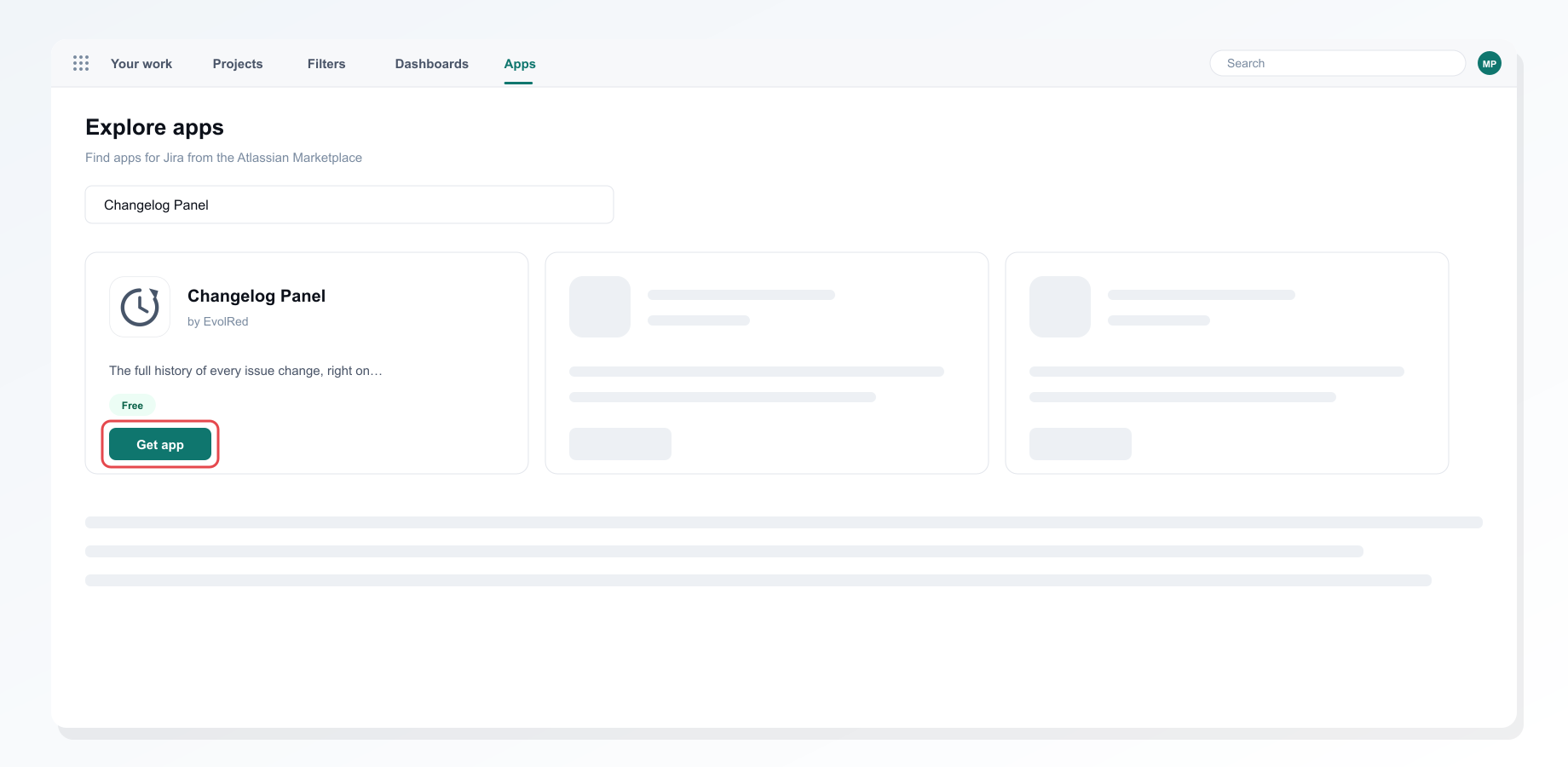 Installing Changelog Panel from the Apps screen in Jira
The app asks for read access to issues and their history. It stores nothing: the history is read live each time you open the panel.
2. Open the Changelog panel
Open any issue. Under the summary, select the Changelog button to add the panel to the issue view. The history loads when you open it.
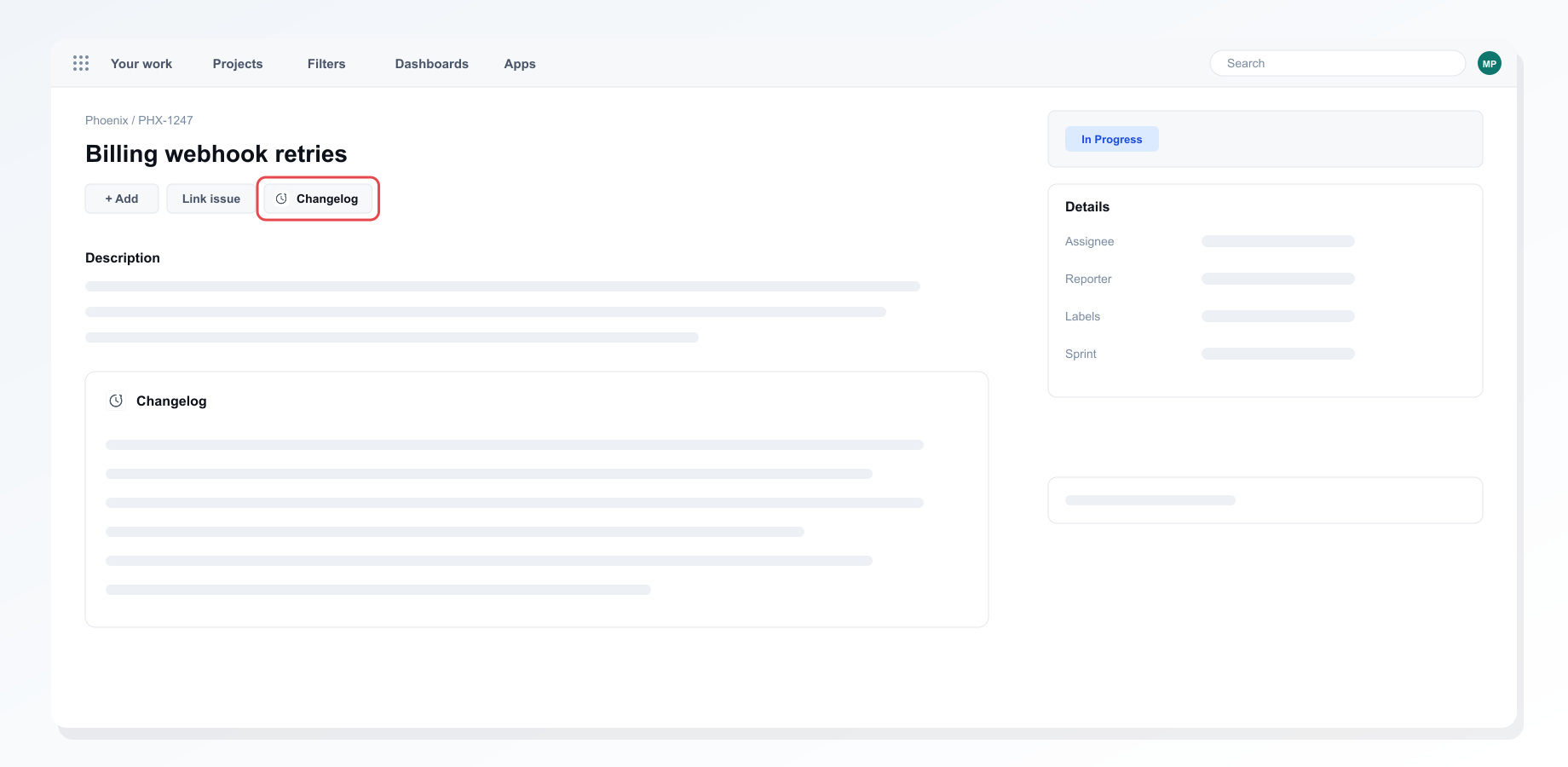 The Changelog button on an issue
3. Read the history
Each row shows the field that changed, who changed it, the value before and after, and when. Select Load more to go further back on long histories.
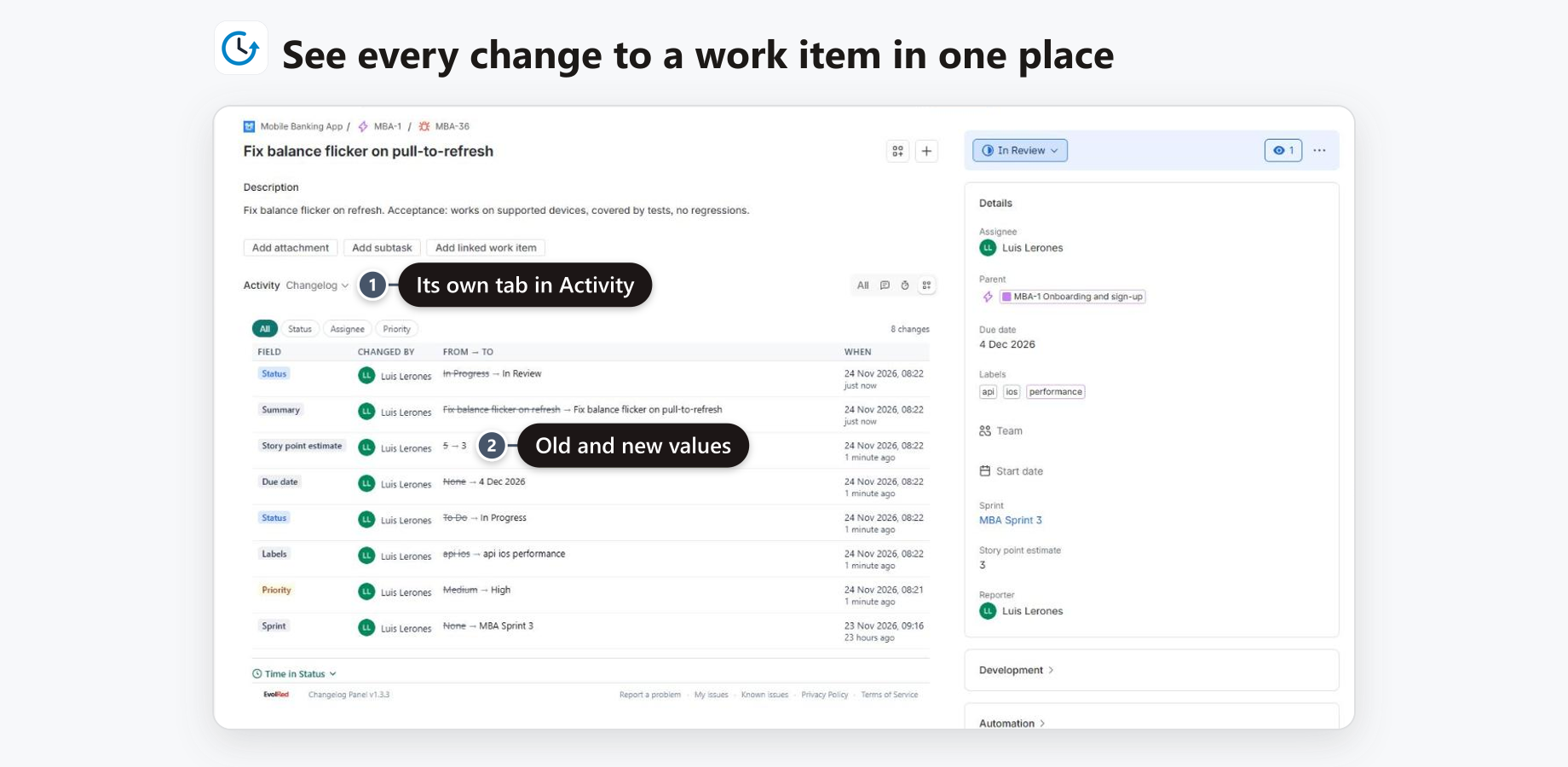 Every change to an issue in one table
4. Filter by field
Use the filter pills to show only status, assignee or priority changes, or All to see everything.
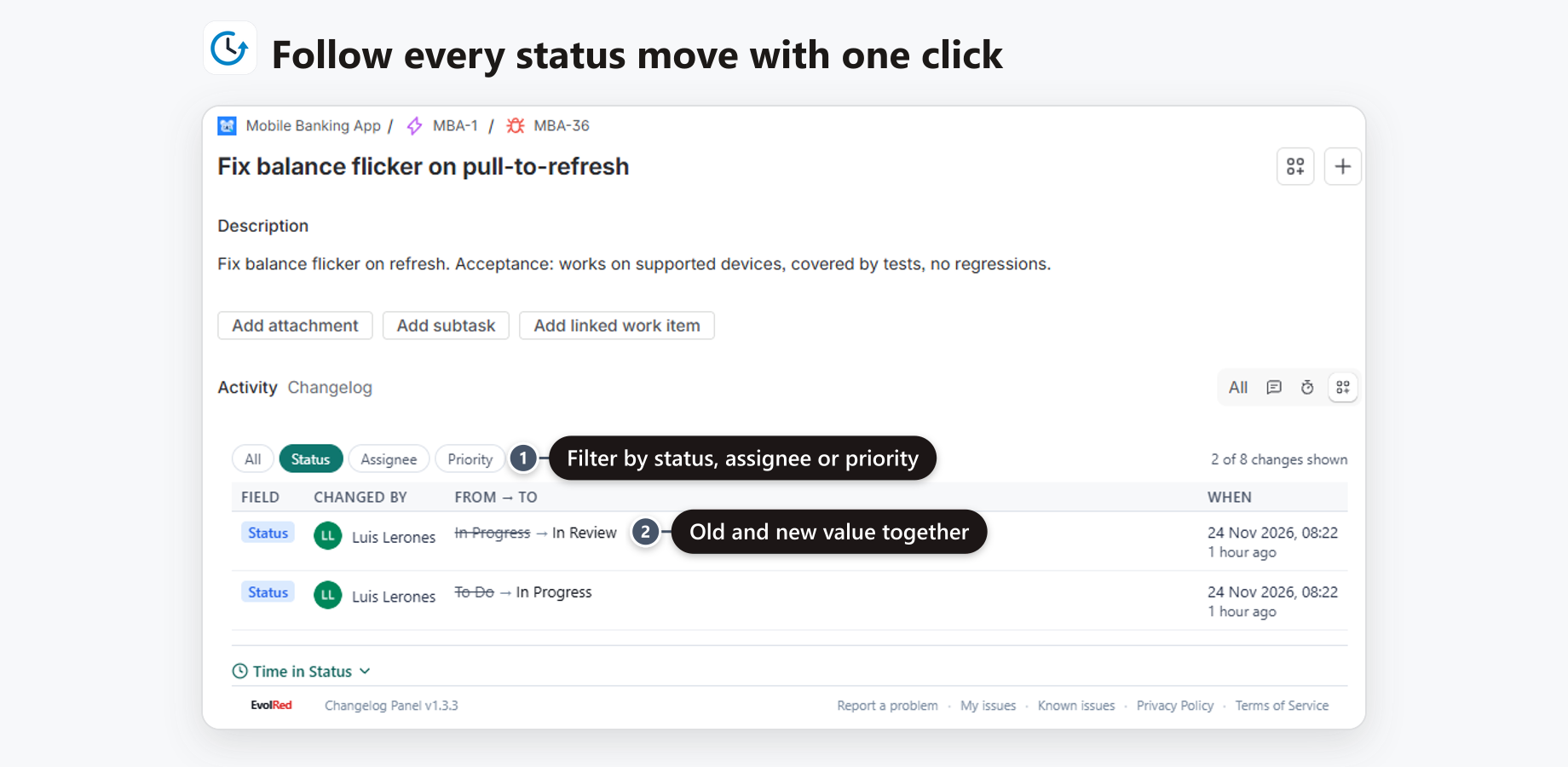 Filtering the history to one field
5. See time in status
Open Time in Status to see how long the issue spent in each status, with the total cycle time.
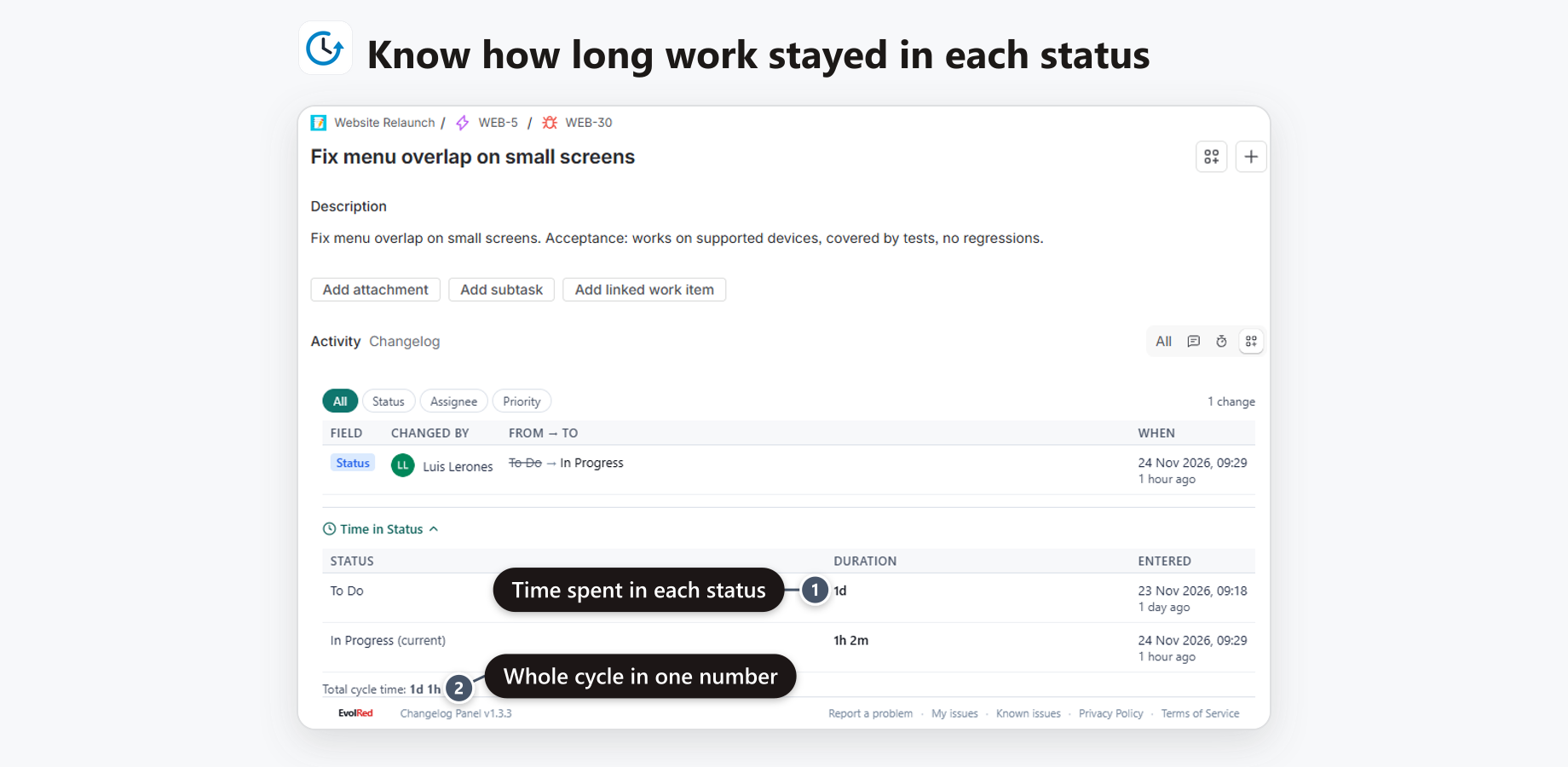 How long the issue sat in each status
Troubleshooting
I don't see the Changelog button. It sits with the other buttons under the issue summary. On some layouts it is under the Apps button or the … menu.
Some changes are missing. The panel shows what Jira records in the issue history. Changes made before the issue was moved from another project keep their original history only if Jira kept it.
Uninstalling
Remove the app from Connected apps in Atlassian Administration (admin.atlassian.com). The app stores nothing, so there is nothing else to clean up.
Still stuck?
Tell us what you tried and what you saw. We reply within our published support times.