Before you start
You need:
- A Jira Cloud site, and admin rights on it to install apps.
- A Jira Software project with a backlog. Company-managed and team-managed projects both work.
- Project admin rights to change the criteria, scoring models and settings. Anyone who can browse the project can see the scores.
Backlog Priorities is free for up to 10 users, then $0.50 per user per month, with a 30-day free trial on the Atlassian Marketplace. During the trial and while subscribed, everything is included. Without an active trial or subscription the app explains that a Jira admin can subscribe from Apps, ⋯, Manage apps in the Jira sidebar, or from Connected apps in Atlassian Administration.
1. Install the app
- Open the Backlog Priorities listing on the Atlassian Marketplace and select Try it free.
- Choose the Jira site to install it on.
- Review the permissions and confirm.
You can also install it from inside Jira: open Settings (the gear icon), go to Apps and search for "Backlog Priorities".
The app keeps your scores, criteria, votes and settings in Atlassian's Forge storage. No data leaves Atlassian.
2. Open Backlog Priorities
Go to your project and choose Backlog Priorities in the project navigation. If your project has a lot of tabs, look under More.
3. Choose how you score
Open Backlog Priorities settings in the project settings. A project admin can start from RICE, ICE, WSJF, value versus effort, MoSCoW or weighted scoring, or write their own formula. The formula editor shows a live preview on sample issues and explains mistakes in plain words.
A project can hold several scoring models, for example WSJF for features and your own formula for bugs. One is the primary model: its score goes to the Priority score field.
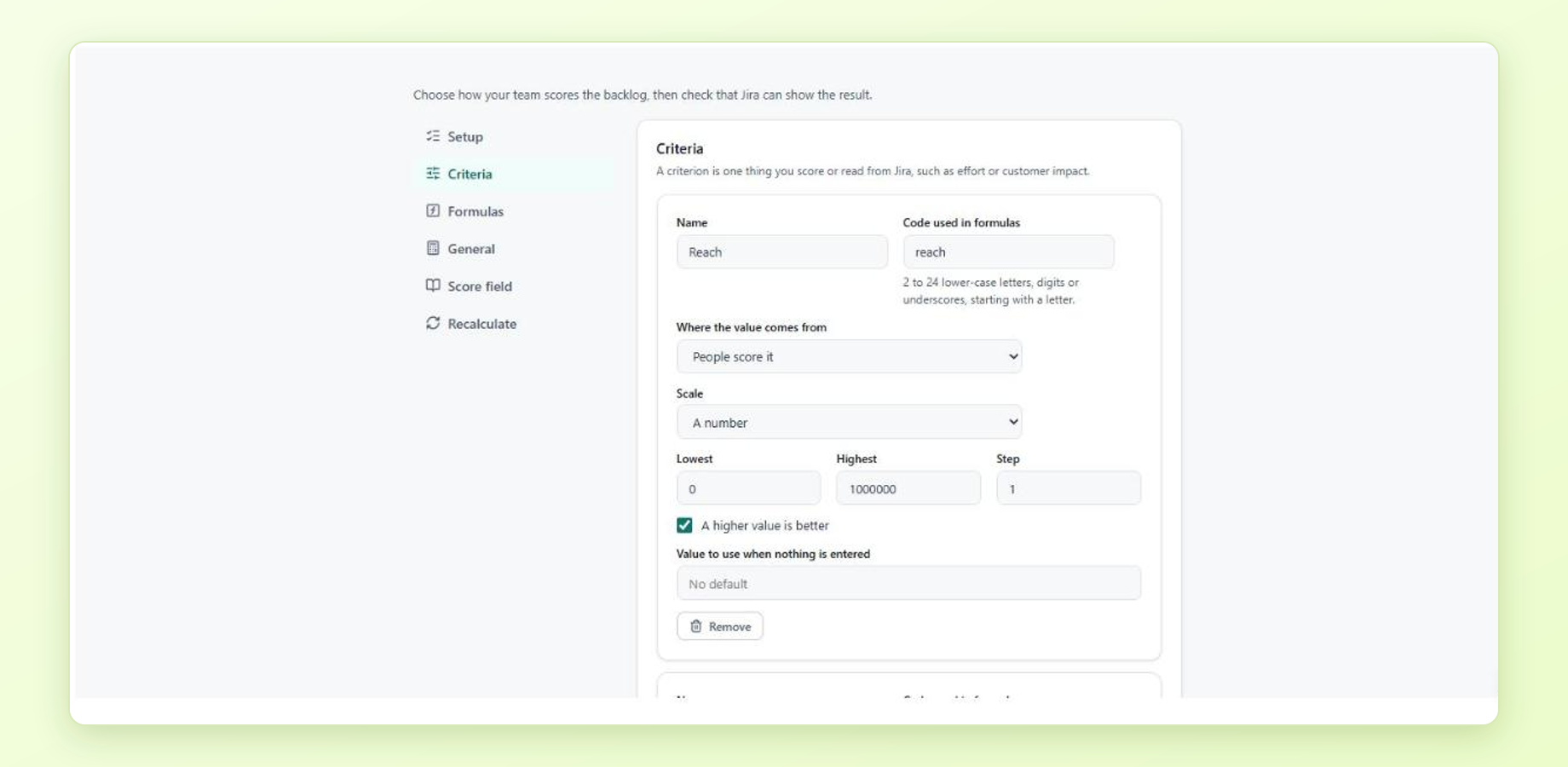 Choosing criteria and a scoring model in the settings
4. Score your backlog
The Grid lists your issues with their scores. Fill in values yourself, edit several issues at once, or filter to the issues with no score yet.
Jira can fill in what it already knows. A criterion can read story points, a number field, the days until a due date, the age of an issue, votes, watchers, linked issues or the issue's priority, so you do not retype them.
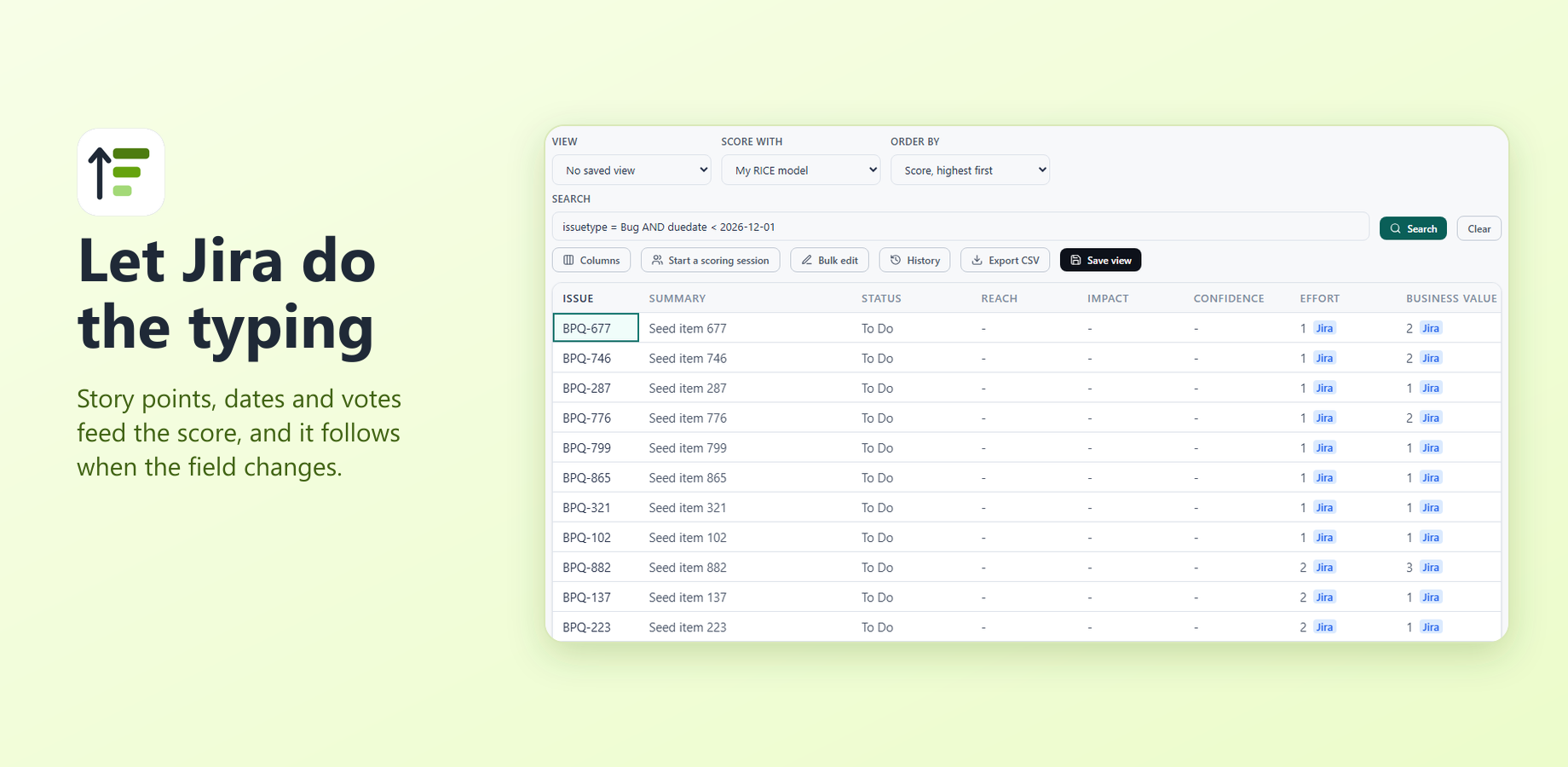 The grid with scores
5. Score together
Open the Sessions tab to start a session. Pick the issues and the criteria to score. Each person votes on their own, and votes stay hidden until you reveal them. You then see the spread and whether the team agrees for each criterion, and you can vote again before saving the agreed value to the issue. A session can run live or have a deadline, so people can score in their own time.
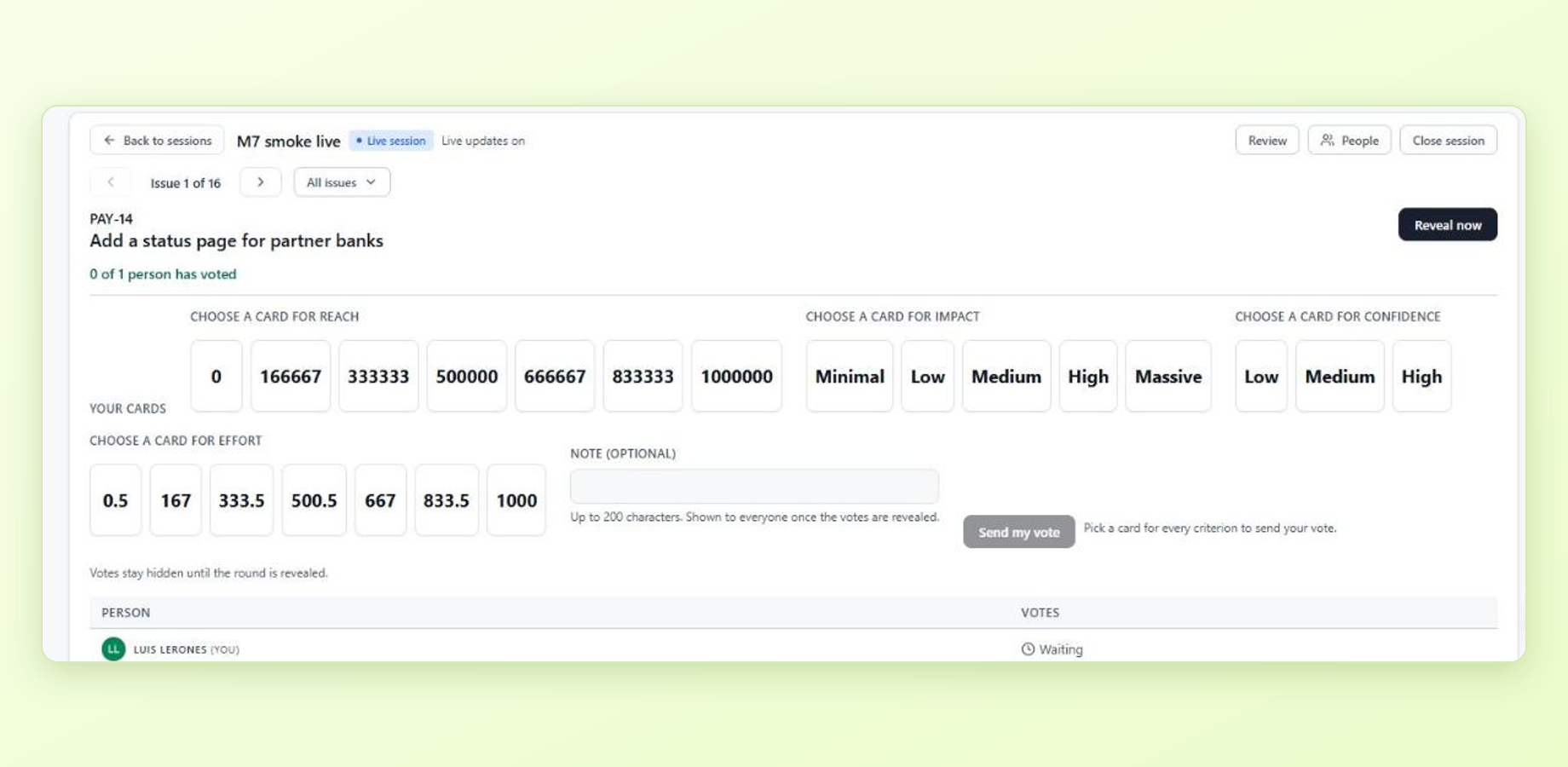 Scoring together in a session
6. Check the matrix
The Matrix tab plots your issues on any two criteria, or on the score, with a third criterion as bubble size. Select a bubble to open the issue.
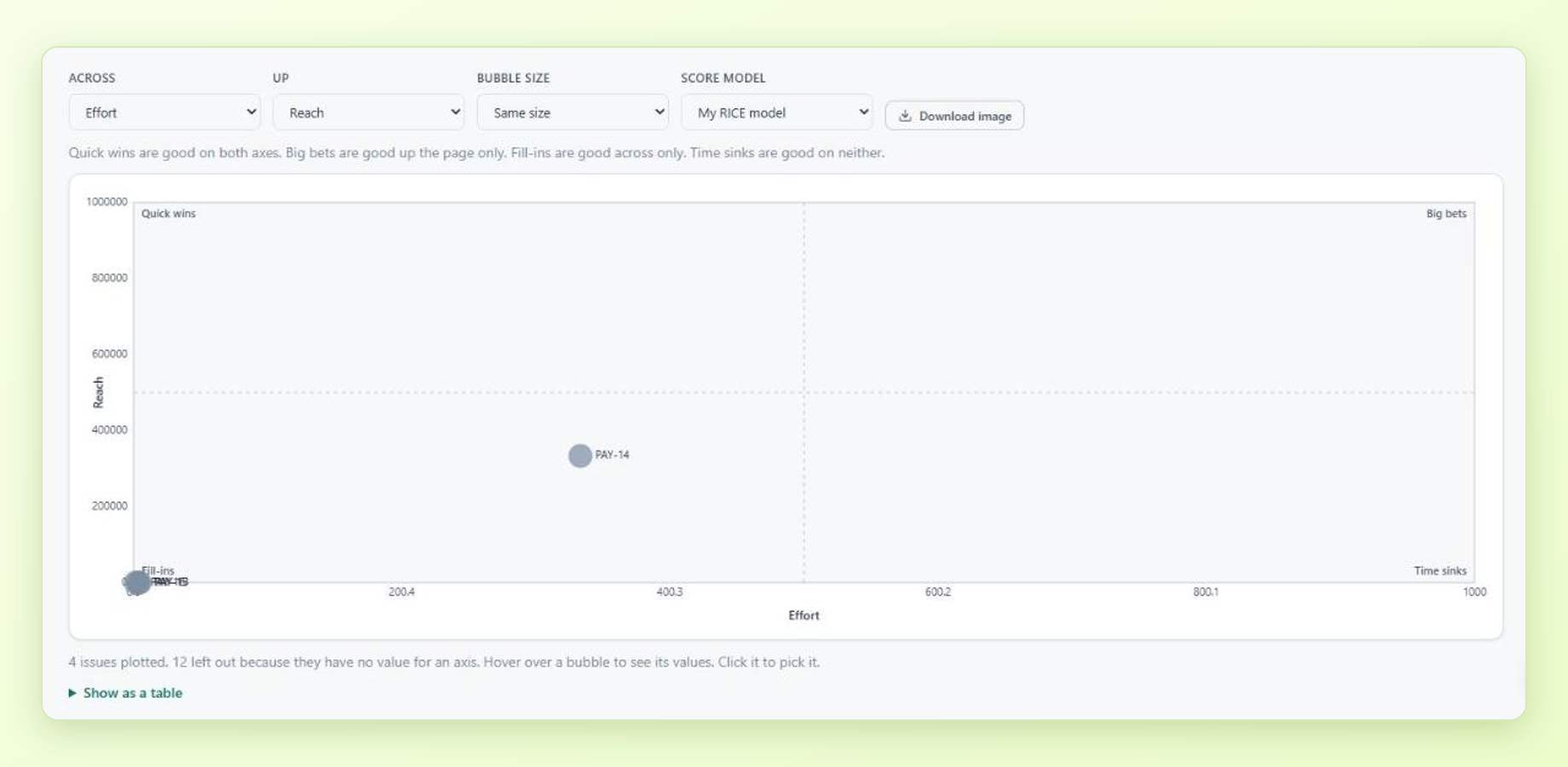 The value versus effort matrix
7. Apply the result
The Apply tab turns the scores into action.
- Priority score field. The score is written to a Jira field that you can use in filters, sorting and issue navigator columns. In team-managed projects Jira does not show the field on issues, so the score is shown in the app and the backlog order is applied through Reorder backlog.
- Reorder backlog. Preview what moves up and down, confirm, and the app changes the backlog order for you. Undo for 24 hours restores the order exactly as it was. Only the person who reordered can undo it.
- Sprint cut line. Enter your capacity in story points or issues, or use the average of your last three sprints. The grid shows where the line falls, and Move above the line to sprint moves those issues into the sprint you choose.
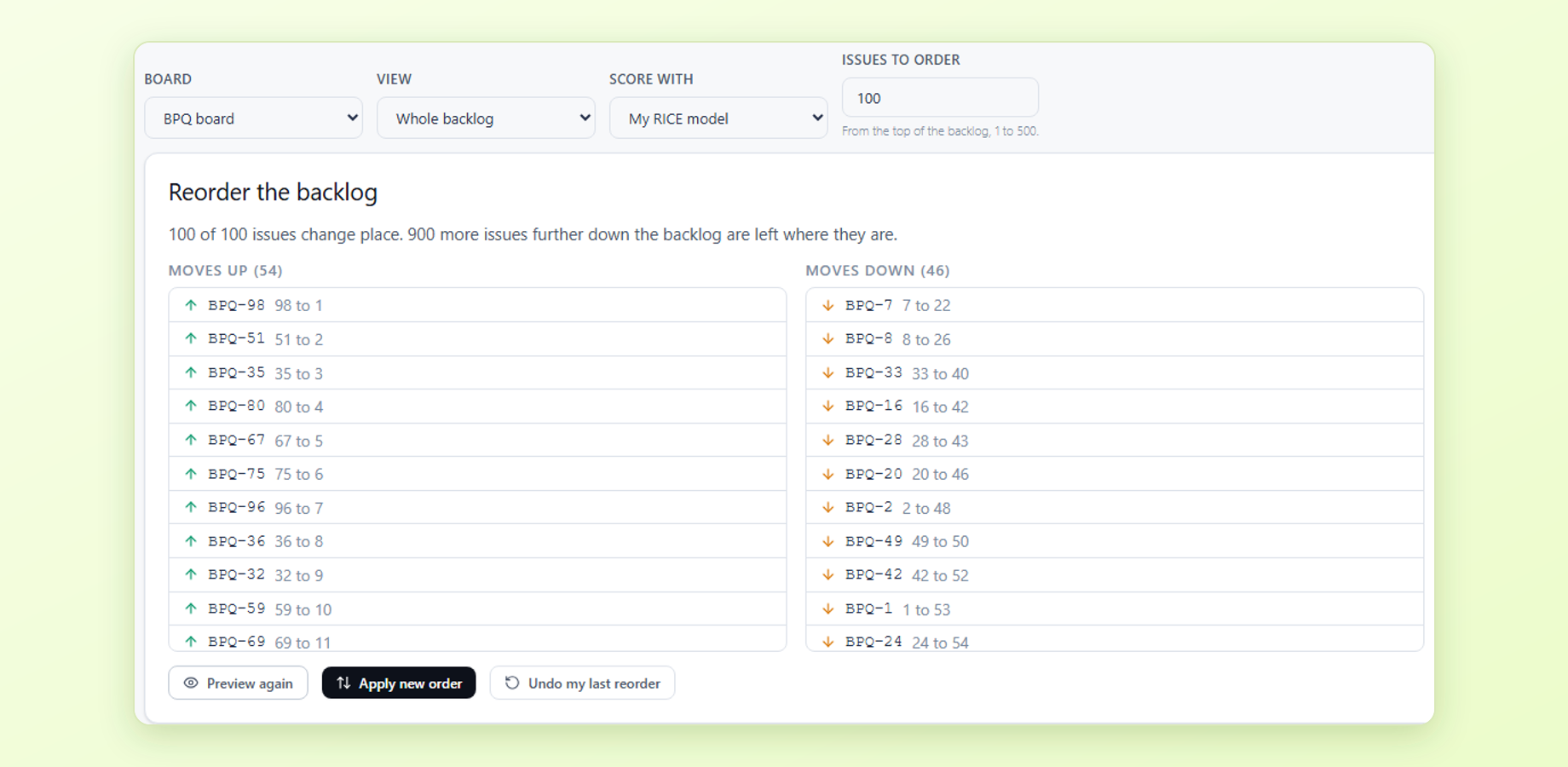 Previewing a backlog reorder
A Kanban board without a backlog has no order to change. The Apply tab says so and explains how to turn the backlog on in the board settings.
8. See the score on an issue
Open a work item, select View app actions (the icon under the title), then Backlog priority. The panel shows the score, each part of it and where it came from, lets you edit values, and lists the latest changes. It stays on that work item once added.
Troubleshooting
Every screen says the app needs an active subscription. The trial has ended or was never started. A Jira admin can start the trial or subscribe from Apps, ⋯, Manage apps in the Jira sidebar, or from Connected apps in Atlassian Administration.
I cannot change the criteria or settings. Only project admins can. Ask one to make the change or to grant you the permission.
I cannot change a score. By default you need permission to edit the issue. A project admin can limit scoring to project admins in the settings.
The score does not show on my team-managed issues. Jira does not show the Priority score field on issues in team-managed projects. The score is shown in the app, and Reorder backlog still applies the order.
The score does not show on board cards. Use the issue navigator column or the app. Jira does not offer the field on board cards.
Reorder backlog says the board has no backlog. Turn the backlog on in the board settings. For a company-managed Kanban board, move a status into "Kanban backlog" under Columns.
My grid shows fewer issues than a colleague's. Everyone only sees issues they are allowed to see. Issues in projects you cannot browse, or with a security level you cannot see, are left out.
Uninstalling
Remove the app from Connected apps in Atlassian Administration (admin.atlassian.com). Your scores, criteria, sessions and settings are deleted with the app, under Atlassian's data retention policy for Forge storage. The Priority score field stays on your issues with its last values, but it stops updating.
Still stuck?
Tell us what you tried and what you saw. We reply within our published support times.