
Before you start
You need:
- A Jira Cloud site, and admin rights on it to install apps. Anyone who can edit an issue can set it to repeat.
Simple Recurring is free. Everything is included, with no trial or subscription needed.
1. Install the app
- Open the Simple Recurring listing on the Atlassian Marketplace and select Try it free.
- Choose the Jira site to install it on.
- Review the permissions and confirm.
You can also install it from inside Jira: open Settings (the gear icon), go to Apps and search for "Simple Recurring".
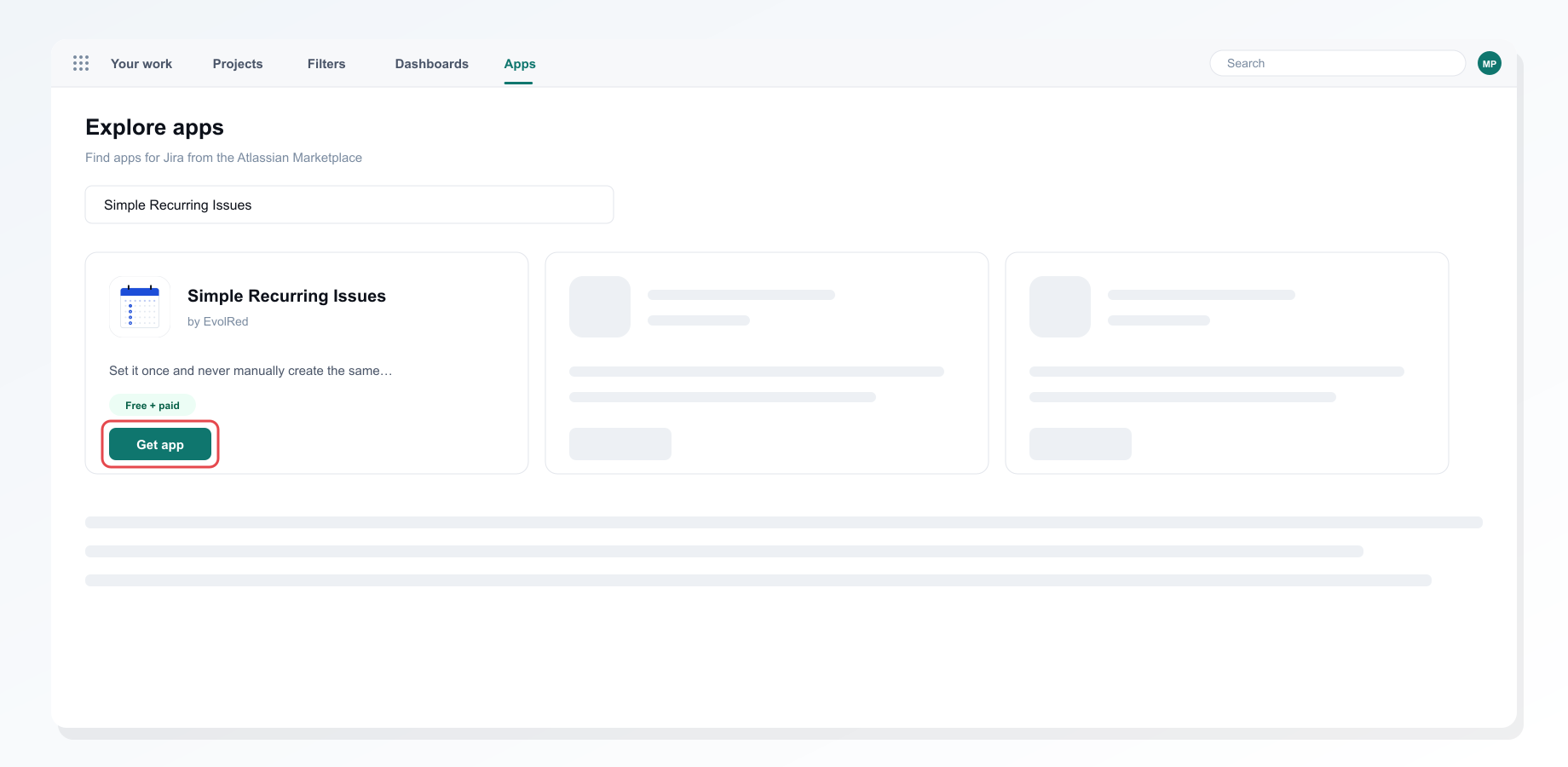 Installing Simple Recurring from the Apps screen in Jira
The app asks for permission to read issues, create new ones and add comments. It stores the schedule of each recurring issue.
2. Open the Recurring Issue panel
Open the issue you want to repeat, for example a weekly report task, and select the Recurring Issue button under the summary.
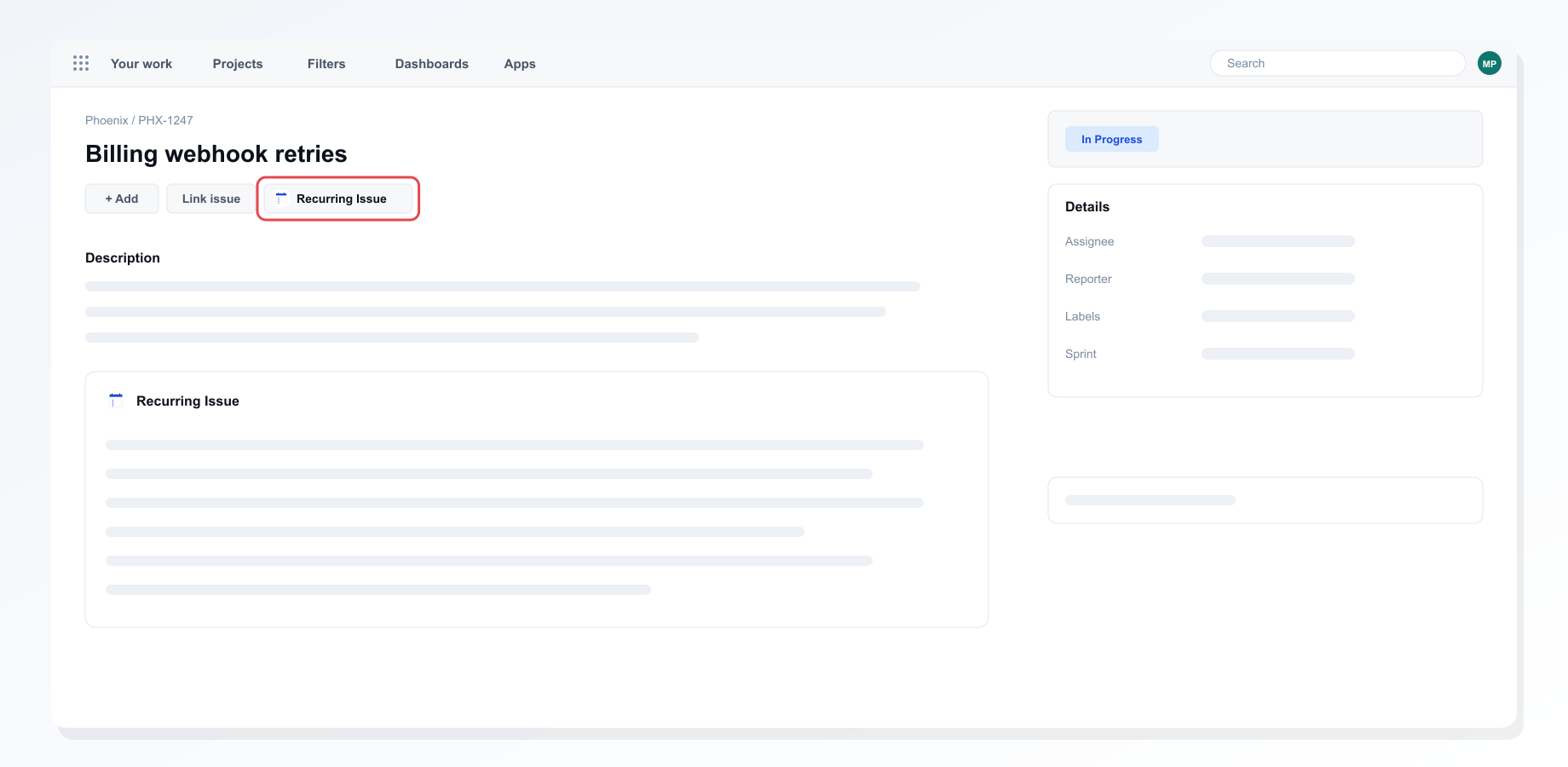 The Recurring Issue button on an issue
3. Set the schedule
Pick how often it repeats (daily, weekly, monthly, quarterly or yearly) and an interval, such as every two weeks. Weekly schedules can run on chosen days; monthly ones on a day of the month. Set a start date, and an end date if the work should stop.
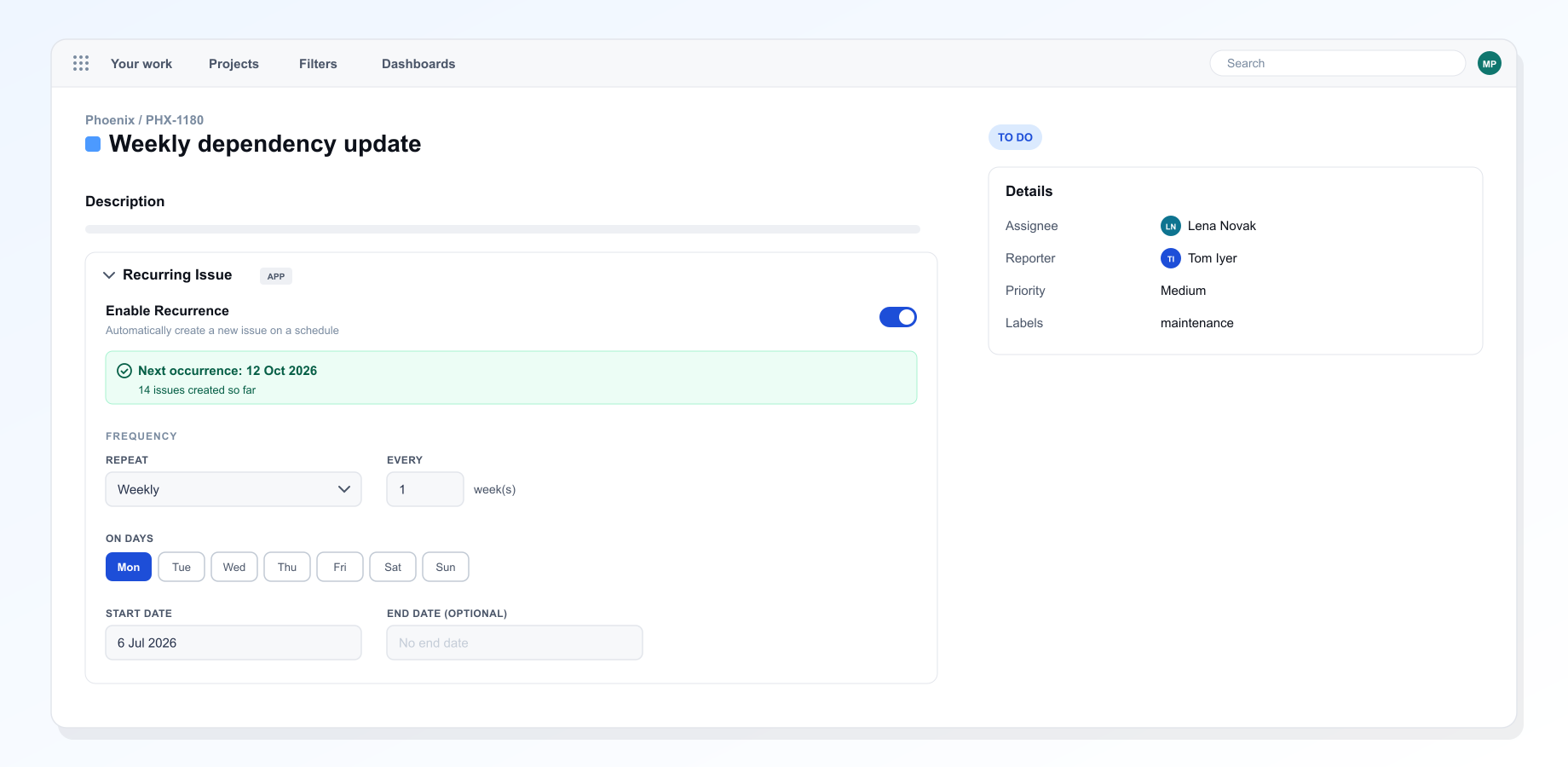 An issue set to repeat every week
4. Choose what carries over
Decide whether each new copy keeps the assignee, labels, components and priority. The summary and description always carry over. Save the schedule.
5. Let it run
A check runs every hour. When the next occurrence is due, a fresh copy is created in the same project and issue type, and a comment on the original issue links to it.
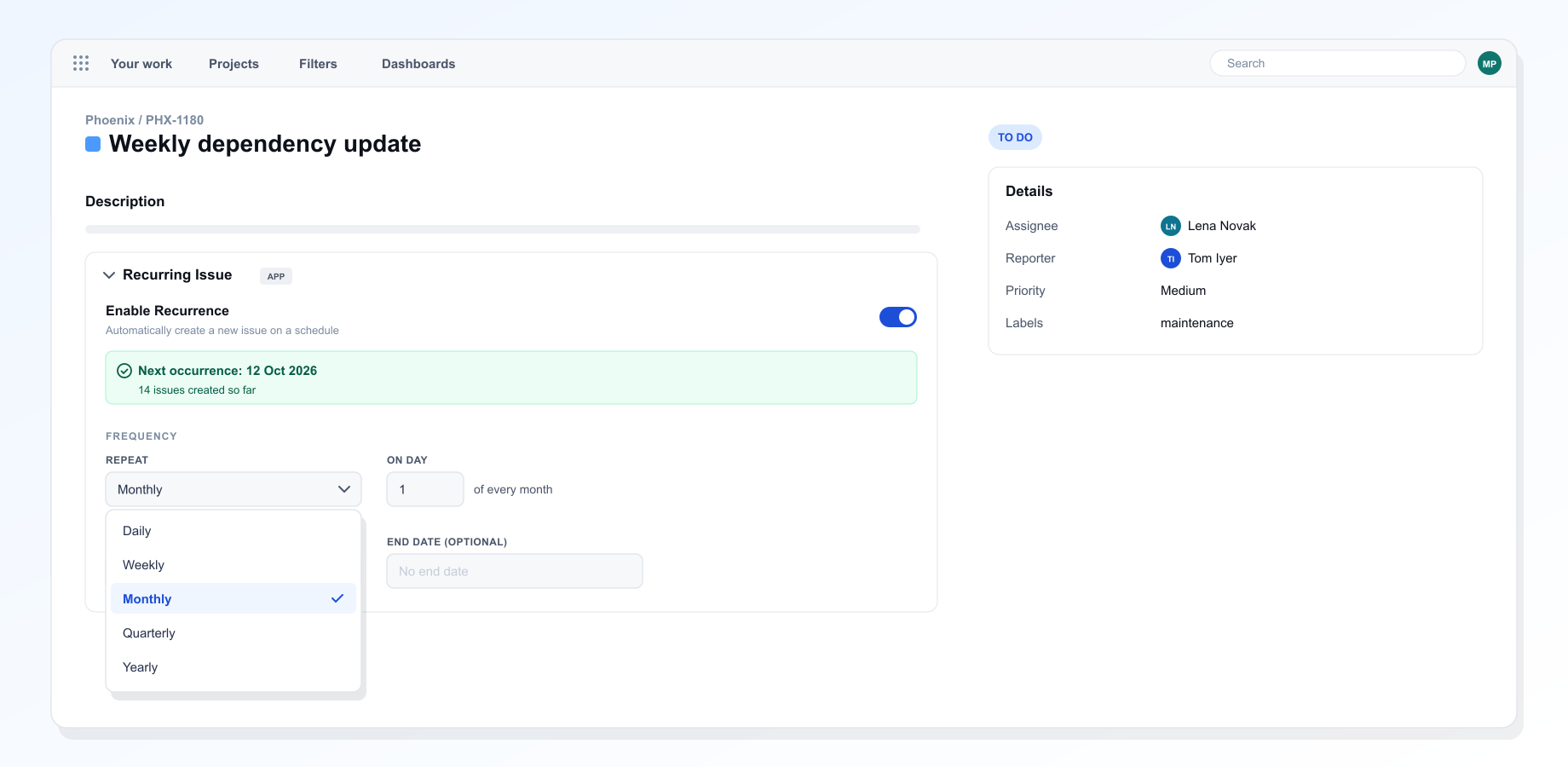 Daily, weekly, monthly or yearly schedules
Troubleshooting
The new issue did not appear right on time. The check runs once an hour, so a copy can arrive up to an hour after it is due.
Nothing happened when I marked the issue Done. Check that the recurrence is set to When this issue is marked Done, is enabled, and that today is between its start and end dates. Moving an issue to Done again within two minutes does not create a second copy.
Uninstalling
Remove the app from Connected apps in Atlassian Administration (admin.atlassian.com). The schedules are deleted with the app, so no more copies are created. Issues it already created stay in Jira.
Still stuck?
Tell us what you tried and what you saw. We reply within our published support times.