
Before you start
You need:
- A Jira Cloud site, and site admin rights on it. LicenseGuard lives in Jira's admin settings and only admins can open it.
- Access to Atlassian admin (admin.atlassian.com) to deactivate the accounts you decide to remove. LicenseGuard never changes a user's status itself.
1. Install the app
- Open the LicenseGuard listing on the Atlassian Marketplace and select Get it now.
- Choose the Jira site to install it on.
- Review the permissions and confirm.
You can also install it from inside Jira: open Settings (the gear icon), go to Apps and search for "LicenseGuard".
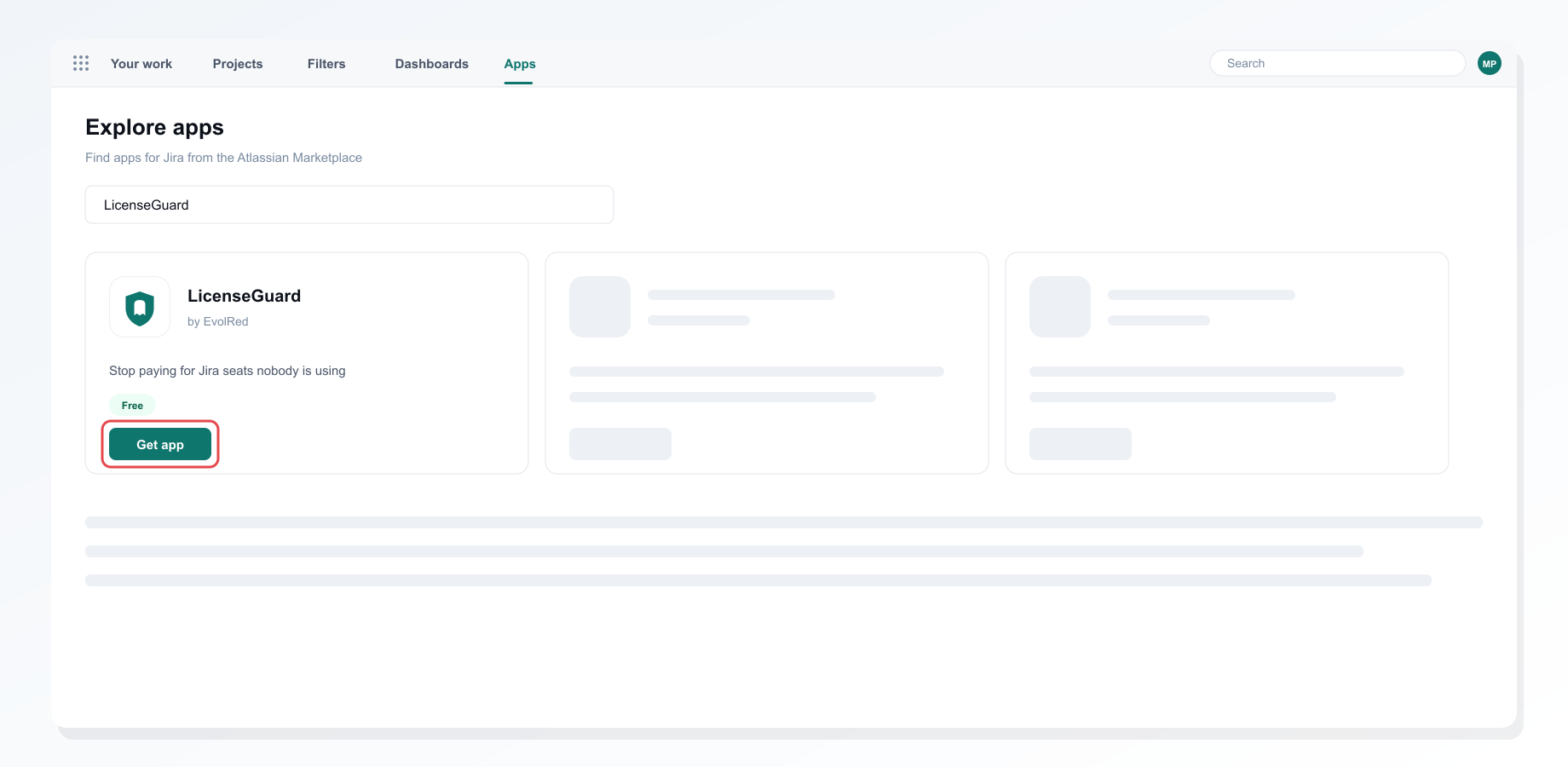 Installing LicenseGuard from the Apps screen in Jira
The app asks for read access to users and to issues, which it uses to see when each person last created, updated or commented on a work item. It stores your settings, scan history, the safelist and an activity log with account IDs only.
2. Open LicenseGuard
Open Settings (the gear icon), go to Apps and select LicenseGuard in the menu. The first time, Jira may ask you to allow LicenseGuard to act on your behalf; accept it.
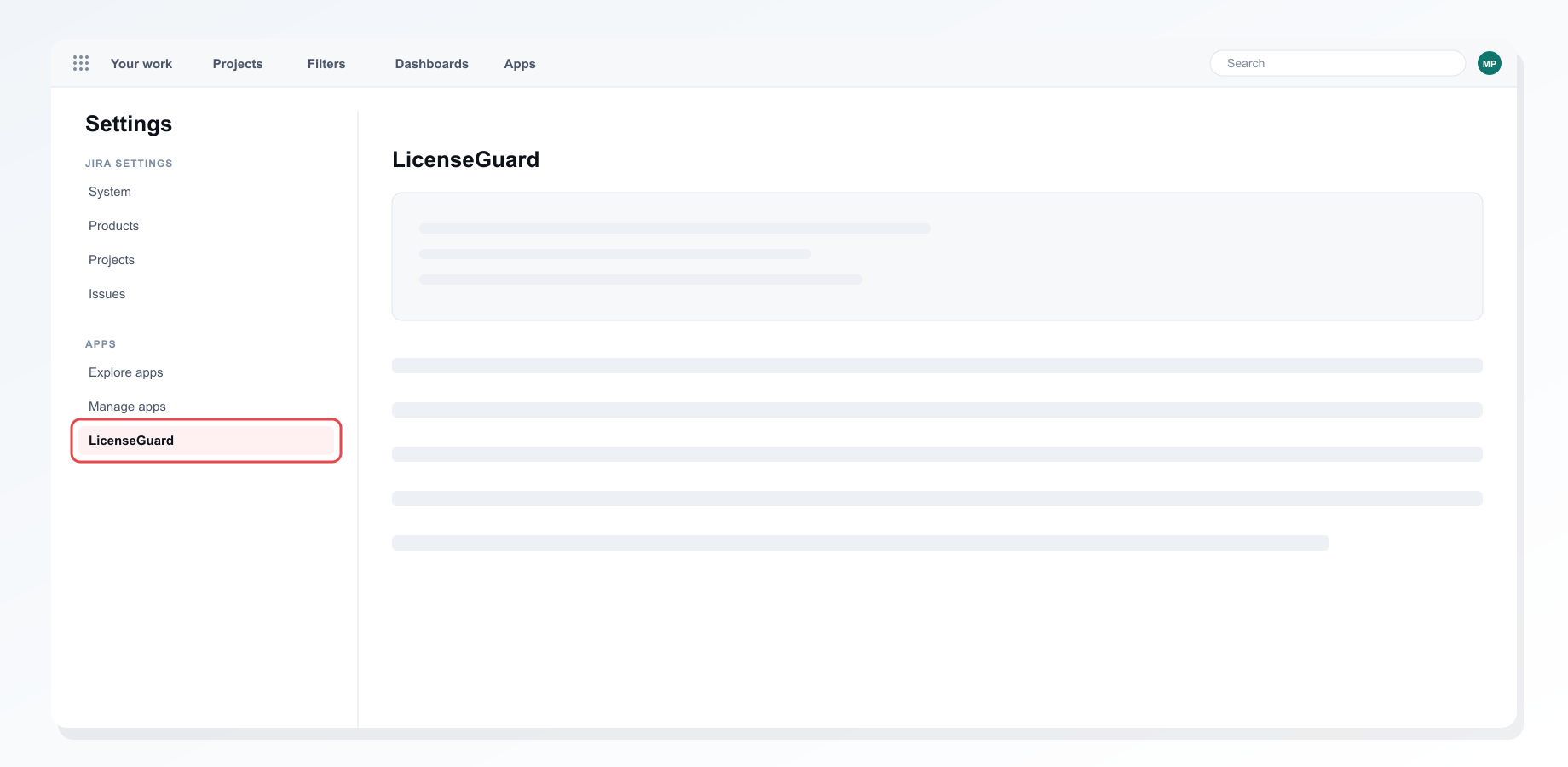 LicenseGuard in the Apps section of Jira settings
3. Check the settings
In the Settings tab, set the inactivity threshold (90 days by default) and what a seat costs you per user per year. Past the threshold an account counts as Dormant; past twice the threshold it is a Ghost.
4. Run a scan
Open the User Scanner and run a scan. Every account is classified as Active, Dormant or Ghost by its Jira activity. Admins and people with open work items are flagged so you double-check them. Jira does not share login history with apps, so someone who only reads Jira can show as inactive.
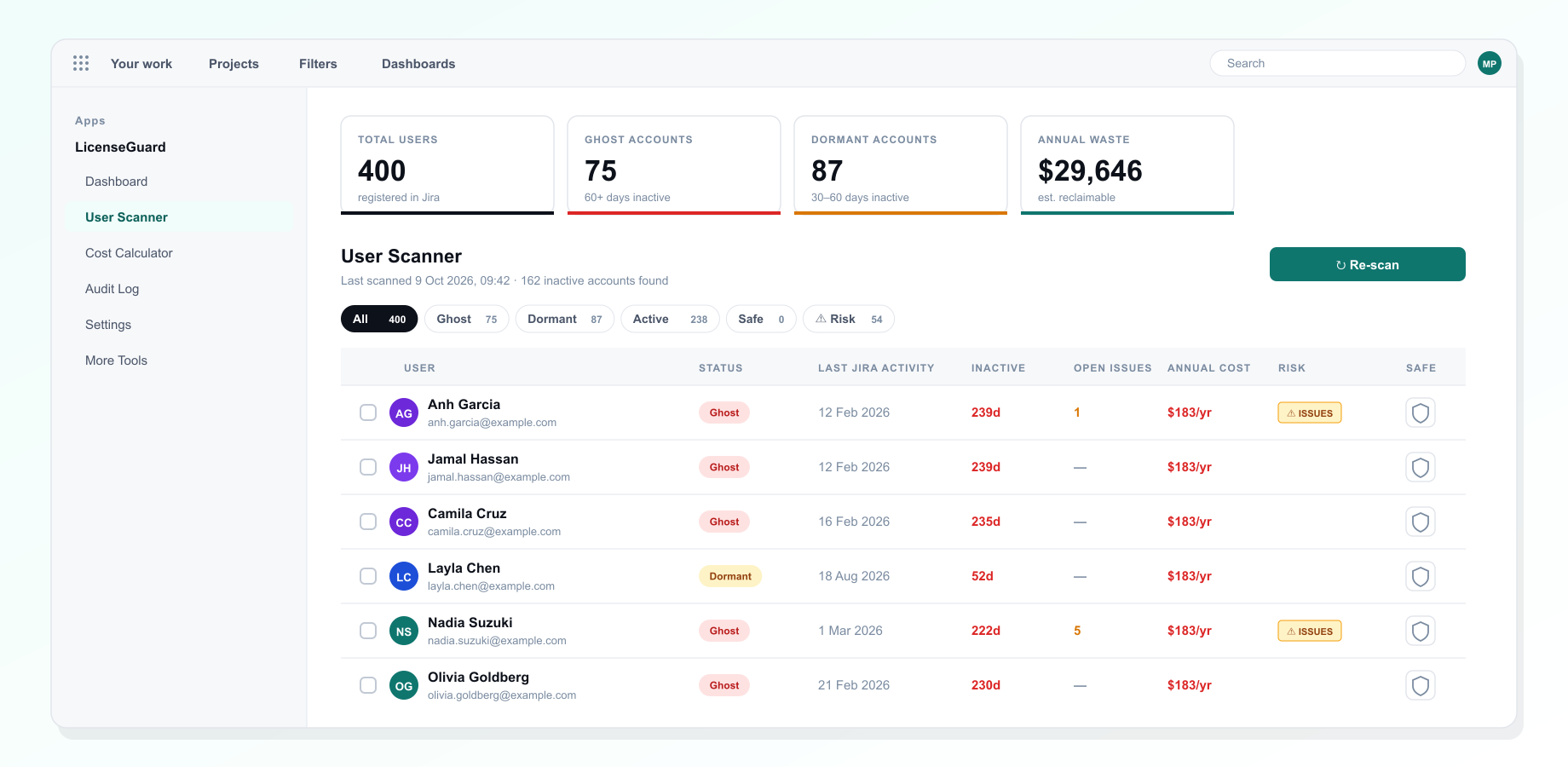 A scan with every account classified
5. Protect the accounts that should stay
Add service accounts, executives and anyone else who must never be flagged to the safelist. They stay visible, marked Safe, but never count as dormant or ghost, or towards the cost. You can remove them from the safelist at any time.
6. Hand off to Atlassian admin
When you are sure, follow the link to Atlassian's user management and deactivate the accounts there. Export the list as CSV first if finance or a manager needs to sign off. Every safelist change and hand-off is recorded in the Activity Log.
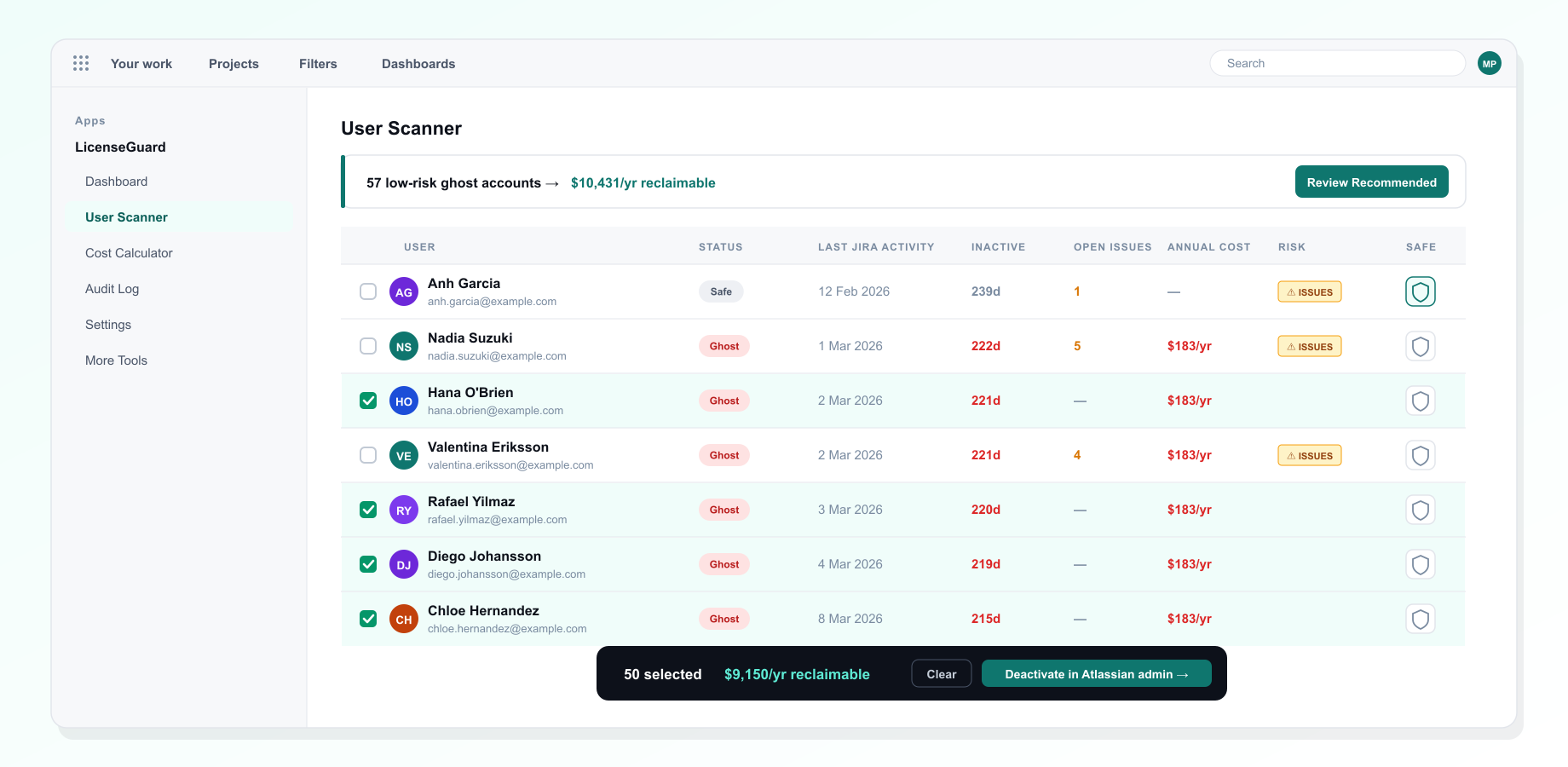 Reviewing the accounts to remove
7. Watch the trend
The Dashboard shows how many inactive accounts you have and what they cost, scan by scan. Turn on a weekly or monthly scan in Settings so new inactivity shows up without anyone remembering to look.
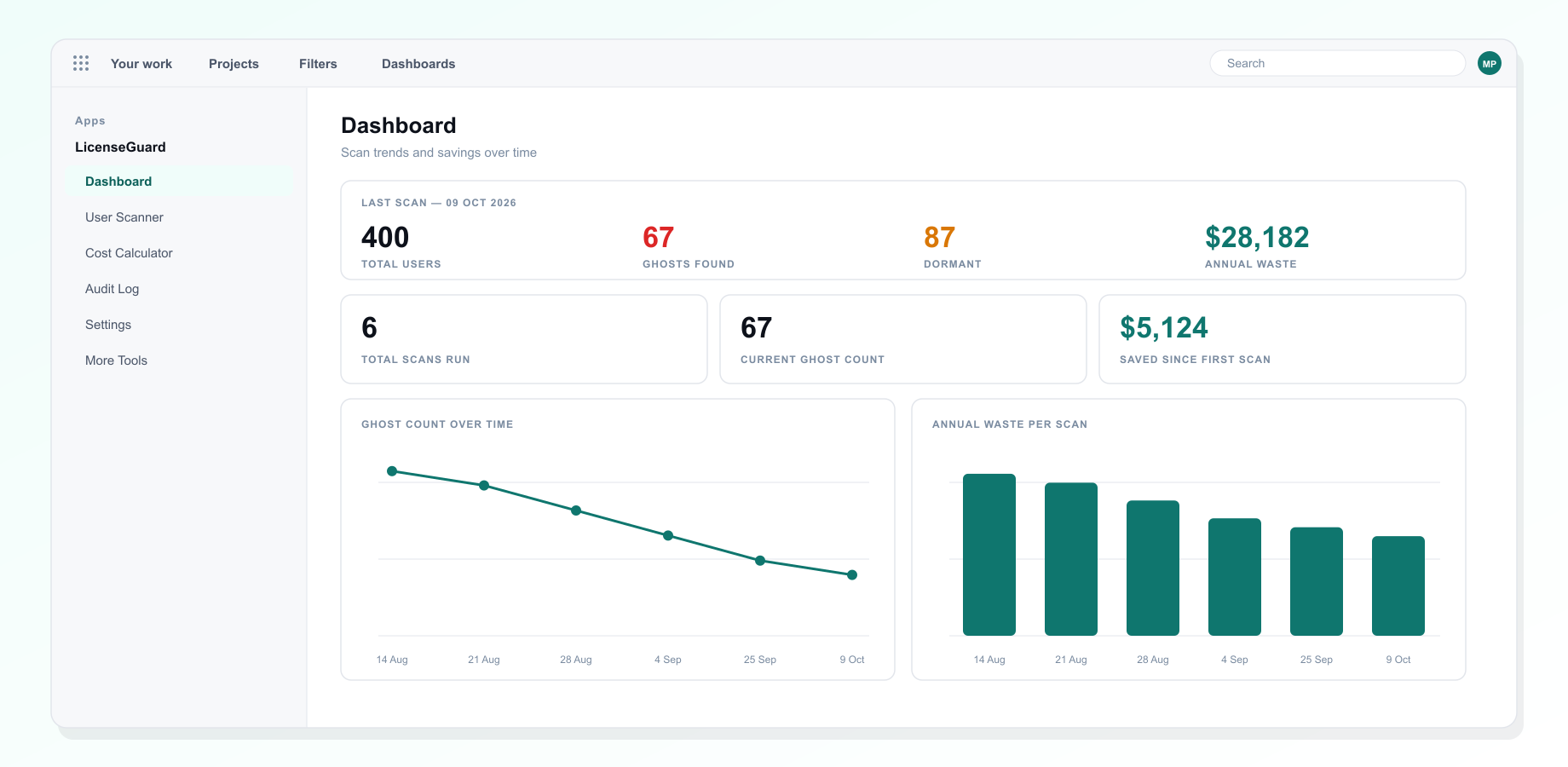 Inactive accounts and their cost over time
Troubleshooting
I see "forbidden" or an "Allow access" prompt. LicenseGuard needs your permission to act on your behalf the first time. Accept Jira's prompt and try again.
Someone active shows as a ghost. They probably only read Jira. LicenseGuard measures creating, updating and commenting, because Jira does not share logins with apps. Add them to the safelist.
The cost looks wrong. Check the price per user in Settings. The cost covers dormant and ghost accounts that are not on the safelist.
I don't see LicenseGuard in the settings menu. It is only shown to Jira admins.
Uninstalling
Remove the app from Settings, Apps, Manage apps. Your settings, scan history, safelist and activity log are deleted with the app.
Still stuck?
Tell us what you tried and what you saw. We reply within one business day.