Before you start
You need:
- A Jira Cloud site, and admin rights on it to install apps.
- Project admin rights to merge or bulk-change labels and components. Jira admins can also work on any project from the global page.
Label Organizer is free. Everything is included, with no trial or subscription needed.
1. Install the app
- Open the Label Organizer listing on the Atlassian Marketplace and select Try it free.
- Choose the Jira site to install it on.
- Review the permissions and confirm.
You can also install it from inside Jira: open Settings (the gear icon), go to Apps and search for "Label Organizer".
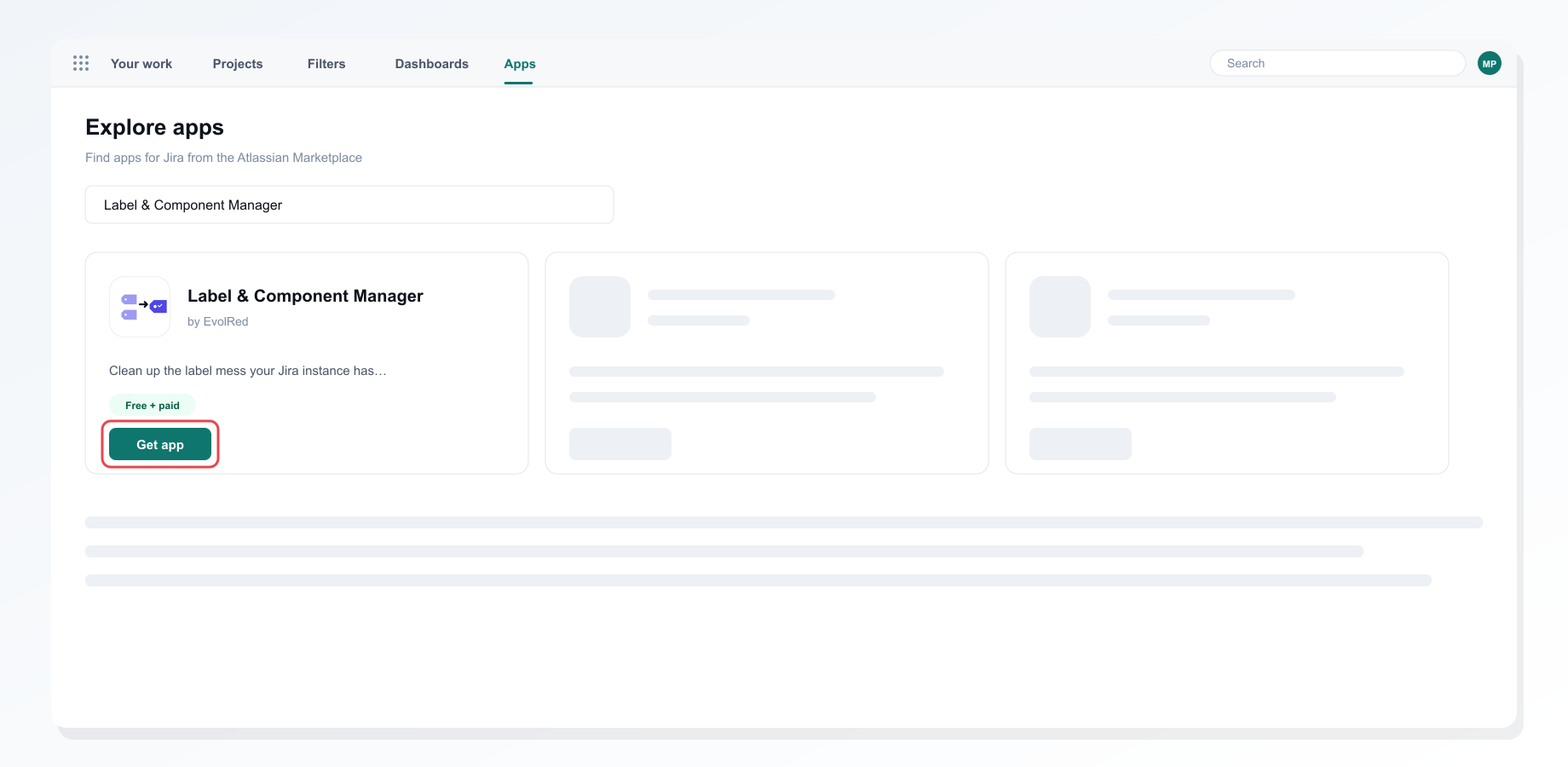 Installing Label Organizer from the Apps screen in Jira
The app asks for permission to read issues and projects, and to edit issues and components when you clean up. Every change runs with your own Jira permissions.
2. Open the manager
Go to your project and open the Label Organizer tab. Jira admins can also open Settings, Apps, Label Organizer (Global) and pick any project on the site.
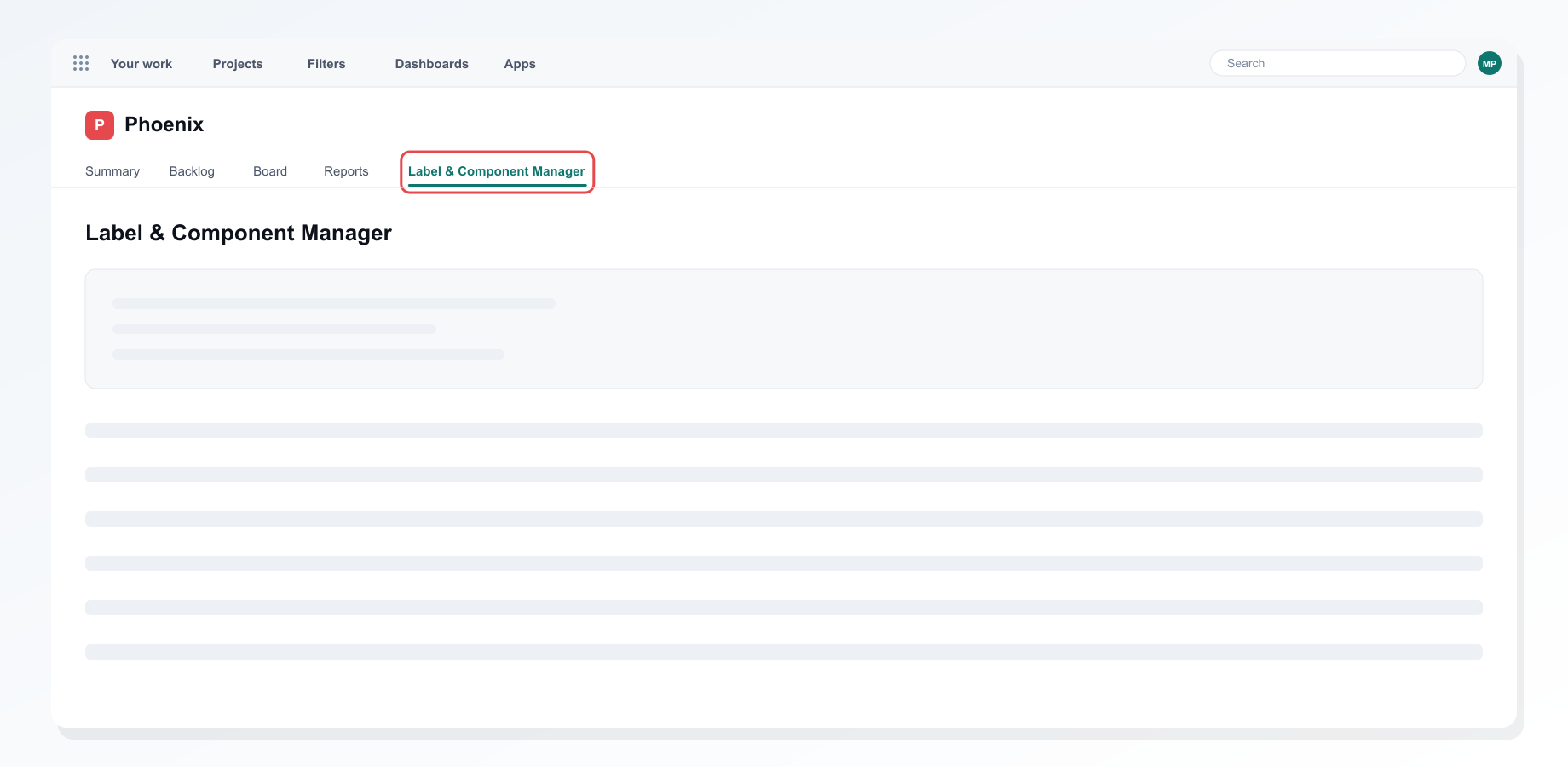 The Label Organizer tab in the project navigation
3. Read the inventory
The table lists every label and component in the project, how many issues use it and when it was last used. Sort and search it. Unused entries and likely duplicates, such as "bug", "Bug" and "bugfix", are flagged for you. On large projects the first load can take a moment; results are then kept for 10 minutes.
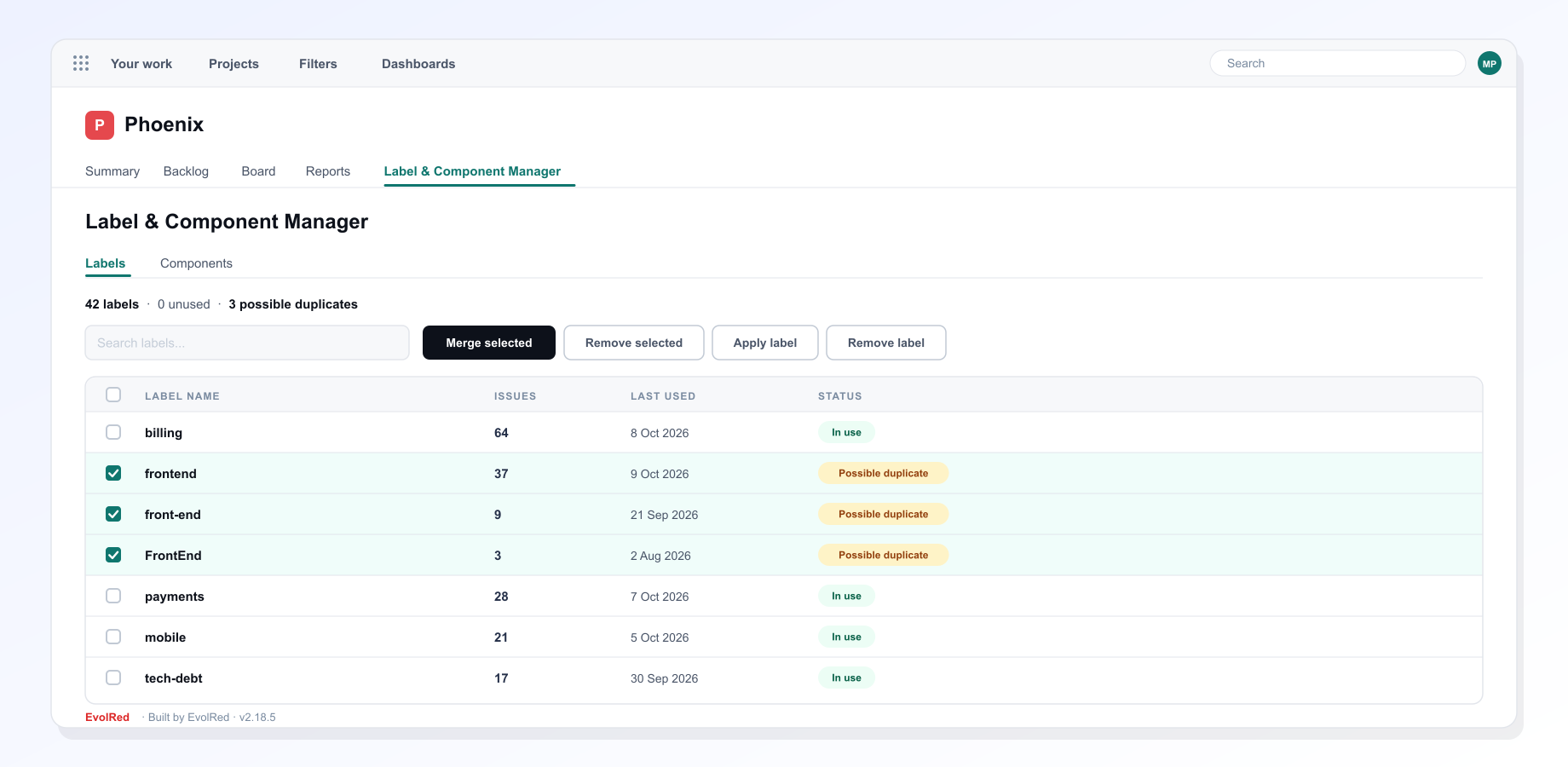 Every label in one list, with usage and flags
4. Merge duplicates
Select two or more labels or components and merge them into one. Every affected issue is updated for you.
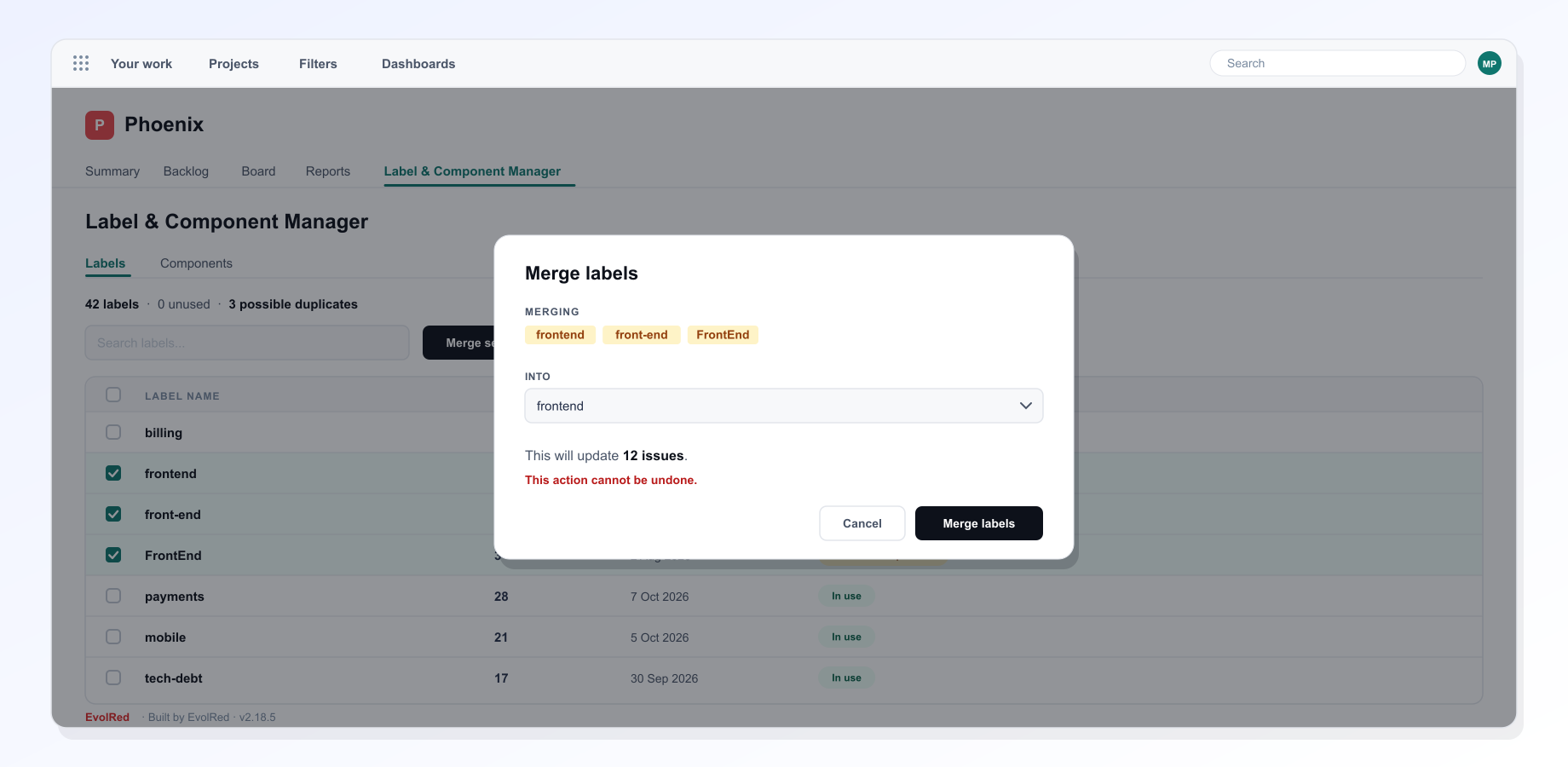 Merging duplicate labels in one step
5. Add or remove in bulk
Add or remove a label or component on every issue that matches a JQL filter. A preview shows how many issues will change before you commit.
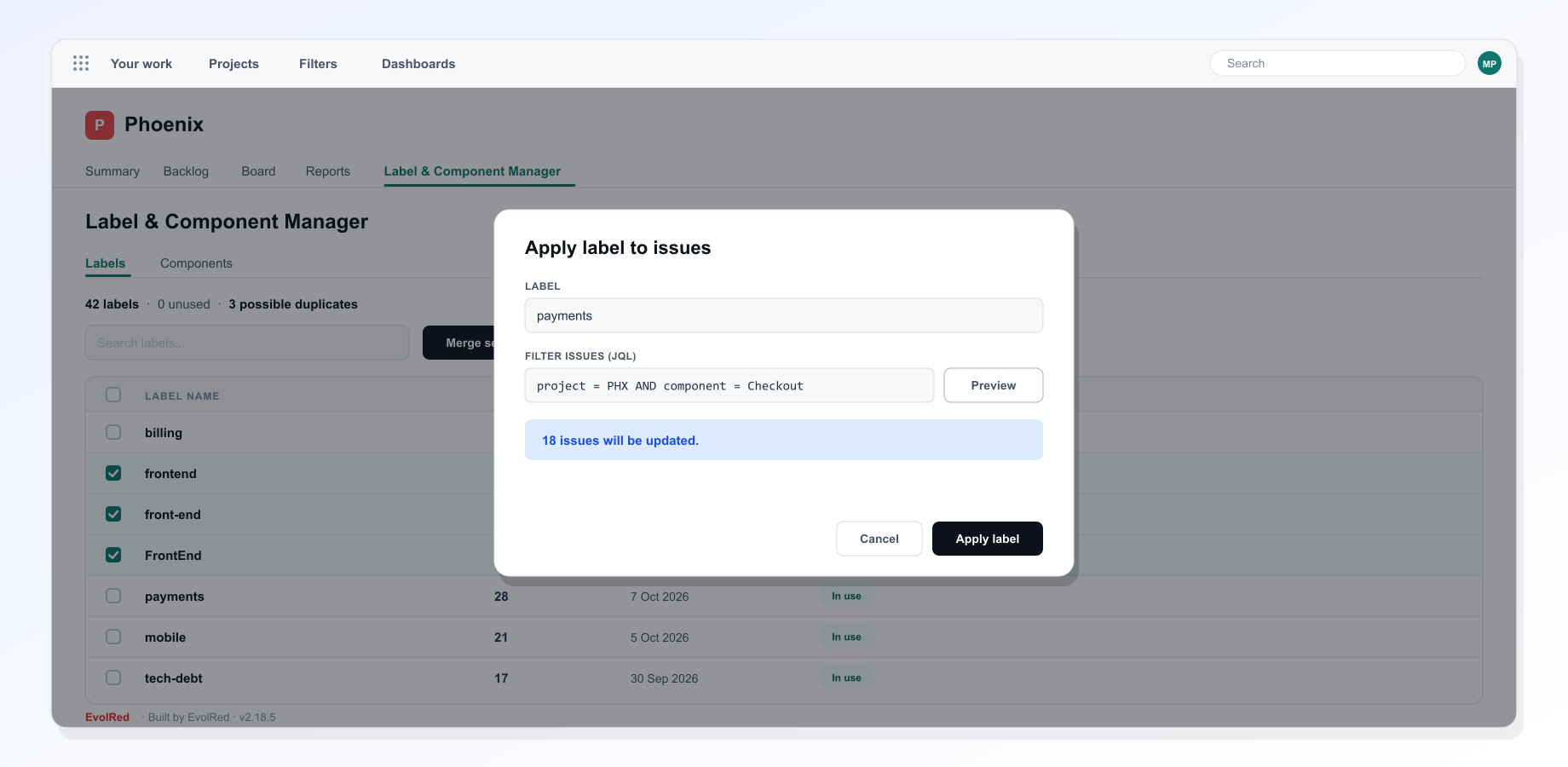 Adding a label across many issues
Troubleshooting
The merge button is disabled. Select at least two labels or components first.
A label I just removed still shows up. Results are kept for 10 minutes on large projects. Reload after that, or wait for the next refresh.
I can't see the global page. It is only available to Jira admins.
Uninstalling
Remove the app from Connected apps in Atlassian Administration (admin.atlassian.com). Your labels and components stay exactly as they are in Jira; the app keeps no copy of them.
Still stuck?
Tell us what you tried and what you saw. We reply within our published support times.