Before you start
You need:
- A Jira Cloud site, and admin rights on it to install apps. Once it is installed, anyone who can see the project can use it.
- A project with a board and an active sprint. Blocker Status reads the active sprint of the project's first board.
- Issues linked with Jira's Blocks link type ("blocks" and "is blocked by"). Other link types, such as "relates to", are ignored.
There is nothing to configure, and Blocker Status is free.
1. Install the app
- Open the Blocker Status listing on the Atlassian Marketplace and select Get it now.
- Choose the Jira site to install it on.
- Review the permissions and confirm.
You can also install it from inside Jira: open Settings (the gear icon), go to Apps and search for "Blocker Status".
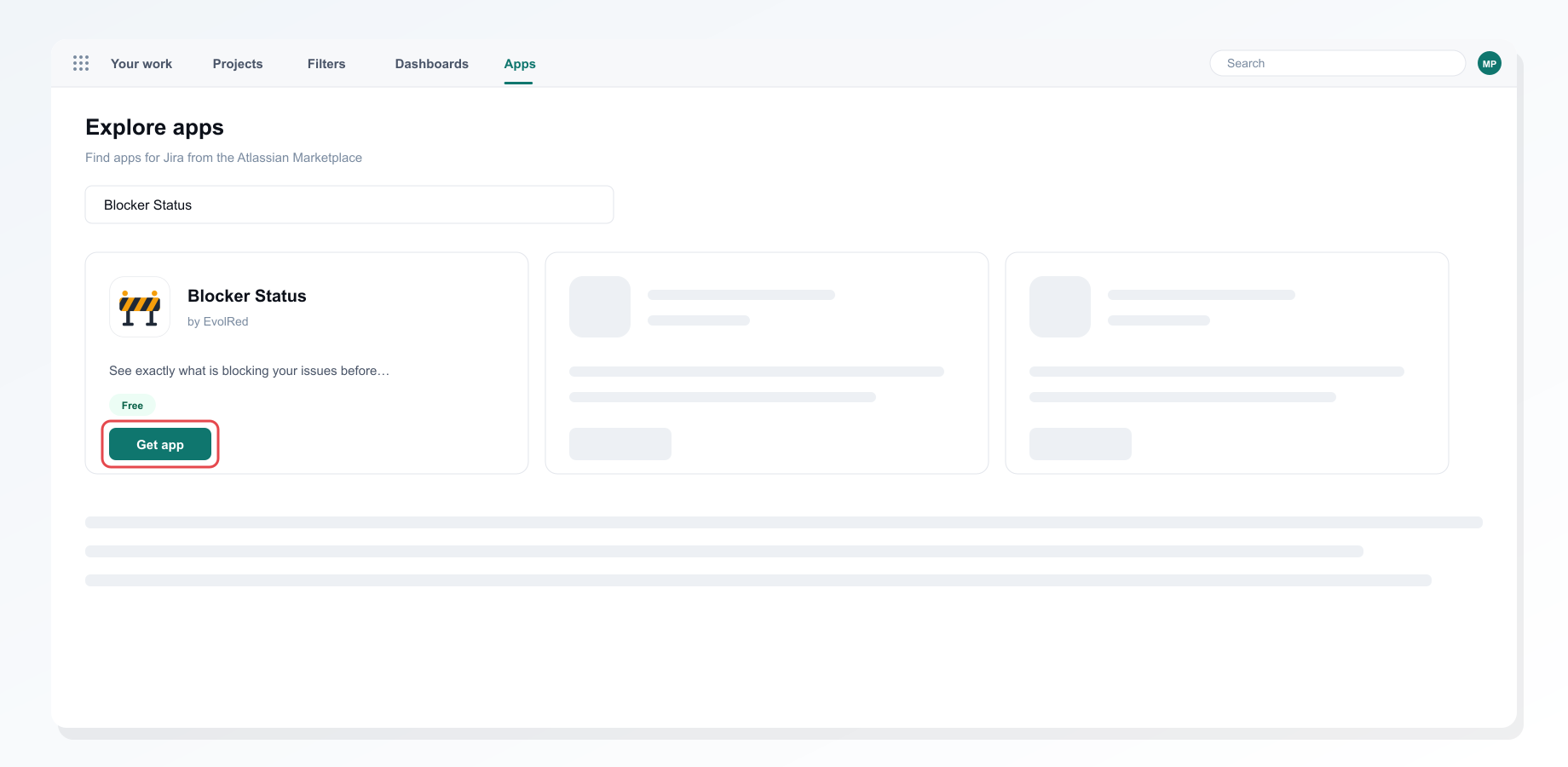 Installing Blocker Status from the Atlassian Marketplace
The app asks for read access to boards, sprints, issues and their links, which it needs to build the overview. It never changes your issues. The only thing it stores is, for each person, whether they dismissed the card that suggests other EvolRed apps.
2. Open the sprint overview
Go to your project. A new tab called Sprint Blocker Overview appears in the project navigation, next to Summary, Backlog and Board. If your project has a lot of tabs, look under More.
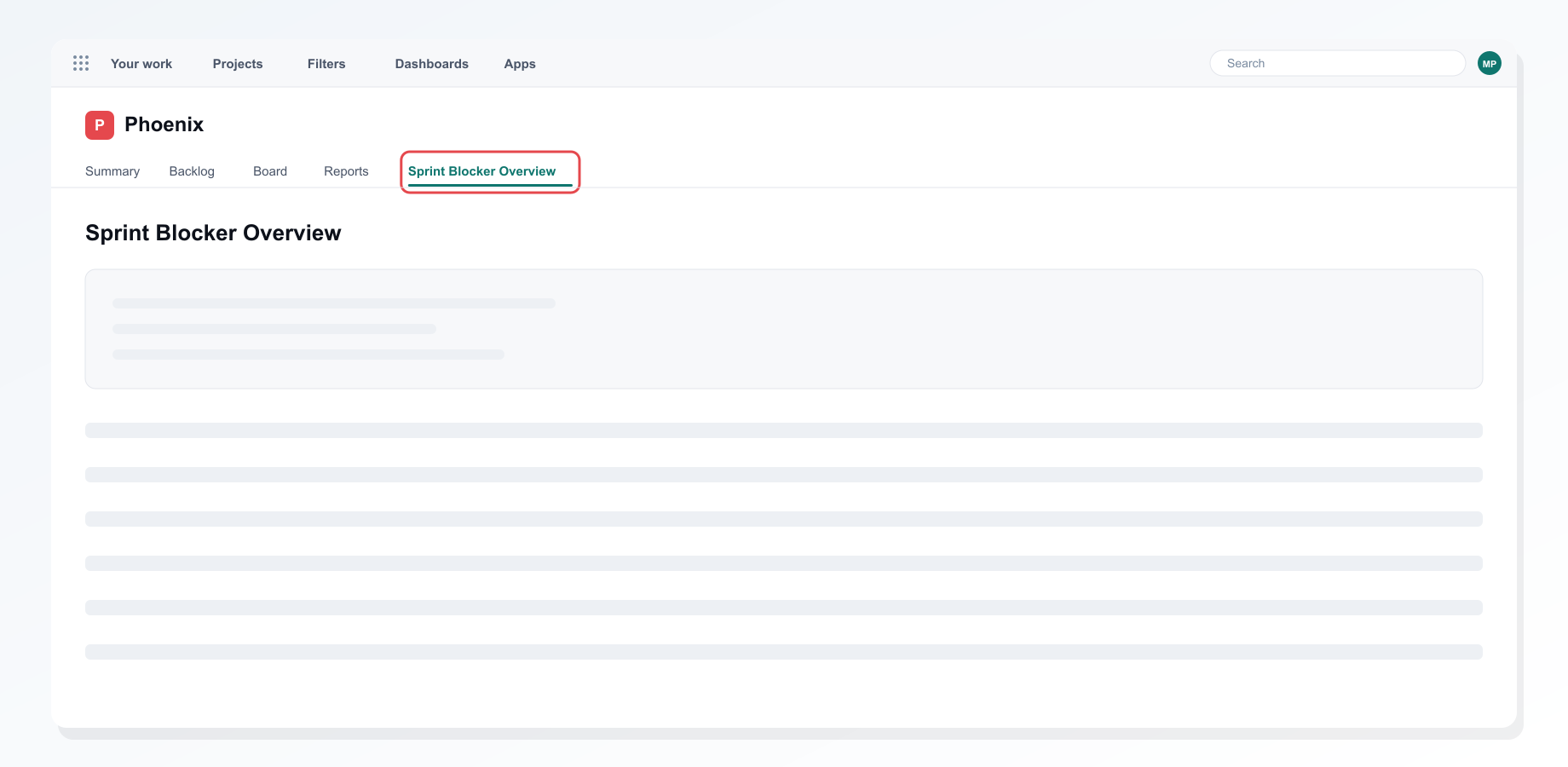 The Sprint Blocker Overview tab in the project navigation
3. Read the overview
The page shows the active sprint's name and dates, then four counts:
| Count | What it means |
|---|---|
| Fully blocked | The issue has open blockers, and none of its blockers are resolved yet. |
| Partially blocked | The issue still has open blockers, but at least one of them is already resolved. |
| No blockers | Nothing open is blocking the issue. |
| Done | The issue is in a Done status. It is counted here even if it still links to open work. |
Below the counts, every issue in the sprint is listed with its status and a blocker badge, such as "1 blocker" or "1 blocker · 1 resolved".
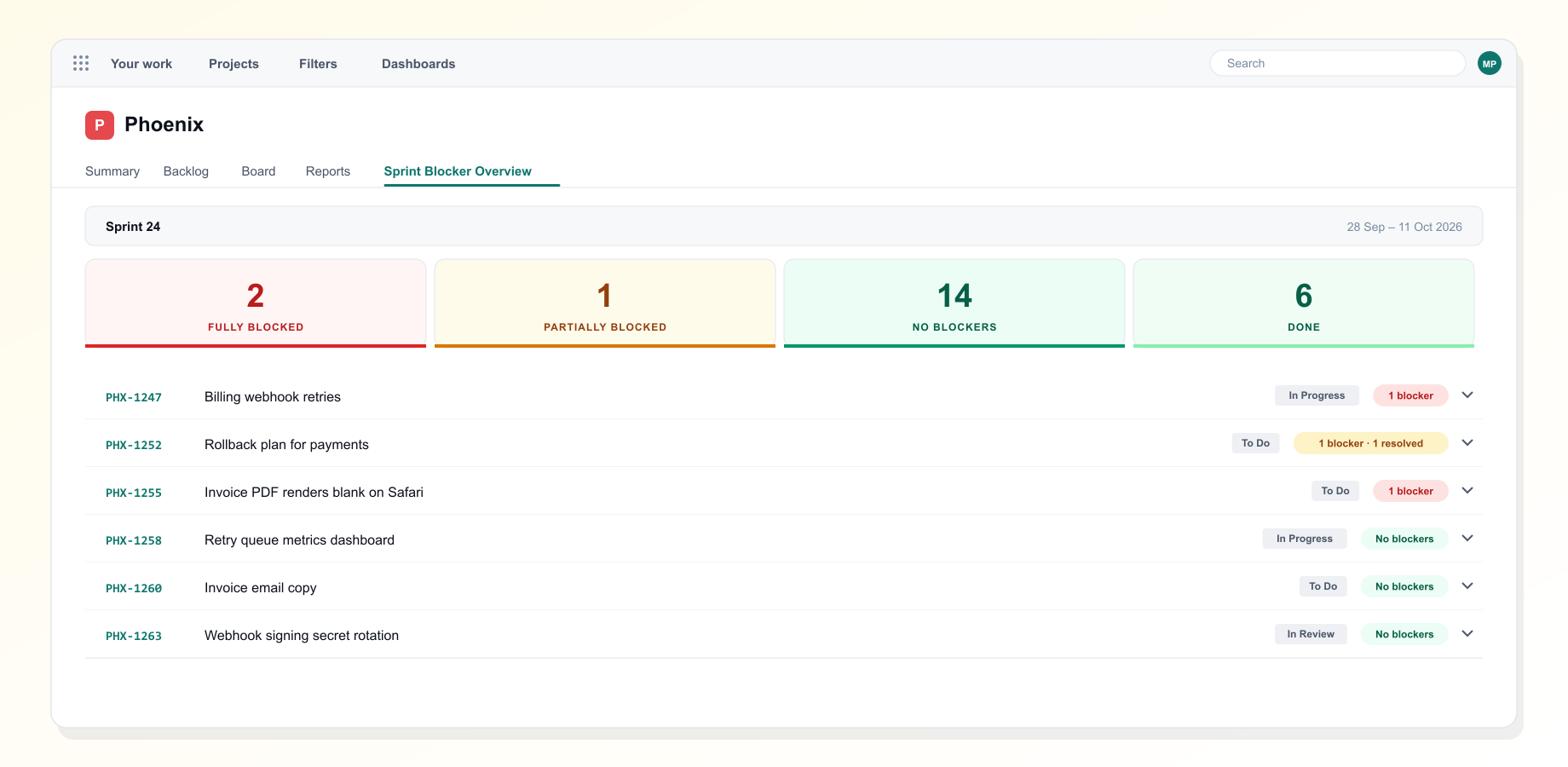 The sprint overview with the four counts and the issue list
4. See what is in the way
Select an issue to expand it. You get two lists:
- Blocking this issue: the issues it is waiting on, each with its status. Resolved blockers are marked as resolved, so you can tell a real blocker from one that has already cleared.
- This issue blocks: the work that is waiting on this issue.
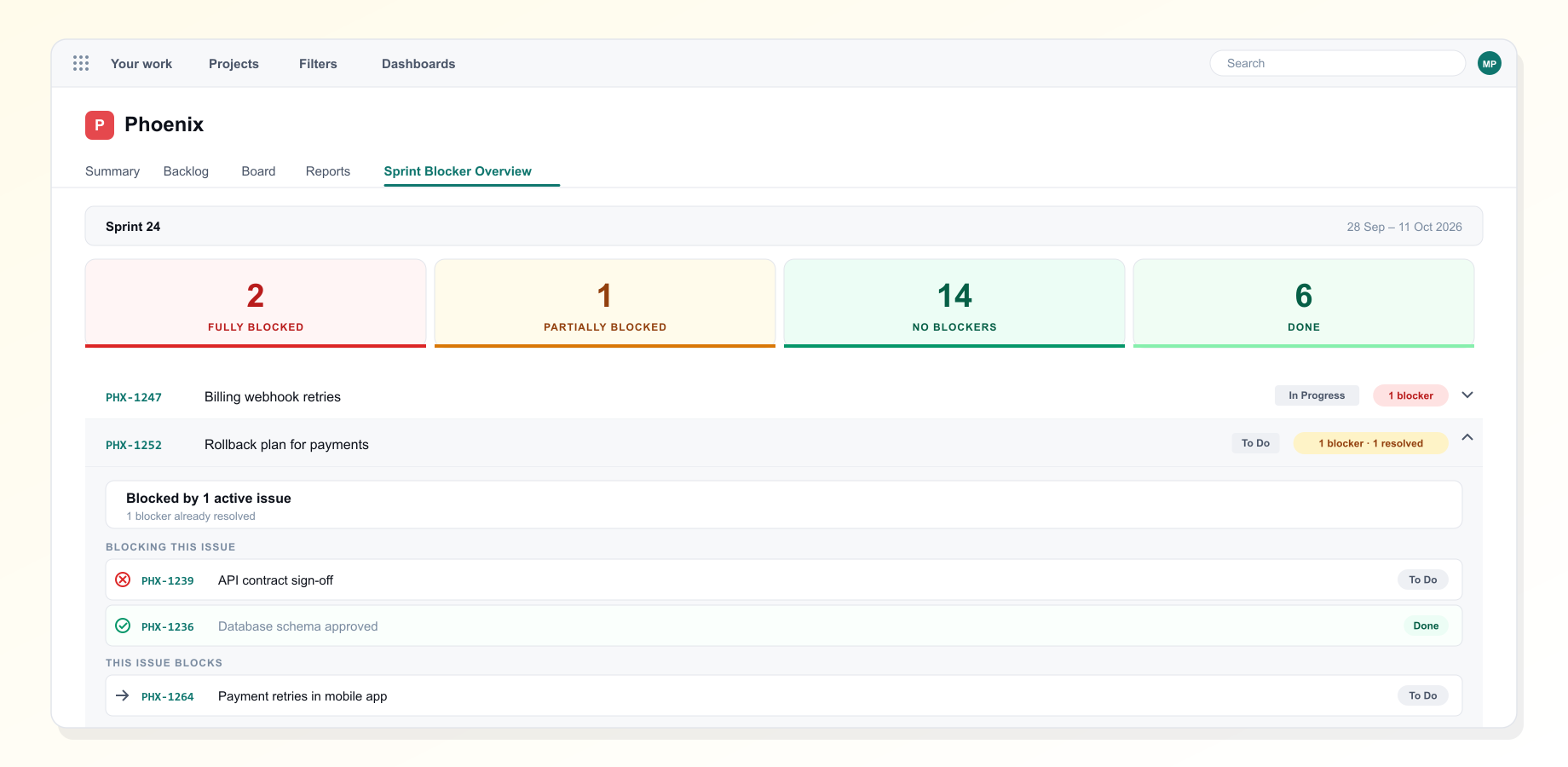 An expanded issue showing what blocks it and what it blocks
When every blocker on an issue is resolved, its badge changes to Blockers cleared. Those issues are ready to pick up.
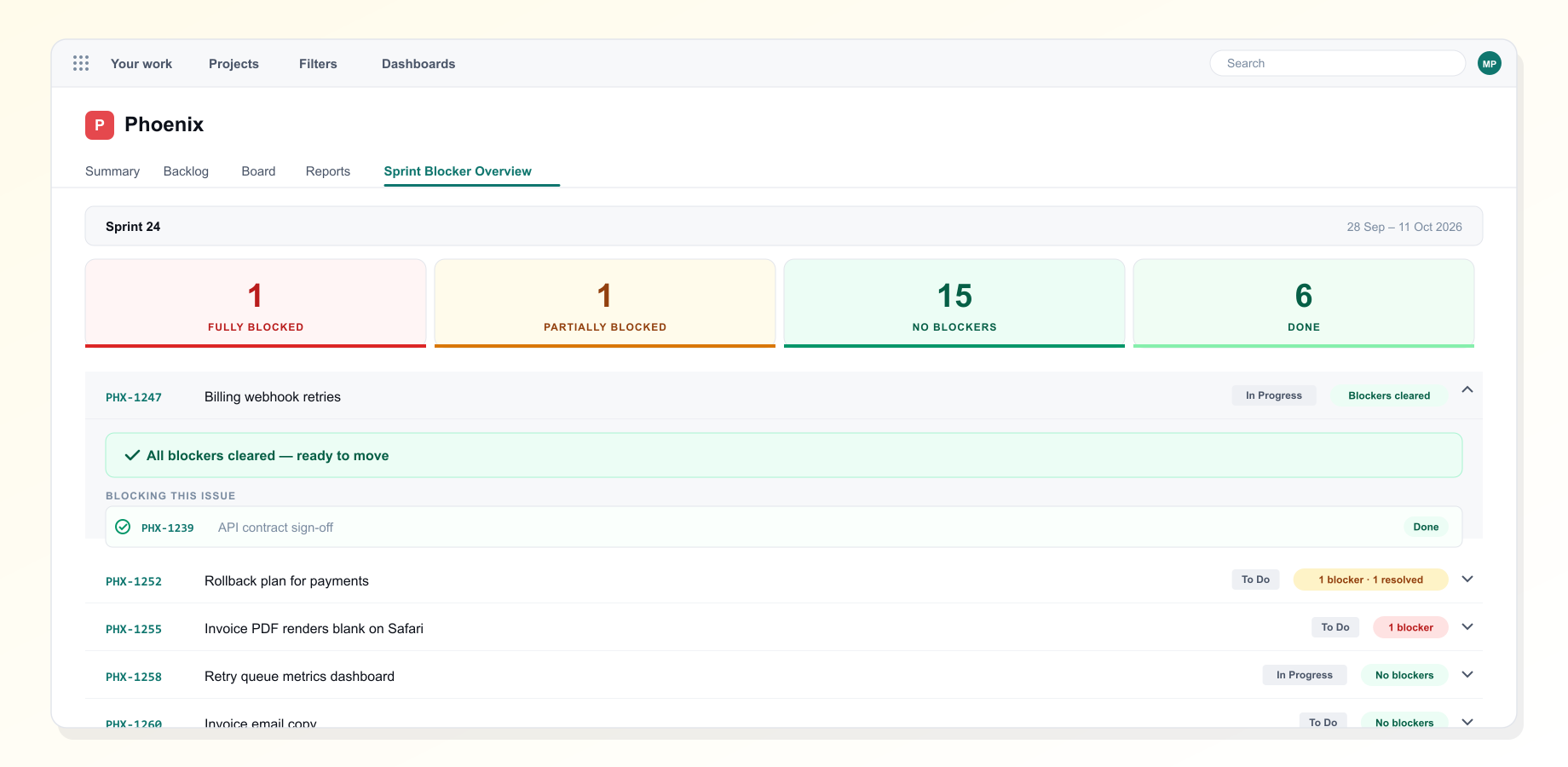 Issues whose blockers have all cleared
A blocker counts as resolved when its status is in Jira's Done category.
Troubleshooting
The page says "No active sprint". Start a sprint on the project's first board. If the project has several boards, Blocker Status uses the first one Jira returns.
An issue shows "No blockers", but I know it is blocked. Check the link type. Only Blocks links count, so change "relates to" or a custom link type to Blocks if that is what it means.
I can't find the tab. Look under More in the project navigation. If it is not there either, ask a Jira admin to check that Blocker Status is installed on this site.
A blocker still shows as open after we finished it. Move it to a status in the Done category. Statuses such as "Ready for release" usually sit in the In Progress category, so they still count as open.
Uninstalling
Remove the app from Settings, Apps, Manage apps. Blocker Status reads your sprint live and keeps no copy of your issues, so there is nothing else to clean up.
Still stuck?
Tell us what you tried and what you saw. We reply within one business day.