Before you start
You need:
- A Jira Cloud site, and admin rights on it to install apps. Once installed, it works on every issue.
1. Install the app
- Open the Issue Link Counter listing on the Atlassian Marketplace and select Get it now.
- Choose the Jira site to install it on.
- Review the permissions and confirm.
You can also install it from inside Jira: open Settings (the gear icon), go to Apps and search for "Issue Link Counter".
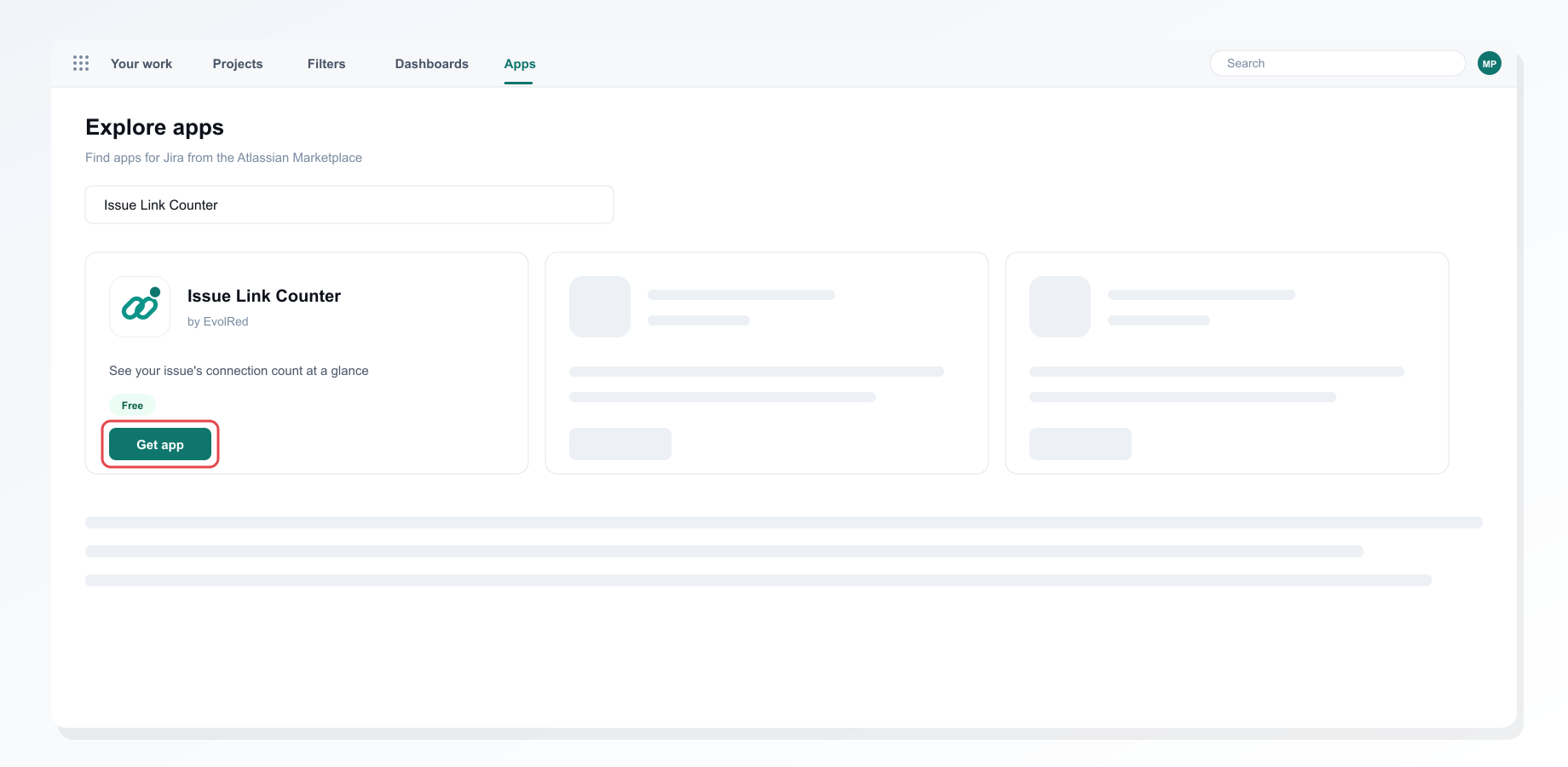 Installing Issue Link Counter from the Apps screen in Jira
The app asks for read access to issues and their links. The only thing it stores is your site's list of link types, kept for a day so it loads quickly.
2. Find the Links row
Open any issue. In the right-hand sidebar, the Links row shows how many links the issue has, without opening anything.
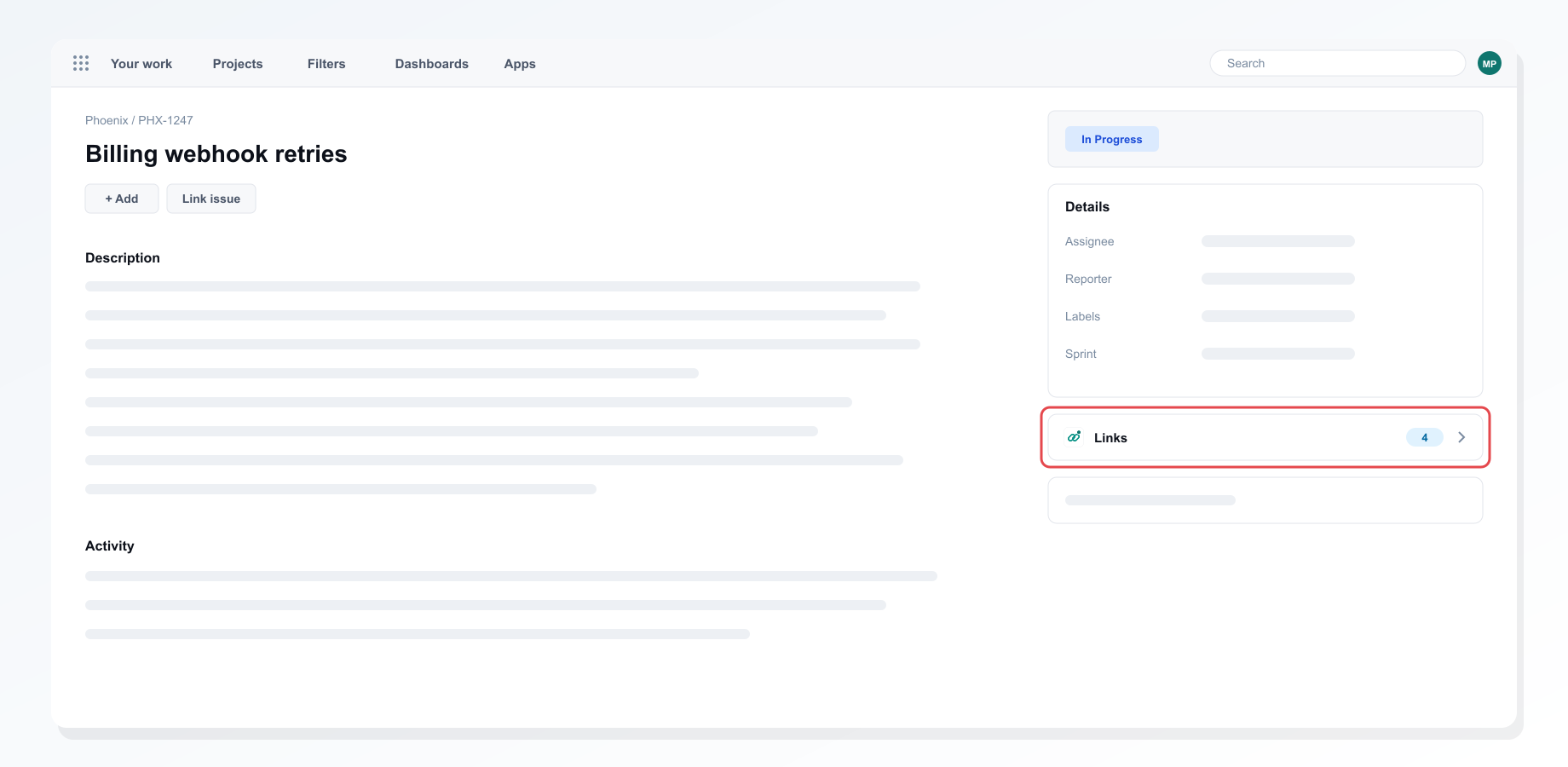 The Links row with its count in the issue sidebar
3. Open it for the details
Select Links to open it. The links are grouped by type, with the busiest type first. Each linked issue shows its key, summary, the direction of the link (for example "is blocked by") and its status.
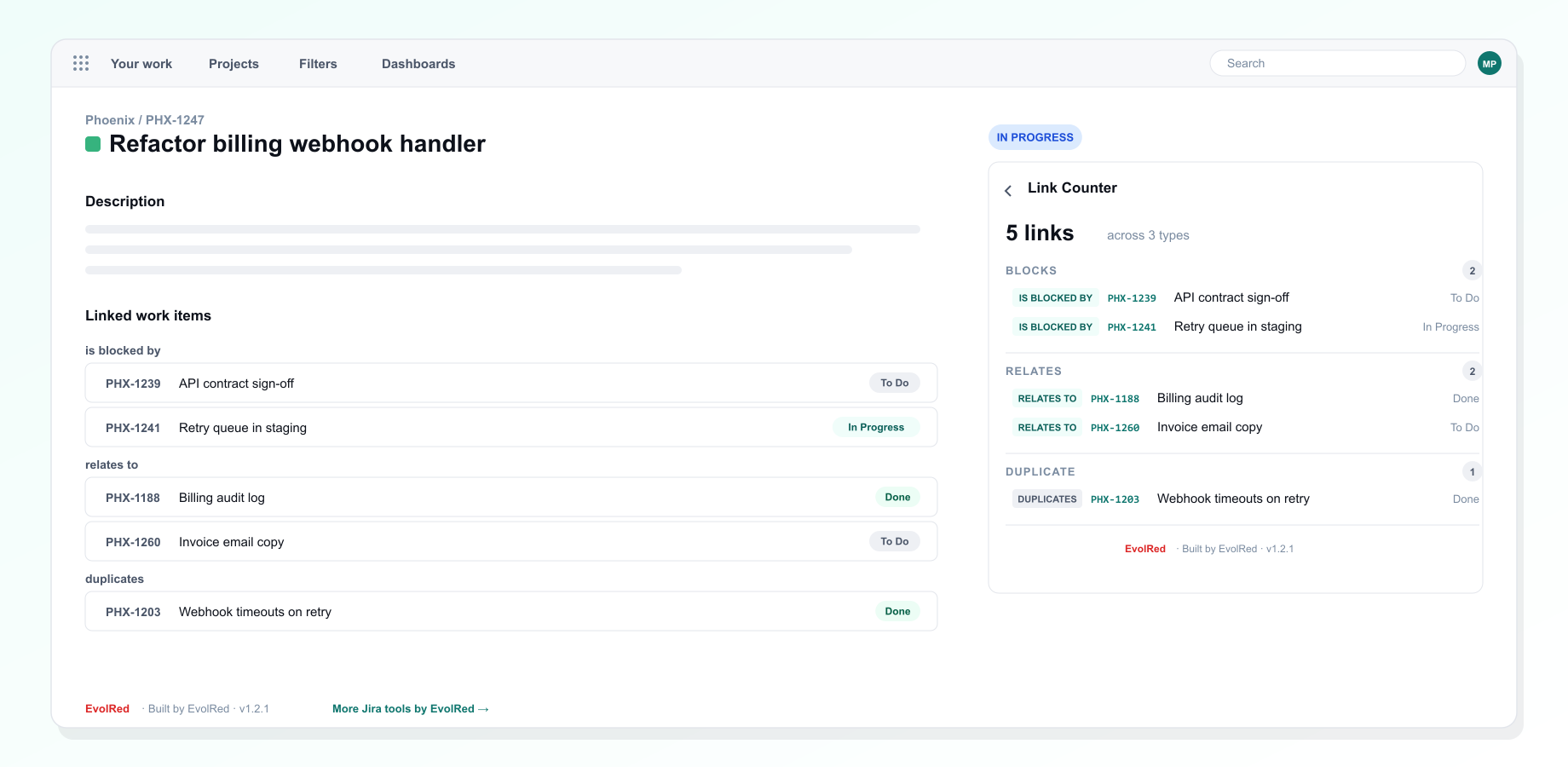 Links grouped by type, busiest first
4. Custom link types work too
Any link type on your site is counted, including ones your admins created.
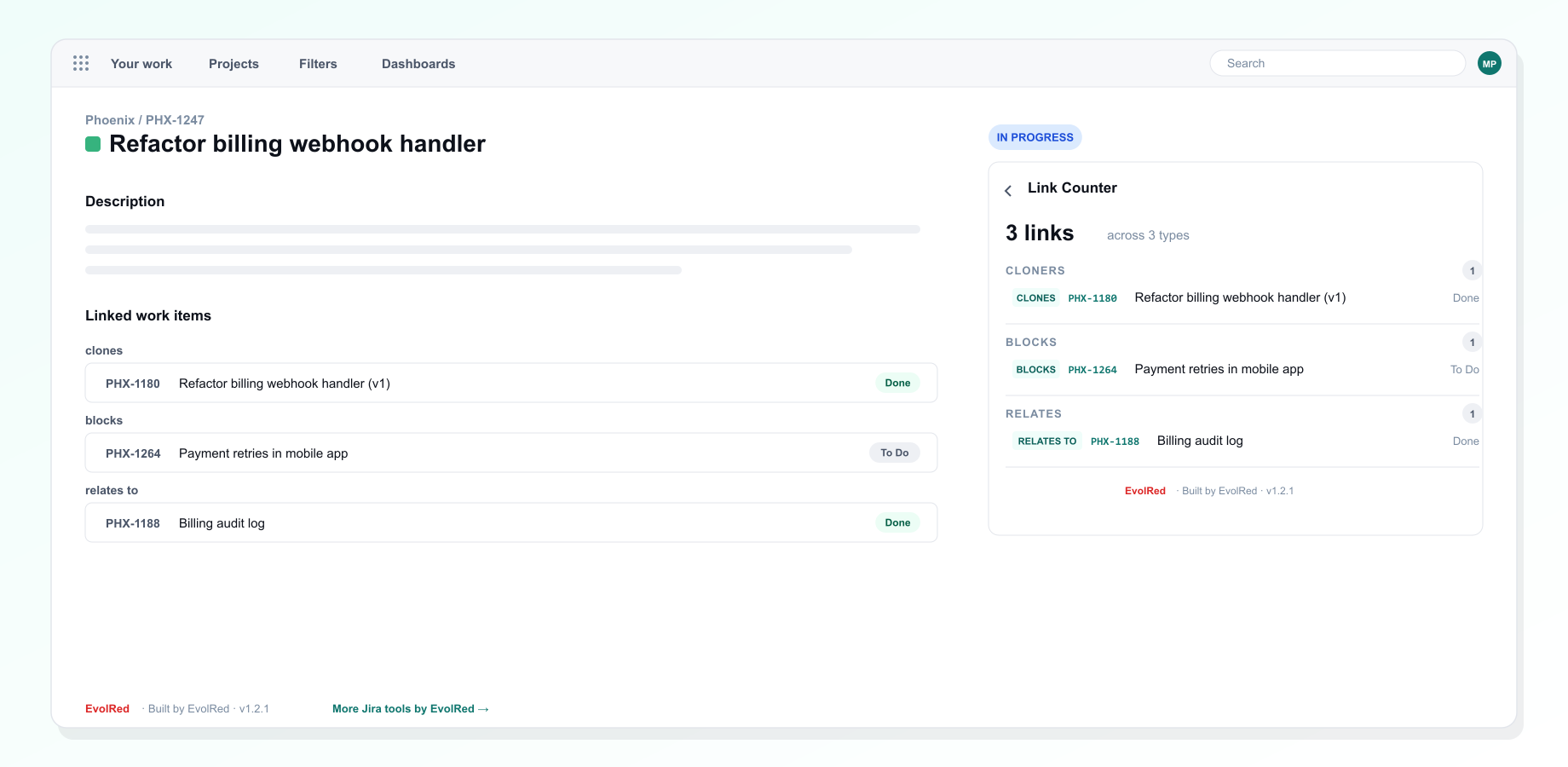 Custom link types alongside the built-in ones
Troubleshooting
The count does not change after I add a link. Close the Links panel and reopen it; the count refreshes when the panel closes.
I see an error instead of the links. Jira could not return the issue's links. Reload the issue, and contact support if it keeps happening.
Uninstalling
Remove the app from Settings, Apps, Manage apps. The cached list of link types is deleted with the app.
Still stuck?
Tell us what you tried and what you saw. We reply within one business day.